How to Sell Services With WooCommerce, Start to Finish
How to sell services with WooCommerce from start to finish: turn a product into a service, offer tiers, collect the brief after payment, deliver and get rated.

You can sell services with WooCommerce from day one: make a virtual product, give it a price, and the checkout works. What it does not do is everything that happens after the payment. A service needs a brief from the customer, a place to talk about the work, a delivery date, a way to hand over the finished file, and a rating at the end. This guide walks through the whole job in order, from turning a product into a service to closing the order, using the store you already run.
We build and support Woo Sell Services, the WooCommerce add-on this site is about, so the steps below show how it handles each stage. Where WooCommerce on its own is enough, we say so.
In this guide
- Can you sell services with WooCommerce without a plugin?
- What to have ready before you start
- Step 1: Turn a product into a service
- Step 2: Offer Basic, Standard and Premium with variations
- Step 3: Write the questions the customer answers after paying
- Step 4: Test the checkout you already have
- Step 5: What happens the moment someone pays
- Step 6: Do the work inside the order
- Step 7: Deliver, close and collect the rating
- Step 8: Put your services and orders on pages
- Recurring services with WooCommerce Subscriptions
- Letting other people sell services on your store
- Problems you will meet, and how to fix them
- Launch checklist
- What it costs
- Frequently asked questions
Can you sell services with WooCommerce without a plugin?
Yes for taking the money, no for running the job. Tick “Virtual” on a product and WooCommerce stops asking for a shipping address, so a logo design, an hour of consulting or a website audit can go through the normal cart and checkout. You keep your payment gateways, coupons, tax rules and order emails.
The gap shows up the minute the order lands. A physical product is finished when it ships. A service is only starting. With WooCommerce alone you end up doing the rest by email:
- You email the customer asking for the details you need, and wait.
- The brief arrives in pieces across three messages and an attachment.
- The customer asks “when will it be ready?” and you have no date written down anywhere they can see.
- You send the finished file as an attachment and hope it arrives.
- Nobody leaves a review because nothing asks them to.
None of that is a problem with three orders a month. At thirty, the inbox becomes the bottleneck and orders slip. The rest of this guide moves each of those steps onto the WooCommerce order itself, so the order page becomes the one place where the job lives.
What to have ready before you start
Half an hour of preparation saves a lot of rework. Before you touch any settings, write these down:
Item | Why it matters | Example |
|---|---|---|
One service, described in a sentence | Becomes the product title and short description | “A one-page website audit with a prioritised fix list” |
What is included, and what is not | Stops scope creep before the order starts | “Covers speed, SEO basics and security. Does not include fixing the issues.” |
A delivery time you can keep | Shown to the buyer before they pay | “5 working days” |
The questions you always ask | Become the requirement form after payment | “Your site URL”, “Your main goal”, “A login for a staff account” |
A working payment gateway | No sale without it | Stripe, PayPal or your bank’s gateway, already live on the store |
If you are still deciding which services to sell, our list of productized service examples shows how to turn open-ended work into fixed packages with a fixed price.
Step 1: Turn a product into a service
Create the product as usual, then tick “Service”. Woo Sell Services adds a Service checkbox to the Product data panel, next to the Virtual and Downloadable boxes you already know. Ticking it tells WooCommerce that this product starts a job when it is bought.
It works on the product types you already use: simple, variable, grouped and external products. That matters because you do not have to rebuild your catalogue. An existing “Website Audit” product becomes a service with one tick.
On the same screen, set the estimated delivery time. The buyer sees it on the product page before paying, which answers the most common pre-sale question before anyone has to ask it. If a job runs long, the delivery date can be updated later from the service page, so you are never stuck with a promise you set months ago.
A few practical tips for the product page itself:
- Write the title as the outcome, not the activity: “Speed audit with a fix list” sells better than “Speed consultation”.
- Put the “not included” list in the description. It looks less friendly than a feature list, but it prevents most disputes.
- Use a real example of a past deliverable as the product image, with client details removed, instead of a stock photo.
Step 2: Offer Basic, Standard and Premium with variations
Use a WooCommerce variable product for tiers. Most service sellers end up with three sizes of the same job. WooCommerce already has the tool for that: a variable product with one attribute, such as “Package”, and one variation per tier, each with its own price.
- Change the product type to Variable product and tick Service.
- Under Attributes, add “Package” with the values Basic | Standard | Premium, and tick “Used for variations”.
- Under Variations, create one variation per value and set each price.
- Use each variation’s description to say exactly what that tier adds.
Tier | What it usually adds | Who it is for |
|---|---|---|
Basic | The core deliverable, one round of changes | Buyers testing you for the first time |
Standard | More pages or hours, two rounds of changes, faster delivery | Most buyers; price this one as your main offer |
Premium | Everything in Standard plus a call, priority delivery or extra deliverables | Buyers who value speed and contact |
Because these are normal variations, everything else in WooCommerce keeps working: the cart shows the chosen tier, coupons apply, and your reports split sales by variation without any extra setup.
Step 3: Write the questions the customer answers after paying
Ask for the brief after payment, not before. A long form on the product page costs sales, because people stop filling it in halfway. Woo Sell Services shows your requirement questions to the buyer once they have paid, when they are committed and motivated to give you good answers.
Good requirement questions are specific and can be answered without a call:
- Ask for links and files, not descriptions of them: “Paste your website URL” beats “Tell us about your site”.
- Ask one thing per question, so you can see at a glance what is missing.
- Ask what success looks like: “What should be different when this is done?”
- Ask for access last, and say exactly which kind of account you need.
Question sets can be saved and reused on the next service, so a store with ten services does not need ten forms written from scratch. Our guide to client intake form questions has copy-ready sets for six common services.
Step 4: Test the checkout you already have
Nothing about the checkout changes, so test it once like a customer. Woo Sell Services sells through the WooCommerce checkout you already run, so your gateways, coupons, tax settings and order emails all stay as they are. Before you announce the service, place one real order yourself:
- Create a 100% coupon for yourself, or use your gateway’s test mode.
- Buy the service as a logged-out visitor, so you see what a new customer sees.
- Check that the order email arrives, the account is created, and the requirement questions appear.
- Answer the questions, send a message on the order, attach a file.
- Switch to the admin side and check the same order shows everything.
This ten-minute test catches the problems that otherwise reach a paying customer first: an email going to spam, a guest checkout setting that hides the order page, or a payment gateway left in test mode.
Step 5: What happens the moment someone pays
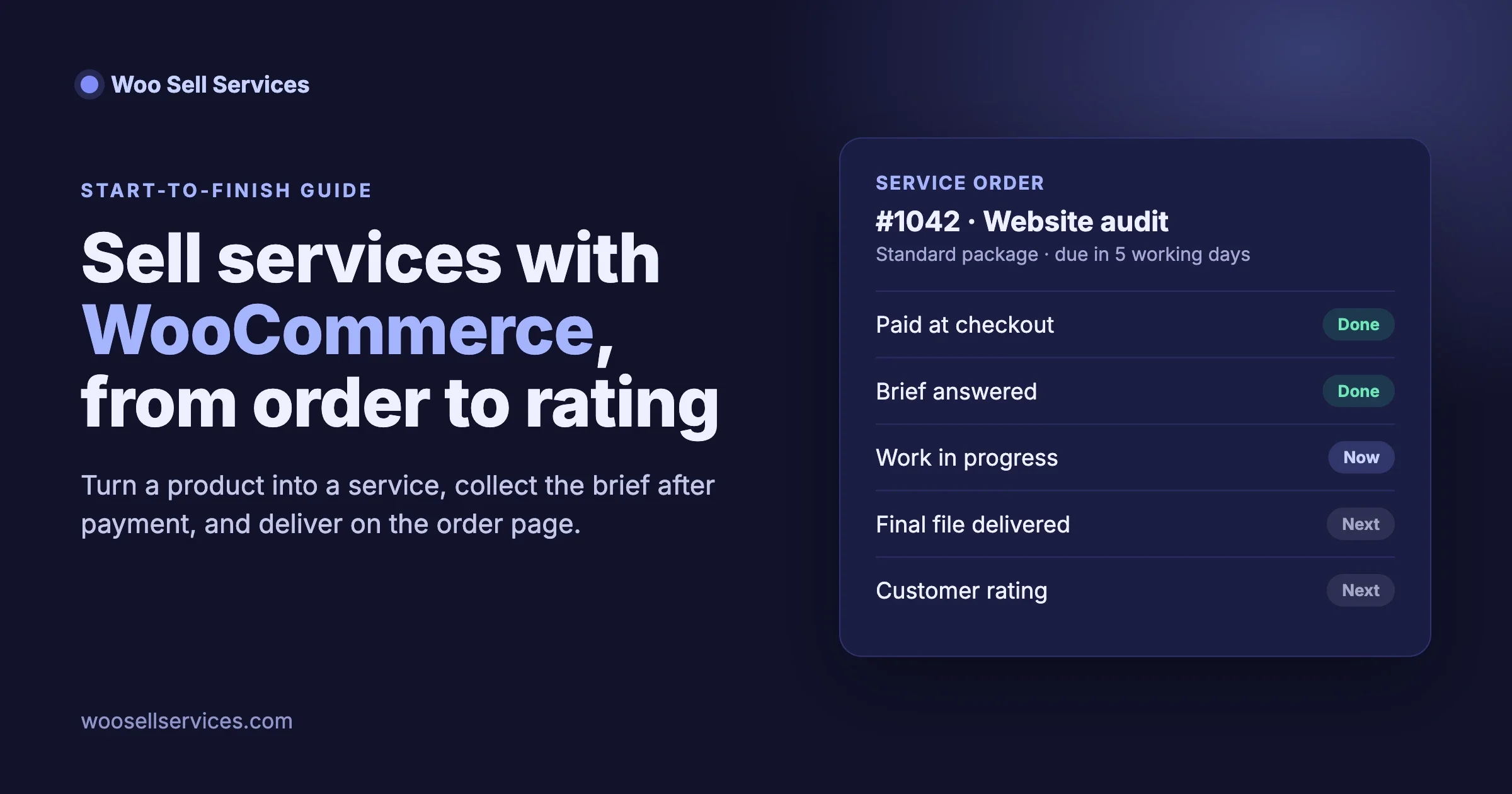
The order turns into a small project page. Here is the order flow from the buyer’s side:
- They buy the service like any product, seeing your estimated delivery time on the way.
- After payment, they answer your requirement questions.
- The order now has a conversation, shared files and a status tracker. Both of you get notifications when something changes, and the seller gets an email for every new order.
- When the work is done, the seller attaches the final file and marks the order delivered. The buyer then rates the work.
The important change is where the conversation lives. Instead of an email thread that only the two of you can find, everything about the job sits on the order: the brief, every message, every file, and the current status. When a customer writes “any update?”, the answer is already on the page they are looking at.
Step 6: Do the work inside the order
Keep every message and file on the order, even when email would be quicker. It feels slower for the first few jobs. It pays off the first time a customer disputes what was agreed, because the whole history is in one place with dates.
Three habits that keep service orders moving:
- Acknowledge the brief within a day. A short “Got everything, starting tomorrow” message on the order cuts follow-up questions in half.
- Post work in progress. A draft or a screenshot halfway through catches a misunderstanding while it is still cheap to fix.
- Update the delivery date the moment it slips, not on the day it was due. Buyers forgive a moved date. They do not forgive silence.
When one person is not enough, a seller can add a co-author or a support agent to a service or to a single order. That second person sees the conversation and gets its notifications, so a designer and a copywriter can work the same order without forwarding emails to each other.
Step 7: Deliver, close and collect the rating
Attach the final file to the order and mark it delivered. The buyer gets a notification, downloads the file from the order page, and is asked to rate the work. Because the vendor rating syncs to the standard WooCommerce product review, a happy customer’s rating shows on the product page like any other review, which is the proof the next buyer looks for.
Two small things make delivery go better:
- Name files for the customer, not for you: “Acme-speed-audit-final.pdf” rather than “audit_v7_FINAL2.pdf”.
- Add a short handover note on the order: what is in the file, what to do next, and how long you will answer questions about it.
Step 8: Put your services and orders on pages
Use the shortcodes to place services and order screens wherever you want them. WooCommerce shows products on its shop page, but a service business usually wants a dedicated “Services” page and a clean place for customers to see their orders. Woo Sell Services includes four shortcodes for that:
Shortcode | What it shows | Where to put it |
|---|---|---|
| Your list of services | A “Services” page in the main menu |
| The provider side of the service screens | A page for sellers and team members |
| One service order with its conversation and files | The page customers land on to follow their order |
| Service notifications | A dashboard or account page |
Paste a shortcode into a Shortcode block in the page editor, publish the page, and add it to your menu. Check each page while logged in as a test customer, so you see what they see.
Recurring services with WooCommerce Subscriptions
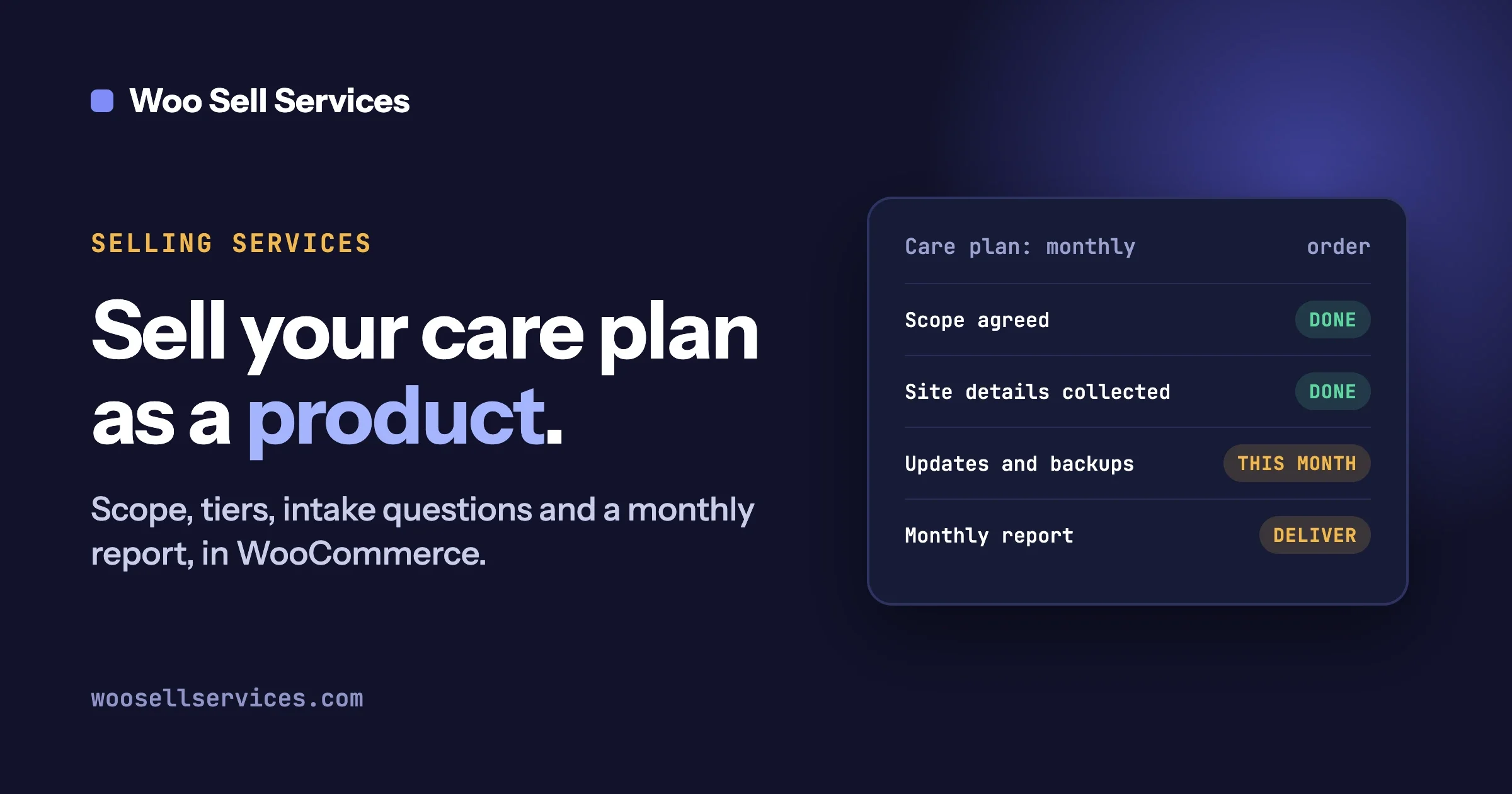
For monthly work, pair the service with WooCommerce Subscriptions. Website care, monthly content, bookkeeping and retainers are services that renew. When WooCommerce Subscriptions is active, Woo Sell Services can sell a service on a recurring plan, and every renewal order stays in the one conversation thread. The customer does not get a fresh, empty order page every month; the history of the whole relationship stays together.
That makes monthly reporting simple: post the month’s report on the thread, and the customer can scroll back through every previous month in one place. Our guide to selling a website care plan as a WooCommerce product covers how to scope, price and report on a recurring service.
Letting other people sell services on your store
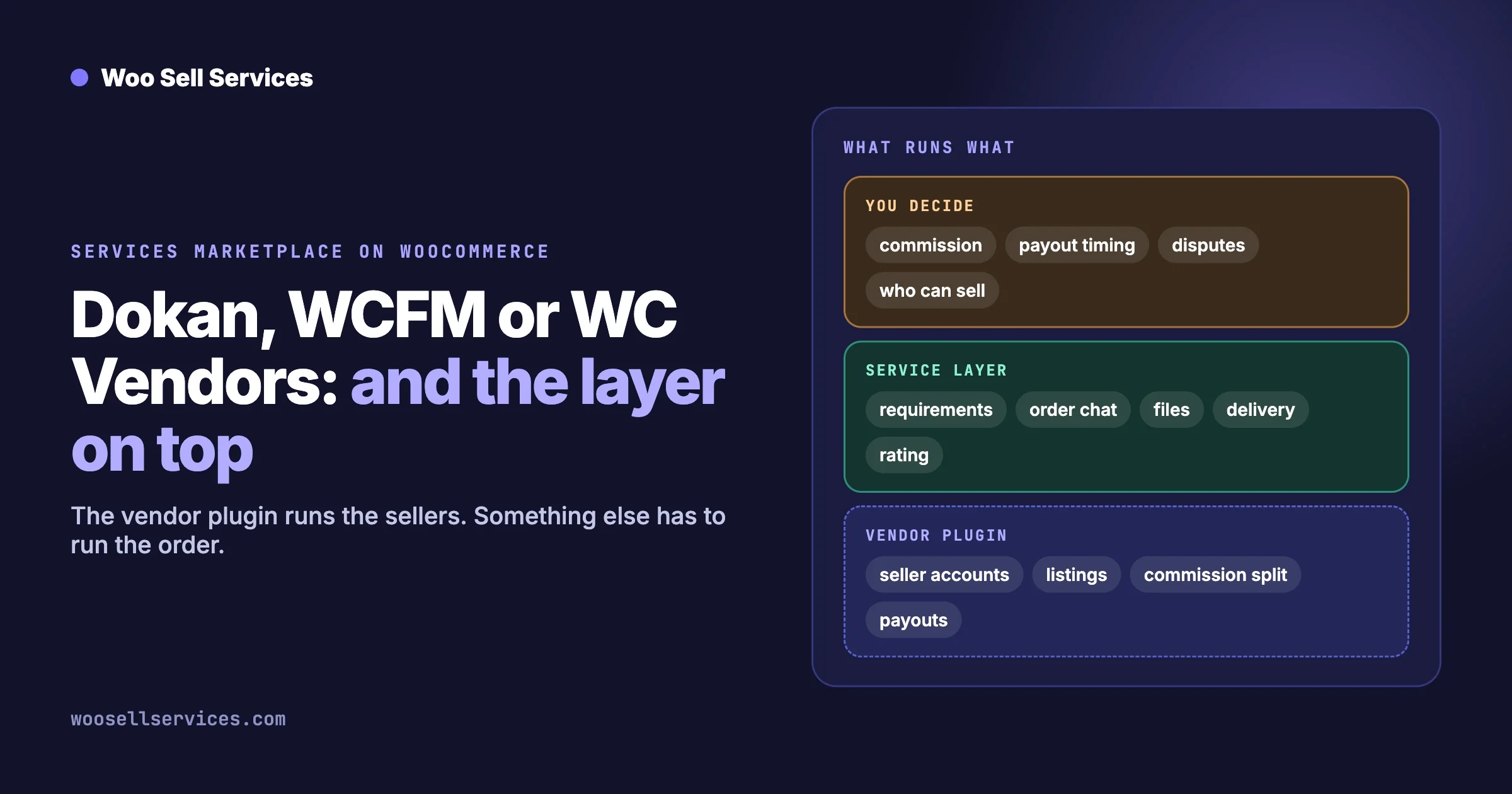
If you run, or plan to run, a multivendor store, services join the vendor workflow you already have. Woo Sell Services works with Dokan, WCFM and WC Vendors. Vendors create and manage their services from the frontend, the same way they manage products today:
- Dokan: vendors add services from the Dokan frontend dashboard and keep their orders there.
- WCFM: service orders show up beside product orders in the WCFM vendor panel.
- WC Vendors: vendors manage their services alongside their other listings.
Choosing between the three is a bigger decision than this guide can cover. Our comparison of Dokan, WCFM and WC Vendors for a services marketplace walks through what each one covers and what a service order still needs on top.
Problems you will meet, and how to fix them
The buyer paid but never answered the questions
Symptom: the order is paid, the requirement form is still empty, and the delivery clock is running. Check: open the order and confirm the questions were shown; look in the order notes for the notification. Fix: post a friendly message on the order listing exactly what you need, and move the delivery date to count from the day the brief arrives. Prevent: say in the product description that delivery starts once the questions are answered.
The customer says they never got the notification
Symptom: “I didn’t know you replied.” Check: send yourself a test order and see whether WooCommerce emails reach an outside inbox or land in spam. Fix: send store email through a proper mail service with SPF and DKIM set up, not the server’s default mail. Prevent: repeat the test order after any hosting move or email change.
The job is running late
Symptom: the estimated delivery date is close and the work is not. Check: is the delay on your side, or waiting on the customer? Fix: update the delivery date on the service, and say why on the order in one sentence. Prevent: set the estimated delivery time with a buffer; a job delivered early earns a better rating than one delivered on the exact day.
The customer has gone quiet before sign-off
Symptom: you delivered, and the customer has not replied or rated. Check: confirm the delivery notification went out. Fix: post one follow-up on the order a few days later with a clear question, such as “Is there anything you want changed before we close this?” Prevent: state in the description how long the change window stays open after delivery.
Scope keeps growing
Symptom: “Can you also...” messages on an order that is already paid. Check: compare the request with the “included” list on the product. Fix: answer on the order that this is outside the package, and point to the higher tier or a separate service. Prevent: keep the “not included” list on every product, and make your Premium tier the natural home for extras.
Launch checklist
Check | Done when |
|---|---|
Service ticked on each service product | The product shows an estimated delivery time |
Tiers set up as variations (if you offer them) | Each tier has its own price and description |
Requirement questions written and saved | The test order shows them after payment |
Test order placed as a logged-out visitor | Email received, questions answered, file attached |
Store email reaches outside inboxes | The test order emails are not in spam |
Services page and order page published | Shortcode pages checked as a test customer |
“Not included” list on every service | Visible in the product description |
Recurring plan set up (if selling monthly work) | A renewal order lands in the same thread |
What it costs
Woo Sell Services is a paid add-on, and every plan includes the full feature list. The plan only sets how many sites you can use it on and the support level. We checked these on the product page on 17 October 2026:
Plan | Sites | Yearly | Lifetime |
|---|---|---|---|
Personal | 1 | $59 | $199 once |
Professional | 5 | $129 | $299 once |
Agency | Unlimited | $299 | $499 once |
Yearly plans renew after the first year at 30 percent of the base price, and there is a 30-day money-back guarantee. Personal includes standard email support; Professional and Agency include priority email and live chat for urgent issues. You also need WooCommerce, which is free, and, only if you sell recurring services, WooCommerce Subscriptions.
When you do not need a plugin
Be honest with yourself here. If you sell a handful of services a month, every job needs a call anyway, and you are happy running the work by email, WooCommerce with a virtual product is enough. Add a clear “what happens next” note to the order email and you are done.
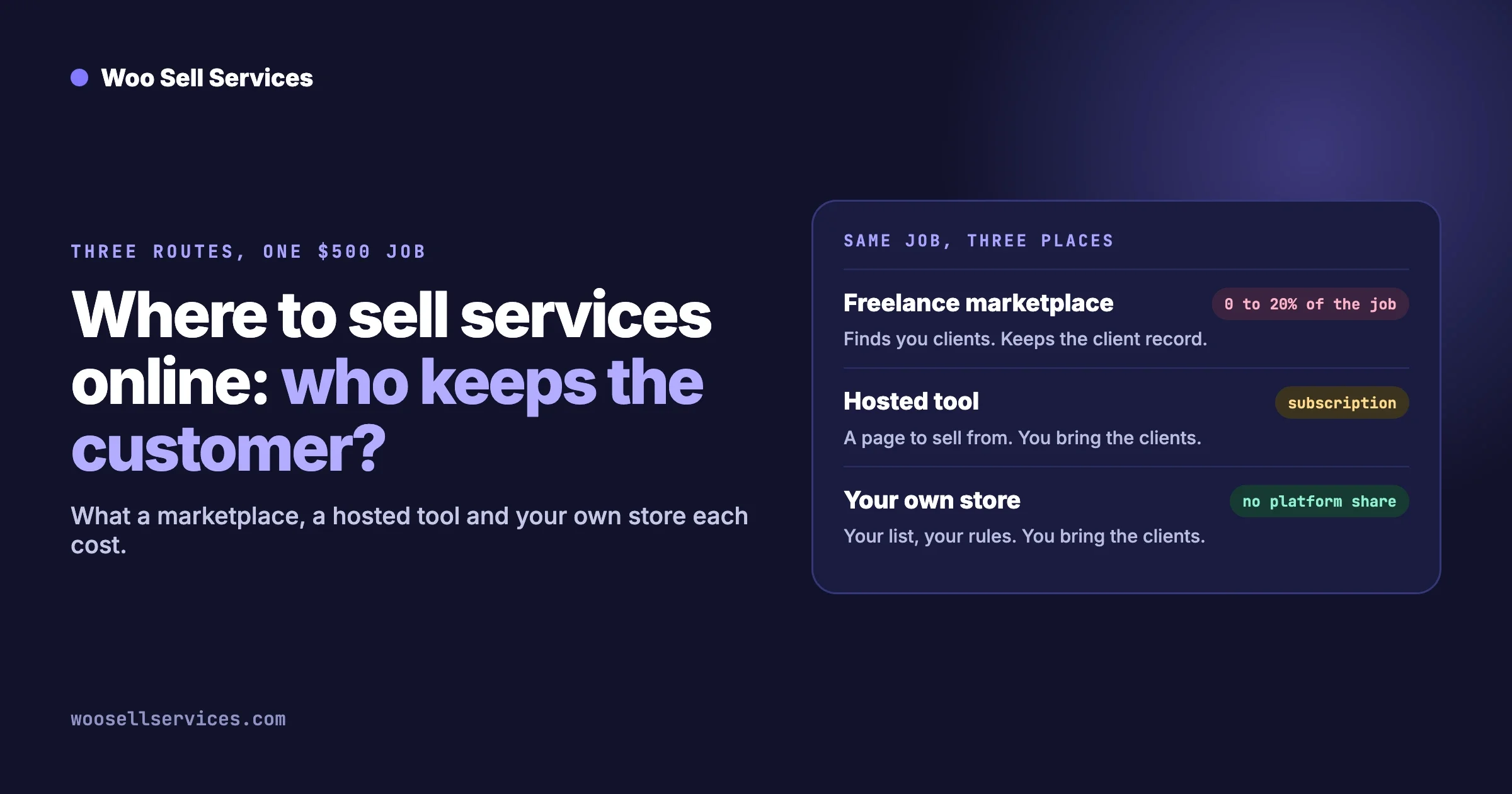
A plugin earns its place when one of these is true: orders arrive while you are busy and need a brief collected without you; more than one person works on jobs; customers keep asking for updates; or you want other sellers on your store. If you are still weighing up whether your own store is the right place to sell services at all, our guide on where to sell services online compares a marketplace, a hosted tool and your own store.
If your store runs on Easy Digital Downloads rather than WooCommerce, our sister site has the same walkthrough for Easy Digital Downloads.
Frequently asked questions
Can I sell a service instead of a product on WooCommerce?
Yes. Make the product virtual so WooCommerce does not ask for shipping, and it will take payment for a service. To collect the brief, talk on the order and deliver files through WooCommerce, add a service plugin such as Woo Sell Services, which turns the order into a project page.
Do I need to know how to code?
No. Everything in this guide is done from the product screen and the page editor: a checkbox, product variations, saved question sets and shortcodes pasted into pages.
Does it work with my existing products and checkout?
Yes. The Service checkbox works on simple, variable, grouped and external products, and services sell through your normal WooCommerce cart and checkout with your existing gateways, coupons and tax settings.
Can I change the delivery date after the order starts?
Yes. The delivery date can be updated later from the service page, and the buyer sees the new date.
Can two people work on the same order?
Yes. A seller can add a co-author or a support agent to a service or to a single order. That person sees the conversation and gets its notifications.
Can I sell monthly services?
Yes, with WooCommerce Subscriptions active. Each renewal order is kept in the same conversation thread as the first order.
Do customer ratings show on the product page?
Yes. The vendor rating syncs to the standard WooCommerce product review, so it appears with your other reviews.
How we checked this
We wrote this guide from the Woo Sell Services product documentation and feature list for version 5.8.7 (updated September 2026), and checked plans and prices on the product page on 17 October 2026. WooCommerce steps refer to the standard product data panel, variable products and checkout in current WooCommerce. If something here no longer matches what you see in your store, tell us through the contact page and we will correct it.
Ready to sell services with WooCommerce on your own store? See everything the add-on does on the features page, compare plans and pricing, or get Woo Sell Services on the Wbcom Designs store. If you need something it does not do out of the box, our custom development team builds on top of it.