Free vs Paid UI Design Tools: What’s Best for You?

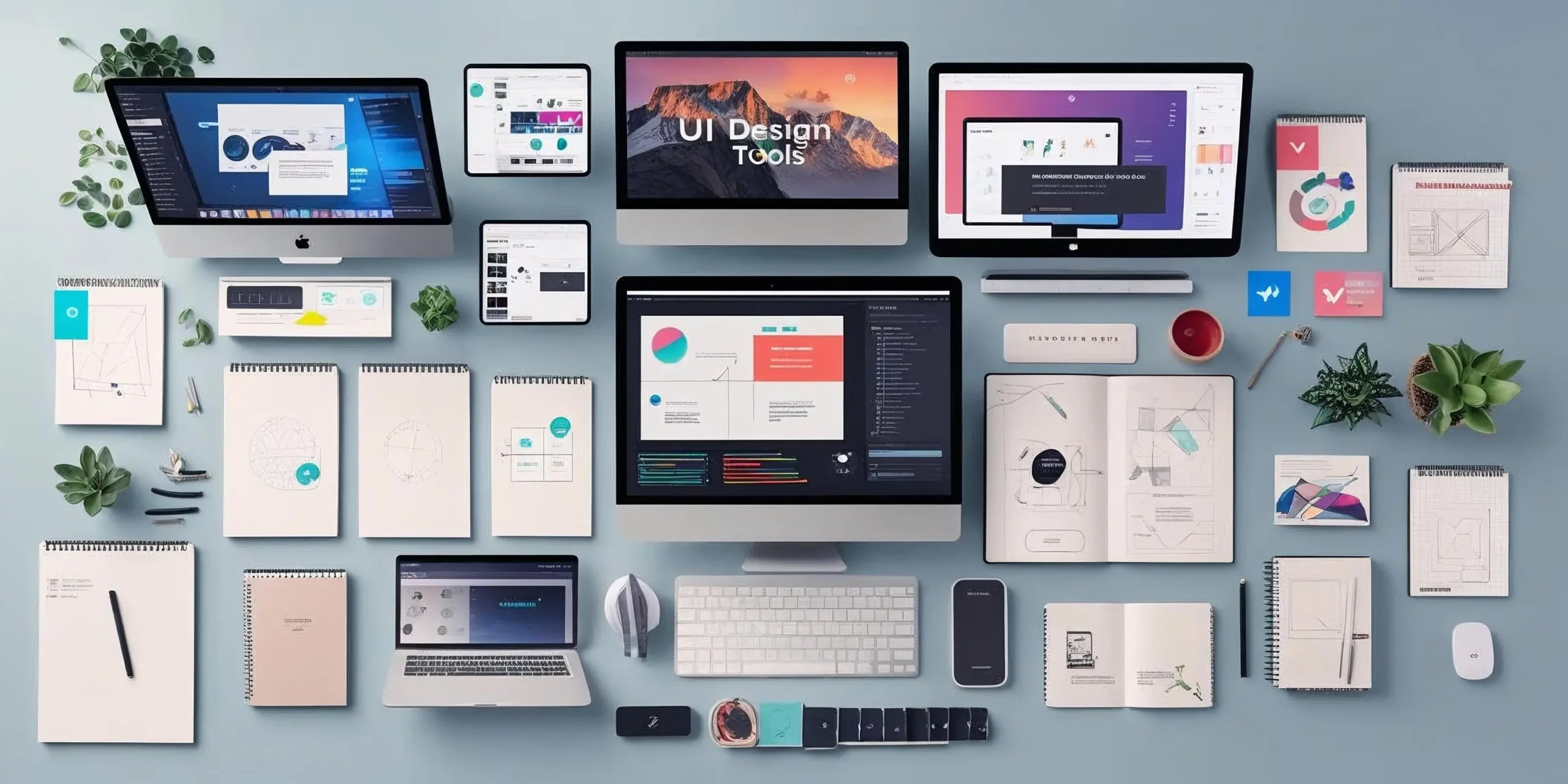
In the rapidly evolving world of digital design, UI design tools aren’t just software, they’re the lifeblood of a designer’s workflow. From wireframes to high-fidelity prototypes, these tools shape how ideas move from imagination to interface.
But with dozens of options on the market, many offering powerful free versions alongside premium subscriptions, creators are faced with an essential question:
Should you stick with a free UI design tool or invest in a paid one?
The answer isn’t always straightforward. It depends on your project’s complexity, team dynamics, budget, and scalability needs. In this guide, we’ll explore both sides of the equation, free vs paid, using real-life comparisons, platform examples, and strategic guidance to help you decide what works best for your current goals and long-term success.
“The right design tool doesn’t just help you create, it helps you think, test, and deliver better.”
Jules A., Product Designer at a SaaS Startup

The Role of UI Design Tools in 2026
UI design is no longer a “nice to have.” It’s the front line of user experience, brand identity, and conversion optimization. Whether you’re building an app, revamping a website, or launching a SaaS product, the tool you choose directly influences:
- How fast you can iterate
- How well you can collaborate
- How easily developers can implement your vision
- How effectively you test and adapt your user interface
Design tools today are collaborative, cloud-based, and often paired with prototyping, motion, and accessibility testing capabilities. Choosing the right one is no longer about preferences, it’s about performance and alignment.
Why Free Tools Are More Powerful Than Ever
Not long ago, “free” design tools were glorified sketchpads. Today, platforms like Figma, Penpot, and Canva have disrupted the industry by offering surprisingly full-featured, browser-based design platforms at zero cost, perfect for freelancers, learners, and early-stage teams.
Figma’s free tier, for example, provides real-time collaboration, cloud saving, prototyping, and even plugin support. For solo designers or small teams, it’s often more than enough.
Penpot, an open-source alternative, is also gaining momentum, especially among developers who want tight integration between UI and code. It’s community-driven, customizable, and cost-free.
Canva, while not a full UI tool in the traditional sense, enables quick layout drafts, marketing visuals, and mobile screen mockups. It’s perfect for non-designers or marketers contributing to the design process.
“As a freelancer, I used Figma’s free version for two years. It handled everything, from pitch decks to mobile app wireframes. Only when I started managing a team did I feel the need to upgrade.”
Chloe S., Freelance UX Designer
The Limitations That Come With “Free”
As feature-rich as free tools have become, they do come with constraints.
You might encounter limits on:
- Number of active files or projects
- Team sharing permissions
- Version control and branching
- Advanced prototyping features
- Dedicated customer support
For personal projects or small-scale freelance gigs, these may never become an issue. But when you’re managing multiple clients, collaborating across departments, or shipping enterprise-grade applications, the cracks begin to show.
It’s at this point that investing in paid tools isn’t a luxury, it’s a necessity.
The Case for Paid UI Design Tools
Paid tools bring more than just premium features. They bring reliability, scalability, integration, and support.
Platforms like Adobe XD, Sketch, and Axure RP are built to serve mid-to-large teams who need complex workflows, secure handoffs, multi-platform designs, and long-term project organization.
Take Adobe XD, for instance. It integrates seamlessly with Creative Cloud, allowing for shared brand libraries, animations via Auto-Animate, and voice prototyping. It’s a favorite among agencies and in-house teams already using Adobe products. Worth noting for anyone planning a build in 2026: Adobe has been steadily narrowing Adobe XD’s roadmap in favor of Figma-style collaborative workflows inside Creative Cloud, so teams standardizing on it long-term should confirm current feature parity and licensing terms directly with Adobe before committing a whole design system to it.
Sketch, though Mac-only, has a strong plugin ecosystem and clean interface perfect for Apple-first design teams. Its collaborative features have improved significantly in recent years, narrowing the earlier gap it had against Figma.
Axure RP is in a category of its own, allowing for logic-based prototypes that mimic real-world interactions. It’s widely used in enterprise UX design, especially for testing flow-heavy applications before development begins.
“Adobe XD gives us version control, asset libraries, and fast stakeholder reviews. It’s not just a tool, it’s our command center.”
Aaron L., Senior UX Manager, FinTech
Cost vs Value: What’s Worth Paying For?
Here’s the honest truth: good tools cost money, but bad tools cost more in wasted time.
A free tool may seem budget-friendly, but if your workflow starts hitting friction, missing features, limited handoff capability, collaboration blocks, it can derail a project fast. That leads to lost time, miscommunication with developers, and inconsistent brand delivery.
On the flip side, many paid tools offer tiered plans to meet different needs. Adobe XD historically started around $9.99 a month, Axure begins near $25 a month, and Sketch runs roughly $99 a year, though it’s worth checking current pricing directly since these figures shift. These costs are relatively minor compared to the value of shipping faster, designing better, and reducing development errors.
If your team size grows, or your product evolves to include web, mobile, dashboard, and AR/VR touchpoints, the pricing often becomes justifiable.
Design Tools in Different Work Environments
Solo Creators and Freelancers
If you’re building personal projects, working with a few clients, or just starting out, Figma (free tier) or Penpot will likely cover all your needs. Focus on improving your process, and only upgrade when you hit clear limits.
“It’s incredible how far I got without spending a dollar. But once I needed design systems across clients, I went paid.”
Lee R., UI/UX Freelancer
Startups and Agile Product Teams
For lean teams building MVPs, Figma Pro, Adobe XD, or Sketch plus Abstract are popular. These support agile workflows, iterations, feedback loops, and design-to-dev handoffs. Here, collaboration and consistency are king.
Agencies and Enterprise Design Ops
Teams working across brands, with style guides, shared tokens, and complex assets, often choose platforms like Adobe XD, Axure, or even enterprise-level Figma for design system support. The cost is offset by improved velocity and fewer redesigns.
Also Read: Essential Website Development Services Every Web Designing Project Needs
Design Tool Comparisons (Narrative Style)
Let’s compare real-world use cases for a clearer picture:
Figma Free vs Figma Pro
Free version: Perfect for testing ideas, personal sites, or early-stage startup design. Pro version: Required once your team grows, you need file organization, or you want shared libraries and better permission control.
Sketch vs Adobe XD
Sketch is great if your team is Apple-based, you prefer lightweight tools, and rely heavily on plugins. XD works better for motion design, prototyping, and teams using Photoshop or Illustrator as part of the pipeline.
Penpot vs Axure RP
Penpot is ideal for developers and designers collaborating in open-source environments. Axure is better for user testing scenarios with advanced interactivity, condition-based navigation or dynamic data simulation, for example.
Canva vs Figma
Use Canva for marketing visuals, pitch decks, and social posts. Use Figma for interface design, handoff, and prototyping.
CRMs, Handoff Tools, and Integration Ecosystems
In today’s stack, design doesn’t live in isolation. Your UI design tool needs to play nicely with:
- Development platforms (e.g., GitHub, VSCode, Webflow)
- Prototyping or motion tools (e.g., Principle, Framer)
- CRMs and marketing automation tools (for UI in emails or landing pages)
- Handoff platforms (e.g., Zeplin, Avocode, Storybook)
Figma wins here again, offering native integrations and developer-friendly features. With Figma Dev Mode, you can inspect, copy code, and sync directly with GitHub workflows.
Adobe XD also works well with Zeplin, JIRA, and Creative Cloud.
Understanding where your tool fits into your stack helps avoid silos, and ensures your design process feeds directly into real-world implementation.
Budget Planning: Annual Costs for UI Teams
Here’s a realistic cost breakdown based on team types:
- Freelancer/solo: roughly $0 to $120 a year (Free Figma or a paid Sketch license)
- Startup Team (3 to 5 members): roughly $360 to $1,000 a year (Figma Pro or an Adobe XD Team Plan)
- Agency (10+ members): roughly $1,000 to $5,000 a year (Figma Organization, Creative Cloud Enterprise, or an Axure Team plan)
Remember, these are just tool costs, if design delays impact your product roadmap or cause dev rework, the real cost is much higher.
Migrating Between Design Tools Without Losing Work
Switching tools mid-project, or mid-career, is more common than most designers expect, and it doesn’t have to mean starting from zero. Figma accepts imported Sketch files directly, preserving most layer structure, styles, and components, though complex plugins and custom fonts sometimes need manual cleanup after import. Moving from Adobe XD to Figma is less seamless since XD lacks a native export format Figma reads cleanly, most designers end up rebuilding core components by hand rather than relying on an automated import, which is worth budgeting real time for if a team-wide migration is on the table.
Whatever the direction, export your design tokens (colors, type scales, spacing values) into a plain document before migrating, so the brand’s visual system survives the move even if individual files need rebuilding. Losing a design system’s underlying tokens during a tool switch is a far more expensive mistake than losing a few individual mockups.
Accessibility and Testing Features Worth Comparing
Accessibility testing capability varies more between these tools than most comparison charts show, and it matters increasingly as WCAG compliance becomes a hard requirement rather than a nice-to-have for many clients. Figma’s plugin ecosystem includes several genuinely useful contrast-checking and color-blindness simulation plugins (Stark and Able are two widely used ones), which catch accessibility issues at the design stage rather than after a developer has already built the screen. Adobe XD has built-in contrast checking directly in its properties panel, which is convenient but less thorough than a dedicated plugin. Sketch and Axure both rely more heavily on third-party plugins for this kind of testing, meaning the actual accessibility rigor of a design process depends more on team discipline (installing and actually using the plugin) than on any single tool’s built-in defaults.
Performance and File Size: The Practical Concern Nobody Mentions Upfront
A tool can have every feature on this list and still frustrate a team daily if it slows to a crawl on a large, component-heavy file. Sketch, being a native desktop app, generally handles very large files more gracefully than browser-based tools once a project grows into the hundreds of artboards, since it isn’t constrained by a browser tab’s memory limits. Figma has improved considerably here with incremental loading and its newer rendering engine, but design teams working on genuinely massive files (a full enterprise design system spanning dozens of products) still sometimes notice lag that a native app avoids. This is a real, practical factor worth testing against your own largest existing file before standardizing a whole team on one tool, not just something to take on faith from a features comparison chart.
Collaboration and Real-Time Editing: Where the Tools Actually Diverge
Real-time multiplayer editing is the single biggest feature shift the UI design world has gone through in the last several years, and it’s worth understanding which tools genuinely support it versus which ones bolted on a version of it later. Figma built multiplayer editing into its core architecture from the beginning, multiple designers can work in the same file simultaneously with cursors visible in real time, the same way Google Docs works for text. This isn’t a minor convenience, it fundamentally changes how design reviews and pairing sessions happen, feedback gets applied live instead of getting lost in a chain of exported screenshots and Slack comments.
Adobe XD added co-editing later, and while functional, it doesn’t feel as instantaneous or reliable as Figma’s implementation, some teams report occasional sync delays during larger sessions. Sketch, being a native Mac app rather than browser-based, relies on a separate service (historically Abstract, now increasingly cloud-based Sketch features) for collaboration, which introduces an extra layer that pure browser-based tools don’t have to deal with. For any team where design reviews happen live, on a call, in a workshop, watching changes land in real time, Figma’s architecture gives it a real structural advantage that’s hard for the others to fully close.
Handling Design Systems at Scale
Once a product grows past a handful of screens, the design tool’s ability to manage a genuine design system, not just a shared color palette, but versioned, documented components with clear ownership, becomes a bigger differentiator than any individual feature. Figma’s component and variant system, combined with Figma Dev Mode’s ability to expose design tokens directly to developers, has become something close to an industry standard for how design systems get built and maintained collaboratively.
Adobe XD’s Creative Cloud Libraries offer similar shared-component functionality but with less granular variant control, useful for smaller systems, more cumbersome once a component library grows past a few dozen entries with multiple states each. Sketch’s Libraries feature, paired with its plugin ecosystem, can achieve comparable results but requires more manual discipline to keep a large team’s local library files in sync, since Sketch’s file-based model doesn’t have the same always-current cloud source of truth that Figma’s browser-based approach provides by default.
AI Features Reshaping the Category in 2026
Every major tool in this comparison has added some form of AI-assisted design generation over the past couple of years, and the differences in how well those features actually hold up in production work are worth knowing before leaning on them. Figma’s AI features focus on generating starting-point layouts and variations from existing components, useful for quickly exploring options, though the output almost always needs a designer’s hand to feel genuinely polished and on-brand. Canva has gone further into AI-generated imagery and copy suggestions, reflecting its broader marketing-content focus rather than pure interface design.
The practical takeaway for anyone choosing a tool based partly on AI capability: treat these features as acceleration for the first draft, not as a replacement for design judgment, none of the current tools reliably produce a finished, accessible, on-brand interface without a human reviewing and adjusting the output. Teams evaluating tools specifically for AI capability should test the actual feature against a real project brief before committing, since marketing demos rarely reflect how the tool performs on a genuinely messy, real-world design problem.
The Emotional Side of Tool Choice
It’s easy to get swept up in feature lists and pricing charts, but many designers choose tools based on feel, speed, and confidence.
“Figma just feels like it gets out of my way. It’s fast, fluid, and makes me want to design more.”
Noah T., Junior Product Designer
Your relationship with a tool isn’t just about power, it’s about the friction (or lack of it) you experience every day. Try several tools. Stick with the one that supports your momentum.

Final Thoughts: Choose Based on Stage, Not Hype
Free tools aren’t just “lite” versions anymore. They’re valid, powerful, and sometimes better than paid ones, especially when your needs are focused and your workflow is lean.
Paid tools, on the other hand, bring enterprise readiness, deep customization, and team support. They pay off when you need consistency, scale, and systematized delivery.
No matter what you choose, make sure it aligns with:
- Your project type
- Your team size
- Your growth plans
- Your preferred stack and process
“A tool won’t make you a better designer, but the right tool will make your best work easier to achieve.”
Tasha E., Head of Product Design
So explore. Compare. And invest wisely, not in what’s trending, but in what makes you better.
Interesting Read:
How E-commerce Website Development Shapes Modern Web Design