10 Best Software to Record Desktop

Screen recording software has become essential for creating tutorials, gaming content, presentations, and troubleshooting guides. With numerous options available, finding the best software to record desktop can be overwhelming. This guide provides a detailed overview of the top 10 tools, their features, pros, and cons, along with worked scenarios for different use cases, a breakdown of common recording mistakes, and answers to the questions people run into once they actually start recording.

Why You Need the Best Software to Record Desktop
The right desktop recording software enables you to:
- Capture high-quality videos for tutorials or presentations.
- Record gaming sessions with minimal lag.
- Share troubleshooting guides with ease.
- Improve productivity by saving meetings or webinars.
The catch is that “best” depends heavily on what you’re actually recording. A tool built for competitive gaming footage handles frame rate and GPU load very differently than a tool built for a five-minute software walkthrough sent to a client. Picking the wrong category of tool for your actual task is the single biggest reason people end up frustrated with screen recorders.
How to Choose the Best Software to Record Desktop
When selecting the best software to record desktop, consider the following:
Ease of Use: Intuitive interface for beginners and experts. A tool that takes twenty minutes to configure before your first recording is a bad fit if you just need to capture a quick bug report.
Quality Output: Support for HD or 4K recordings, and just as importantly, how much CPU or GPU load the tool adds while recording, since a laggy capture defeats the purpose of a smooth demo.
Editing Features: Basic or advanced editing options. Some tools stop at raw capture, others let you trim, add captions, and export directly, which matters if you don’t want to open a second app just to cut ten seconds off the start.
Compatibility: Works seamlessly with your operating system, and if you switch between Windows and macOS regularly, cross-platform support saves you from re-learning a new tool.
Price: Free options or affordable premium plans, and whether the free tier leaves a watermark, since that alone rules out several tools for anything client-facing.
A Worked Example: Matching the Tool to Three Different Jobs
The abstract advice above lands better with a concrete comparison. Here’s how the choice plays out for three fairly common, hypothetical recording tasks.
Job 1: A freelance developer recording a 90-second bug reproduction for a client. Speed matters more than polish here, the client just needs to see what’s going wrong. A lightweight, no-signup tool like ShareX or ScreenRec-style capture gets a shareable link out the door in under two minutes, with no editing pass required.
Job 2: A course creator building a 40-minute software tutorial series. This calls for something with real editing muscle, cutting dead air, adding callouts and zoom effects, exporting in a consistent format across dozens of episodes. Camtasia’s built-in editor and template system exist specifically for this kind of repeatable production workflow.
Job 3: A streamer capturing gameplay for a highlight reel. Frame rate and low system overhead take priority, since a recorder that eats too much GPU will visibly hurt game performance. OBS Studio or Bandicam, both built with gaming capture as a core use case, handle this better than general-purpose office tools.
None of these three needed the “best” tool overall, they needed the tool built for their specific constraint: speed, editing depth, or performance overhead.
Best Software to Record Desktop
Here’s a detailed overview of the best software to record desktop tools:
1. OBS Studio

Key Features
- Open-source and free.
- Supports HD recording and live streaming.
- Customizable interface with plugins.
Pros
- Completely free with no watermarks.
- Advanced features for professional users.
- Supports multiple input sources.
Cons
- Steeper learning curve for beginners.
- Requires a powerful system for smooth performance.
2. Camtasia
Key Features
- Built-in video editor with effects.
- Pre-made templates for faster editing.
- Compatible with Windows and macOS.
Pros
- Beginner-friendly interface.
- Excellent for professional tutorials.
- High-quality output.
Cons
- Expensive one-time purchase.
- Limited advanced features for gaming.
Also Read: 10 Best AI Apps for iPhone in 2024
3. Bandicam
Key Features
- Lightweight desktop recording software.
- Supports 4K UHD recording.
- Game recording with minimal lag.
Pros
- Great for gaming and screen tutorials.
- Compresses files without quality loss.
- Offers free and premium versions.
Cons
- Free version includes watermarks.
- Basic editing features.
4. ShareX
Key Features
- Open-source software with advanced tools.
- Annotation and workflow automation.
- Supports GIF creation.
Pros
- Free and lightweight.
- Highly customizable.
- No watermarks or ads.
Cons
- Overwhelming interface for beginners.
- Lacks advanced editing tools.
5. Screencast-O-Matic
Key Features
- Browser-based and desktop apps.
- Simple editing tools.
- Integrates directly with cloud platforms.
Pros
- Affordable premium plans.
- Easy to use for beginners.
- Ideal for quick recordings.
Cons
- Limited free version features.
- Requires an internet connection for cloud storage.
6. Loom

Key Features
- One-click recording with webcam integration.
- Cloud-based sharing platform.
- Supports HD video recording.
Pros
- Free version for basic needs.
- Ideal for team collaboration.
- Easy sharing via link.
Cons
- Limited editing options.
- File size restrictions on free plans.
7. Movavi Screen Recorder
Key Features
- High-quality video recording.
- Built-in video editor.
- Schedule recordings in advance.
Pros
- User-friendly for all levels.
- Supports 4K recording.
- Affordable pricing.
Cons
- Limited features in the free version.
- Watermarks on free outputs.
8. Snagit
Key Features
- Combines screen recording and screenshot tools.
- Basic editing options.
- Text and annotation tools included.
Pros
- Easy to use for quick recordings.
- Excellent for creating tutorials.
- Fast and lightweight.
Cons
- Limited video editing features.
- Expensive for advanced users.
Also Read: 10 Best Software for Electronic Signature on Documents
9. Icecream Screen Recorder
Key Features
- Record screen and webcam simultaneously.
- Add annotations during recording.
- Supports scheduled recording.
Pros
- Simple interface for beginners.
- Affordable premium plans.
- Supports multiple formats.
Cons
- Watermarks in the free version.
- Basic editing tools.
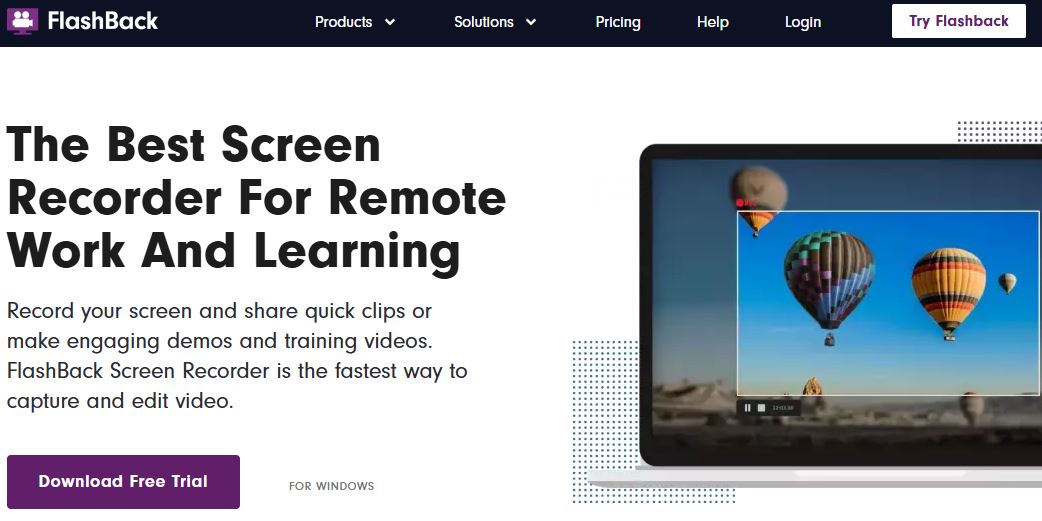
10. FlashBack Express
Key Features
- Record screen and webcam simultaneously.
- No time limits on recordings.
- Free with premium upgrade.
Pros
- No watermarks on free version.
- Ideal for personal and professional use.
- Beginner-friendly.
Cons
- Limited editing tools in free version.
- Premium version required for advanced features.
Common Mistakes People Make When Recording Their Desktop
| Mistake | Why it hurts the recording | What to do instead |
|---|---|---|
| Recording at full screen resolution unnecessarily | Bloats file size and slows down editing and uploads for no real benefit if the viewer only needs part of the screen | Record only the window or region the viewer actually needs to see |
| Skipping a microphone test before a long recording | Discovering muffled or silent audio after a 30-minute take means starting over | Record a 10-second test clip and actually play it back before the real take |
| Leaving notification popups enabled | A Slack message or email preview popping up mid-recording is embarrassing and unprofessional in a client-facing video | Turn on Do Not Disturb or focus mode before hitting record |
| Using a free tool with a watermark for client work | Looks unpolished and can make a paid deliverable feel like an afterthought | Budget for a watermark-free tool, even a cheap one, for anything client-facing |
| Not checking available disk space before a long capture | A recording that stops mid-way because the drive filled up wastes the entire session | Check free disk space, especially for uncompressed or 4K recordings which can eat gigabytes per hour |
Free vs Paid: What You Actually Get
Most of the tools above offer both free and paid tiers, and the gap between them is worth understanding before you commit to a workflow around a free version.
Free tiers typically include: basic screen capture, limited recording length (often 5–15 minutes per session), and in many cases, a visible watermark on the exported video.
Paid tiers typically add: unlimited recording length, watermark removal, more export formats, built-in editing tools like trimming and captions, and priority support if something goes wrong mid-project.
For casual, personal use, free tools like OBS Studio or ShareX cover most needs without ever requiring an upgrade, since neither imposes a watermark or a hard time limit. For anything client-facing or produced at volume, the paid tier usually pays for itself the first time a watermark would have cost you credibility with a customer.
Troubleshooting Common Screen Recording Problems
The recording is laggy or choppy
This is almost always a hardware or settings issue rather than a software bug. Lower the recording resolution or frame rate, close other resource-heavy applications, and if you’re recording gameplay, check whether the tool is using hardware encoding (NVENC on Nvidia GPUs, for example) instead of software encoding, which is far more CPU-intensive.
No audio in the final recording
Check that the correct input device is selected in the recording tool’s settings, not just your system’s default. Many tools default to the system microphone even if you’re using a USB headset, and some require you to separately enable “desktop audio” if you also want to capture sound playing from the computer itself, not just your voice.
The exported file is too large to share
Re-export at a lower bitrate, or use a tool with built-in compression like Bandicam. For quick shares, cloud-based tools like Loom or Screencast-O-Matic sidestep the problem entirely by generating a shareable link instead of a downloadable file.
The recording stopped unexpectedly
Check available disk space first, this is the most common cause. Some tools also have a default maximum recording length or file size on the free tier that will silently cut off a long session, so check the tool’s documentation for any caps before starting an important recording.
Software to Record Desktop at a Glance
Discover the top tools to record your desktop with ease. Compare features, advantages, and drawbacks to select the ideal software for your needs.
| Tool | Key Features | Pros | Cons |
|---|---|---|---|
| OBS Studio | Free, customizable, HD recording | No watermarks, versatile | Steep learning curve |
| Camtasia | Templates, video editing | Professional quality | Expensive |
| Bandicam | Lightweight, 4K recording | Great for gaming | Watermarks in free version |
| ShareX | Open-source, annotation tools | Free, customizable | Overwhelming for beginners |
| Screencast-O-Matic | Browser-based, cloud integration | Easy to use, affordable | Limited free features |
| Loom | Cloud-based, webcam integration | Collaboration-friendly | Limited free file size |
| Movavi Screen Recorder | High-quality, scheduled recording | User-friendly, 4K support | Watermarks on free version |
| Snagit | Screenshots and screen recording | Lightweight, fast | Limited video editing |
| Icecream Screen Recorder | Annotations, webcam support | Affordable, beginner-friendly | Watermarks in free version |
| FlashBack Express | Unlimited free recording | No watermarks, beginner-friendly | Limited editing tools |
Platform Considerations: Windows, Mac, and Linux
Not every tool on this list plays equally well across operating systems, and platform support is worth checking before you settle on one.
Windows has the widest selection by far. Bandicam, Movavi, Icecream Screen Recorder, and FlashBack Express are all Windows-first, with some offering only limited or no macOS support. If you’re on Windows, you effectively have every tool on this list available.
macOS users get full support from OBS Studio, Camtasia, ShareX-alternatives like CleanShot X, Screencast-O-Matic, and Loom, but a few Windows-native tools simply aren’t built for Mac at all. macOS also ships with a built-in screen recorder (accessible via Shift+Cmd+5) that covers basic needs without installing anything, worth trying before reaching for a third-party tool if your needs are simple.
Linux support is the most limited of the three. OBS Studio remains the strongest cross-platform option here, actively maintained with a native Linux build, while several of the other tools in this list have no Linux version at all. If you’re on Linux, OBS is close to the default answer for anything beyond a basic screenshot tool.
File Formats and Storage: What to Expect
Screen recordings eat disk space fast, and the format you export in changes both file size and compatibility.
| Format | Typical use | File size | Compatibility |
|---|---|---|---|
| MP4 (H.264) | General sharing, uploading to YouTube or a client | Moderate | Plays almost everywhere |
| MOV | macOS-native editing workflows | Moderate to large | Best on Apple devices, needs conversion elsewhere |
| GIF | Short, silent clips for chat or documentation | Large for the length of footage | Universal, but no audio and lower quality |
| AVI | Older or uncompressed workflows | Very large | Widely supported but outdated for most modern use |
As a rough planning number, a 10-minute 1080p recording exported as H.264 MP4 typically lands somewhere in the 150–400 MB range depending on how much motion is on screen, static slides compress far better than fast-moving gameplay. If you’re recording long sessions regularly, budget storage accordingly, or set your tool to compress automatically after each recording.
Frequently Asked Questions
What’s the best free screen recorder with no watermark?
OBS Studio, ShareX, and FlashBack Express all offer genuinely free recording without a watermark on the output, which sets them apart from tools like Bandicam or Icecream Screen Recorder that watermark their free tier.
Which tool is easiest for someone who has never recorded their screen before?
Loom and Screencast-O-Matic are built around a one-click “record and share a link” workflow that requires almost no configuration, making them the friendliest starting point for first-time users.
Do I need a powerful computer to record my desktop?
For basic tutorial-style recording at standard resolution, no, most modern laptops handle it fine. For 4K recording, gaming capture, or streaming while playing a demanding game, a dedicated GPU makes a real difference in avoiding dropped frames.
Can I record my webcam and screen at the same time?
Yes, most tools on this list support simultaneous webcam and screen capture, including Loom, Icecream Screen Recorder, and FlashBack Express. This is especially useful for tutorial content where seeing the presenter’s face builds trust with the viewer.
What’s the difference between screen recording and screen capture software?
Screen recording captures video over time, while screen capture (or screenshot) tools grab a single still image. Some tools, like Snagit and ShareX, combine both functions in one app, which is convenient if you regularly need both types of content.
Is it legal to record software I don’t own, like a client’s dashboard?
Generally yes for legitimate business purposes like troubleshooting or training, but always check any applicable terms of service or client confidentiality agreements first, especially if the recording will be shared publicly rather than used internally.
How long can I record before the file becomes unmanageable?
There’s no hard technical limit on most desktop tools, but practically, recordings past 30–40 minutes get harder to edit and share, and file sizes climb into the gigabyte range at HD resolution. For long sessions like a full webinar, consider recording in shorter segments or using a cloud-based tool that uploads and compresses automatically as you go, rather than saving one enormous local file.
Should I record in 1080p or 4K if my screen supports 4K?
For most tutorial and presentation content, 1080p is the practical sweet spot, it’s sharp enough for viewers, produces manageable file sizes, and renders faster during editing. Reserve 4K recording for cases where fine visual detail genuinely matters, like a design review where viewers need to zoom in on pixel-level work.

Final Thought on Desktop Recording Software
The best software to record desktop depends on your specific needs, whether it’s gaming, tutorial creation, or professional presentations. Free options like OBS Studio and ShareX are excellent for advanced users, while tools like Camtasia and Movavi cater to those needing editing capabilities. If speed matters most, cloud tools like Loom get a shareable link out the door in seconds. If gaming performance matters most, Bandicam and OBS Studio are built for exactly that overhead. Choose the tool that balances ease of use, output quality, and cost to get the best results, and don’t be afraid to keep two tools installed, a quick capture app for fast shares and a heavier editor for polished, repeatable content.
Interesting Reads
How to Disable WP-Cron in WordPress