5 Best Event Ticket Plugins for WooCommerce in 2026 (Complete Guide)


5 Best Event Ticket Plugins for WooCommerce in 2026
Updated January 2026. A ticket that never arrives, a QR code that fails at the door, a refund that has to be processed by hand at 11pm the night before doorstep entry closes – these are the moments that decide whether an event organizer keeps using WooCommerce or gives up and moves to a dedicated ticketing SaaS. WooCommerce itself has no idea what a “ticket” is. It sells products. Everything that makes a ticket behave like a ticket – a unique ID, a scannable code, an automatic email, a check-in log – comes from the plugin sitting on top of it.
That’s why picking the right one matters more for events than for almost any other WooCommerce use case. A misconfigured shipping plugin costs you a support ticket. A ticketing plugin that fumbles check-in costs you a line out the door and an angry crowd. This guide walks through the five plugins worth considering in 2026, what each one actually does well, and how to match one to your event instead of guessing.
Quick Picks (Top 3)
- Best all‑rounder: WooCommerce Tickets (The Events Calendar)
- Best for check‑ins: FooEvents (strong QR scanning)
- Best for simple ticket sales: WP Event Manager + WooCommerce
What a Ticket Plugin Should Do (Minimum Requirements)
Before comparing feature lists, it helps to know what “good” looks like. Any plugin you shortlist should clear these basics without add-ons or workarounds:
- Generate unique ticket IDs so no two attendees can be issued the same credential
- Send tickets by email automatically the moment payment clears
- Support QR or barcode check‑ins that work from a phone camera, not just a paid scanner app
- Handle refunds and cancellations cleanly through WooCommerce’s native order flow, not a separate spreadsheet
If a plugin needs a manual export-and-email step to get tickets into attendees’ hands, that’s a sign it wasn’t really built for this job – it was adapted to it.
5 Best Event Ticket Plugins for WooCommerce
1) WooCommerce Tickets (The Events Calendar)
WooCommerce Tickets integrates directly with The Events Calendar, making it ideal if you already use that ecosystem. It supports ticket sales, RSVP, and attendee management.
The reason this combination keeps showing up at the top of comparison lists isn’t novelty – it’s that The Events Calendar already handles the scheduling side (recurring events, venues, organizers) that most ticketing-only plugins ignore. Once an event exists as a calendar entry, WooCommerce Tickets turns it into a sellable product with attendee records attached, so you’re not maintaining two separate systems that have to be kept in sync by hand. For a venue running a monthly workshop series or a theater with a recurring show schedule, that link between “when it happens” and “who’s coming” is worth more than any single feature on its own.
- Best for: calendar‑driven events
- Pros: strong event + ticket integration
- Cons: depends on The Events Calendar stack
2) Event Tickets Plus
Event Tickets Plus adds advanced features like seating, custom attendee fields, and QR code check‑ins. It’s built for professional events and conferences.
Custom attendee fields sound minor until you’ve run a conference that needs dietary restrictions, badge titles, and session preferences captured at the point of purchase rather than chased down afterward by email. Event Tickets Plus lets you attach those fields to the ticket itself, so the data lands in the same order record you’re already using for fulfillment. Seating support pushes it further into conference territory – assigned seats, not just a headcount – which is the feature that separates a plugin meant for meetups from one meant for a 300-seat ballroom.
- Best for: conferences and paid events
- Pros: powerful attendee management
- Cons: premium pricing
3) FooEvents
FooEvents focuses on check‑in and ticket delivery. It includes a mobile app for scanning QR codes, which makes it popular for venues and live events.
The detail that matters here is the app itself, not just the QR codes it reads. A lot of plugins generate a scannable code and leave you to figure out scanning hardware; FooEvents ships a phone app built for the job, which means the person working the door doesn’t need a dedicated barcode reader or a laptop propped on a folding table. For a single-day festival or a gym class series where staff rotate and nobody wants to learn a new system each time, that’s the difference between check-in taking three seconds per person and taking thirty.
- Best for: in‑person events with check‑ins
- Pros: strong QR scanning tools
- Cons: add‑ons needed for advanced seating
4) WP Event Manager + WooCommerce
WP Event Manager is lightweight and modular. With WooCommerce integration, it’s good for small to mid‑size events that don’t need complex seating or badge printing.
“Modular” is the operative word – you install the core plugin, then add only the specific extensions your event needs (recurring events, custom fields, and so on) rather than inheriting a full conference-management suite you’ll never touch. That keeps the admin screens simple and the plugin overhead low, which matters if you’re running a single class or workshop rather than a full events calendar. The tradeoff is that anything beyond basic ticket sales – tiered pricing, seat maps, badge design – either isn’t there or has to be bolted on separately.
- Best for: simple ticket sales
- Pros: lightweight, easy setup
- Cons: fewer advanced features
5) Tickera (with WooCommerce Bridge)
Tickera is a dedicated ticketing platform that can connect to WooCommerce. It’s good if you want ticketing‑first workflows and advanced event tools.
Tickera was built as its own ticketing product first and a WooCommerce add-on second, which shows in how deep its ticket-design and delivery tools go – custom ticket templates, PDF generation, and its own check-in app exist independently of WooCommerce. Bridging it to WooCommerce means you get to keep your existing checkout and payment gateways while running ticket logic through a platform purpose-built for it. The cost is an extra moving part: two systems talking to each other instead of one, which means more to configure and more that can drift out of sync if either side gets updated carelessly.
- Best for: ticketing‑first businesses
- Pros: strong event features
- Cons: extra integration steps
Comparison Table
| Plugin | Best For | Key Strength |
|---|---|---|
| WooCommerce Tickets | All‑round use | Event calendar integration |
| FooEvents | Check‑ins | QR scanning app |
| WP Event Manager | Simple events | Lightweight setup |
How to Choose the Right Ticket Plugin
Start with how people will actually get into the event, because that decision filters out most of the list on its own. If everyone checks in at a single door on the day of the event, QR scanning speed and app reliability matter more than anything else on this page – FooEvents earns its spot here specifically for that reason. If entry is spread across multiple days or sessions with different access levels, you need attendee-level tracking that survives re-entry, which points toward Event Tickets Plus or Tickera.
Event size changes the calculus too. A 40-person workshop doesn’t need seat maps or custom badge fields – it needs a plugin that’s fast to set up and doesn’t require training. That’s where WP Event Manager earns its keep. Once you’re past a couple hundred attendees, though, the manual workarounds that were fine at small scale (chasing down dietary restrictions by email, tracking refunds in a spreadsheet) start eating real staff time, and it’s worth paying for a plugin that automates them from the start.
Existing infrastructure is the third filter. If you’re already running The Events Calendar for a recurring schedule, staying inside that ecosystem with WooCommerce Tickets avoids maintaining a second, disconnected events system. If you have no calendar plugin at all and just need to sell tickets to one event, that existing investment doesn’t apply, and the decision comes down to check-in workflow and budget instead.
Budget is the filter people underweight. It’s tempting to compare plugins purely on sticker price, but the real cost of a ticketing plugin includes the staff time it saves or burns on event day. A cheaper plugin that forces someone to manually verify tickets against a printed list is more expensive in labor than a pricier one with a working scanner app – that math flips once your event crosses roughly 100 attendees. Under that number, the manual approach is often genuinely fine, and it’s reasonable to save the money.
A quick example
Picture a local pottery studio that runs weekend workshops twice a month and occasionally hosts a larger seasonal open house. For the regular workshops – 12 to 15 seats, one instructor, no assigned seating – WP Event Manager paired with WooCommerce is enough: tickets go out by email, attendees show up, done. For the seasonal open house, where 200 people might show up across a single afternoon and the studio wants a real check-in line instead of a guest list on a clipboard, switching that one event over to FooEvents’ scanning app solves the actual bottleneck without forcing a wholesale platform change for the smaller workshops. Different events, different tools – that’s a normal way to run a mixed calendar, not a sign of a messy setup.
Common Setup Mistakes That Cause Problems on Event Day
Most ticketing failures don’t come from a bad plugin choice – they come from a plugin that was never tested under real conditions before the event. Selling twelve tickets to a friend’s list during setup and calling it “tested” is not the same as fifty people scanning QR codes over five minutes at a single entrance with spotty venue Wi-Fi.
The single most common mistake is skipping the offline test. FooEvents and Tickera both have scanning apps that can cache check-in data locally, but only if that mode has been enabled and tested beforehand. Find that out at the venue the morning of the event, not the moment the connection drops with a line forming.
A second one is leaving the default ticket email template in place. WooCommerce’s transactional emails are functional but generic, and an unbranded confirmation email is easy to mistake for spam – especially problematic if your ticket delivery depends entirely on that email reaching an inbox. Spend twenty minutes customizing the sender name, subject line, and template before your first sale, not after attendees start asking where their tickets went.
The third is undercounting staff needs at check-in. A scanning app that processes one ticket every two to three seconds sounds fast until you do the math for a 400-person doors-open window of fifteen minutes – that’s more than one scanner needed per entrance if you want people inside before the show starts. Plan staffing and device count around your actual arrival curve, not your total attendee count.
A fourth, smaller mistake worth naming: forgetting to test what happens when a customer buys more than one ticket in a single order. Some plugins issue one QR code per order by default rather than one per attendee, which means a group of four people can’t split up and walk in separately – they all have to arrive together and scan once. If your event involves group tickets and staggered arrivals, confirm per-attendee codes are turned on before you start selling, not after a confused family gets stuck at the door.
A lighter alternative worth knowing about
Not every event needs a paid ticketing stack bolted onto WooCommerce at all. If what you’re really running is RSVPs, simple registrations, or free community events rather than paid ticket sales, Eventonomy is a free standalone plugin built specifically for events and RSVP management without requiring WooCommerce or a store setup in the first place. It’s worth a look before you commit to any paid ticketing add-on if your events don’t actually involve selling anything.
Recommended WooCommerce Tools (Affiliate)
- Advanced Coupons – early‑bird promos and discounts.
- Barn2 – faster ticket purchasing on mobile.
- Acowebs – add‑ons and upsells for ticket bundles.
Sell Services with WooCommerce
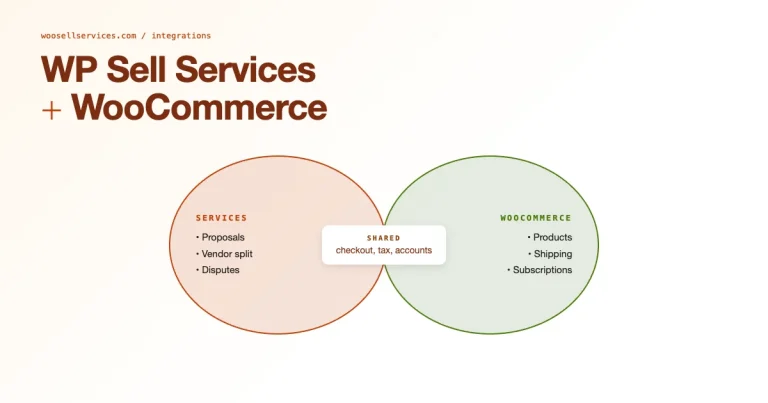
If your events include workshops or coaching packages, Woo Sell Services lets you sell those service add‑ons alongside tickets.
FAQs
Can WooCommerce handle ticket delivery?
Yes. Ticket plugins generate tickets and send them via email as soon as payment clears, usually as a PDF attachment or a link to a digital ticket page. The actual delivery reliability depends on your site’s outgoing email setup – if you’re seeing tickets land in spam or not arrive at all, that’s typically a transactional email problem (fix it with a proper SMTP service) rather than a flaw in the ticketing plugin itself.
Do I need QR check‑ins?
For any in‑person event where you’re verifying attendees at a door, yes – QR scanning speeds up entry and makes it obvious when someone tries to reuse a ticket. For online-only events or ones where you’re not checking anyone in at all, it’s not worth the setup effort.
Are ticket refunds automated?
Most of these plugins work with WooCommerce’s native refund flow, which means canceling an order also voids the associated ticket. That said, “voids the ticket” and “refunds the customer per your event’s cancellation policy” are two different things – check each plugin’s settings to see whether it enforces a refund window automatically or just gives you the tools to do it manually.
Do these plugins work for online events?
Yes. Tickets can include a Zoom link, a streaming access code, or a download instead of a physical entry code, though you’ll typically need to configure that delivery detail yourself rather than expect it out of the box.
Is seating supported?
Some plugins offer seating add‑ons, but not all include it by default. Event Tickets Plus and Tickera are the two on this list built with assigned seating in mind – if that’s a hard requirement, start your evaluation there rather than with the lighter-weight options.
What happens if I outgrow a plugin later?
This is the question most organizers forget to ask up front. Migrating attendee data and ticket history between plugins is rarely a clean export-import – it’s usually manual reconciliation. If you expect an event to grow from a 30-person meetup into a 300-person conference within a year or two, it’s often less painful to start with the plugin built for the bigger version, even if it feels like overkill at first, than to migrate mid-growth.
Can I switch ticket plugins mid-season without losing past attendee data?
Generally not cleanly. Ticket and attendee records are usually stored in each plugin’s own database tables rather than a shared WooCommerce format, so switching mid-season means your historical attendee list stays behind in the old plugin unless you export it manually first. If you’re planning a switch, do it between event series rather than in the middle of one, and export everything – orders, attendee emails, check-in logs – before you deactivate the old plugin.
Conclusion
Choose a ticket plugin based on how attendees get in the door and how much your event will grow, not on which one has the longest feature list. For most stores, WooCommerce Tickets or FooEvents are the safest starting points in 2026 – the first if you’re already inside The Events Calendar ecosystem, the second if check-in speed is the thing that will make or break the day.