How to Accept International Payments in WooCommerce: Multi-Currency Setup

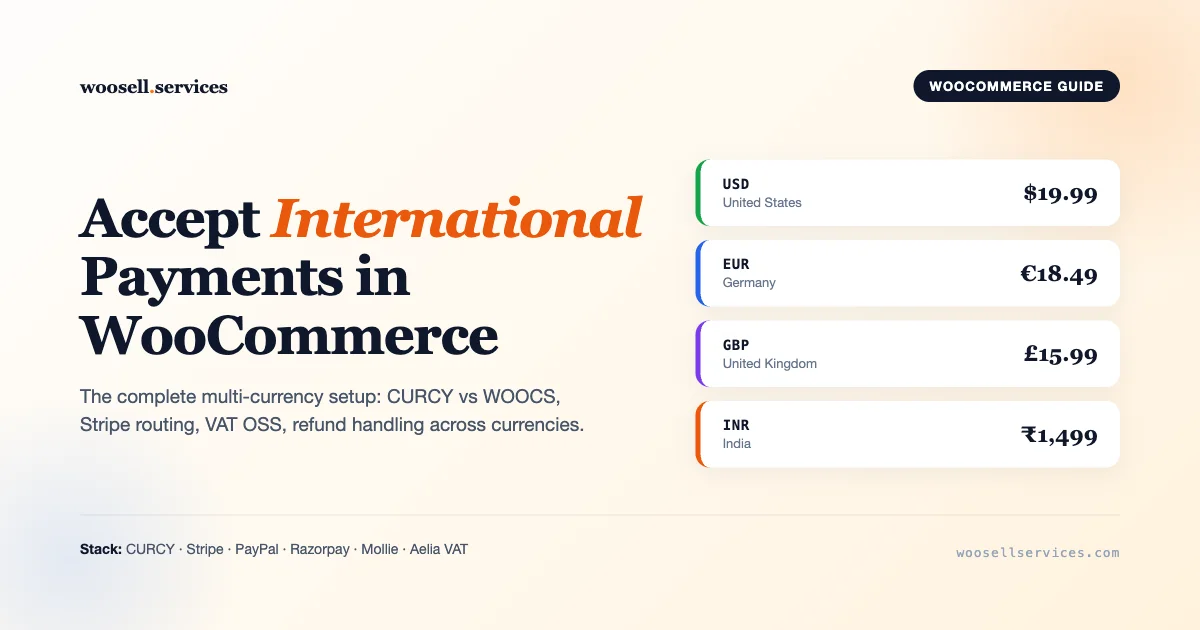
Running a WooCommerce store that only accepts one currency is like opening a shop in London and posting a sign that says “dollars only.” Buyers bounce, conversion drops, and you hand money to competitors who accept local payment methods. If you want revenue from Europe, India, the Middle East, Southeast Asia, and North America, your store needs three things working together: a currency switcher, a payment gateway mix that actually settles in each region, and tax plus shipping rules that respect the buyer’s country.
This guide walks through the exact stack we recommend for WooCommerce stores that ship worldwide or sell digital services globally. Every plugin is named. Every setting has a reason. Every edge case (PayPal “on hold” with multi-currency, Stripe INR settlement, VAT OSS, refund drift) gets a concrete answer.
Why WooCommerce Multi-Currency Is Non-Negotiable In 2026
Baymard data keeps showing the same pattern: when shoppers see a foreign currency at checkout, abandonment jumps 13 to 18 percent. The buyer does mental math, second-guesses the exchange rate, and leaves. Add a failing “currency not supported” error at the payment step and you lose the sale entirely.
WooCommerce core lets you set exactly one store currency. That is fine for a single-country business. The moment you accept international payments in WooCommerce, you need three things that core does not ship with:
- A currency switcher that displays product prices in the visitor’s currency.
- A payment gateway or a mix of gateways that can actually charge and settle in that currency.
- A tax and shipping system that applies the correct rate for the billing or shipping country.
Skip any one of these and you get the classic broken checkout: prices shown in EUR, charged in USD, with a VAT line that makes no sense. Let us fix each layer.
Step 1: Pick A Currency Switcher Plugin (CURCY vs WOOCS vs Aelia)
Three plugins dominate this category. Each has a different philosophy.
CURCY (Multi Currency for WooCommerce) by VillaTheme
The free version on WordPress.org handles unlimited currencies, auto-exchange from Yahoo Finance and Google Finance, a front-end switcher widget, and a geolocation mode. The pro version adds per-product manual prices, admin order currency conversion, and aggregation in reports. CURCY is the cheapest starting point (free for most stores, 39 USD for pro) and it is what we install on 80 percent of the woosellservices client projects.
WOOCS (WooCommerce Currency Switcher) by realmag777
WOOCS is older, more configurable, and sometimes heavier. It has tighter hooks for developers (woocs_current_currency, woocs_raw_woocommerce_price) and supports per-role currency rules. Pro is 25 USD. Pick WOOCS if you need scriptable customization or role-based pricing (wholesale in EUR for logged-in B2B, retail in USD for guests).
Aelia Currency Switcher
The premium choice at 99 USD per year. Aelia is what enterprise WooCommerce stores run because it ties currency to billing country automatically, handles per-country currency locking, and plays well with Aelia Tax Display and EU VAT Assistant. If you are running Subscriptions or selling in 15+ currencies, pay for Aelia. The support is real and the code is stable.
Quick Comparison
| Feature | CURCY (free) | CURCY Pro | WOOCS Pro | Aelia |
|---|---|---|---|---|
| Price | Free | 39 USD | 25 USD | 99 USD/yr |
| Auto exchange rates | Yes | Yes | Yes | Yes |
| Geolocation switch | Yes | Yes | Yes | Yes |
| Per-product manual prices | No | Yes | Yes | Yes |
| Subscriptions support | Partial | Partial | Yes | Yes |
| Multi-currency reports | No | Yes | Yes | Yes |
| VAT / OSS add-on | Third-party | Third-party | Third-party | First-party |
For a store doing under 10K USD a month, start with CURCY free, upgrade to CURCY Pro when you need manual prices. For 10K USD plus with EU buyers, skip straight to Aelia.
Step 2: Geolocation And IP-Based Currency Detection
Once a switcher is installed, the next decision is whether to auto-detect the buyer’s country or let them pick. The answer is both: auto-detect on first visit, then remember the choice in a cookie.
Every serious switcher plugin ships with a MaxMind GeoLite2 integration, but the fastest way to make it bulletproof is to use WooCommerce’s own WC_Geolocation class (which already uses MaxMind under the hood) and force the currency on init. Here is the exact snippet we drop in a mu-plugin on every international store:
Two important notes. First, we skip the switch for admins so you can test prices as different roles without losing your mind. Second, we hook at priority 5 so our logic runs before CURCY or WOOCS reads the session. If your plugin is stubborn, raise the priority on the woocommerce_currency filter to 99.
Caching Caveat
If you run WP Rocket, LiteSpeed, or Cloudflare full-page cache, geolocation will fail because the cached HTML gets served to everyone. Fix it one of three ways:
- Enable “Geolocate (with page caching support)” in WooCommerce > Settings > General. This uses a JavaScript redirect with
?wc-ajax-geolocation-hash. - Configure your CDN to vary the cache by country (Cloudflare Workers, BunnyCDN Edge Rules).
- Disable page caching only on the shop and cart URLs.
Option one is fine for most stores. Option two is what enterprise setups use. Never use option three unless traffic is small, because you give up the biggest speed win WordPress has.
Step 3: Pick A Payment Gateway Mix That Settles In Each Currency
This is where most WooCommerce stores break. You can display prices in INR, but if Stripe is the only gateway and Stripe does not settle INR for your account, the charge will fail or get force-converted to USD with an ugly 2 percent FX fee. Every region has a native gateway. Use them.
Stripe (International)
Stripe supports 135+ currencies for presentment but only settles in 40+ depending on your entity country. A US Stripe account settles USD, CAD, EUR, GBP, AUD, and a handful more. Stripe Connect platforms can route charges to connected accounts in the local currency, avoiding FX. For digital products, Stripe’s Apple Pay and Google Pay support adds 8 to 12 percent to conversion in mobile-first regions.
PayPal (Global Fallback)
PayPal Commerce (the woocommerce-paypal-payments plugin) supports 25 currencies and settles in 22. Its biggest value is buyer trust, especially in Germany, the Netherlands, and Japan where PayPal penetration is extreme. The known quirk: if your multi-currency plugin sends one currency and your PayPal business account is in another, orders may land in “on hold” status until PayPal auto-converts. Fix by adding the buyer’s currency as a secondary balance inside PayPal or by matching presentment currency to settlement.
Wise Business (Formerly TransferWise)
Wise is not a traditional WooCommerce gateway, but the Wise multi-currency account lets you hold 50+ currencies and receive local bank transfers. Pair it with Stripe or Mollie for card payments and use Wise for B2B wire transfers and payouts to international contractors. The Wise Payments for WooCommerce plugin by Advertify bridges order creation to Wise invoicing.
Razorpay (India)
If you sell to India, Razorpay is mandatory. Stripe does not settle INR for stores outside India, and RBI rules require local acquiring for INR cards and UPI. Razorpay handles UPI, cards, net banking, wallets (PhonePe, Paytm), and EMI in one integration. The official Razorpay for WooCommerce plugin is free. Charge 1799 INR to Indian buyers, 19.99 USD to US buyers, settle in each currency separately.
Mollie (Europe)
Mollie is the European equivalent of Stripe: iDEAL (mandatory for the Netherlands), SEPA Direct Debit, Bancontact, Giropay, Sofort, Klarna Pay Later. 1.8 percent + 0.25 EUR per transaction, no monthly fees. The mollie-payments-for-woocommerce plugin is free and battle-tested.
MercadoPago (LATAM)
Boleto in Brazil, OXXO in Mexico, Rapipago in Argentina. If any LATAM country is over 5 percent of your traffic, install MercadoPago. Cards alone capture maybe 40 percent of the region; cash-on-convenience methods capture the other half.
Gateway Routing By Currency
Here is the pattern we use for stores that accept all of the above. The snippet hides irrelevant gateways based on cart currency, so an Indian buyer only sees Razorpay and UPI while a European buyer sees Stripe, Mollie, and PayPal:
If you run a single entity and want to keep things simple, pick Stripe plus PayPal and accept the FX fees. If you are scaling past 50K USD monthly, open multiple Stripe accounts in different regions (US, UK, EU, AU, SG) and route by currency as shown above.
Step 4: Exchange-Rate Update Strategy
Auto-updating rates sounds great until a buyer adds a product at 1663.42 INR, reloads, and sees 1671.18 INR. Small shifts look like trickery. Three strategies work:
1. Hourly Auto-Update With A Margin
CURCY and WOOCS can pull rates from Yahoo Finance, Open Exchange Rates, or Fixer.io every hour. Add a 2 to 3 percent buffer so small currency wobbles do not eat your margin. WOOCS has a “fee for currency conversion” setting that does this in the UI. CURCY exposes it under Manage Currencies.
2. Daily Lock At Midnight UTC
Pull rates once per day and freeze them. Buyers see the same price all day, which is what they expect. This is our default for physical-product stores because it prevents refund drift.
3. Manual Pricing Per Currency
Best for digital products, memberships, and premium services. Instead of a mathematical conversion, you set marketing-friendly prices: 19 USD, 19 EUR, 1499 INR, 1499 JPY. Each is a rounded price that reads well locally. The pro versions of all three switchers support this. Here is the minimal implementation for stores on the free CURCY:
After installing, you get USD, EUR, GBP, INR, AUD fields on every product edit screen. Fill in the ones that matter. Leave blanks to fall back to auto conversion. This pattern scales to 20+ currencies if you add them to the array.
Step 5: Taxes (VAT MOSS / OSS, GST, Sales Tax)
Tax is where international stores get sued. The rules:
EU VAT For B2C Digital Sales
Since 2015, EU rules require charging VAT at the buyer’s country rate, not yours, for digital goods sold to consumers. A UK store selling an eBook to a German buyer charges 19 percent German VAT, collects it, and remits via the One Stop Shop (OSS). The threshold is 10,000 EUR per year across all EU sales. Below that, you charge your own country’s VAT. Above it, you must register for OSS.
For B2B sales inside the EU, reverse charge applies: you zero-rate the invoice, the buyer self-accounts. You must validate the buyer’s VAT number against the VIES database. Here is the logic:
Plugins that handle this end-to-end (so you do not maintain custom code):
- Aelia EU VAT Assistant (99 USD/yr): pulls rates from EU Commission, validates VIES, handles OSS reports.
- EU VAT Compliance Assistant by WP Labs: similar, slightly cheaper.
- WooCommerce EU VAT Number (official, 79 USD/yr): basic field, no OSS reporting.
UK VAT Post-Brexit
UK now collects its own VAT separately from OSS. Under 135 GBP order value, the seller must register for UK VAT and collect it at checkout. Over 135 GBP, import VAT kicks in and the buyer handles it. Set a separate UK tax rate in WooCommerce > Tax > Standard Rates.
US Sales Tax
Economic nexus rules. If you pass a state’s threshold (usually 100K USD or 200 transactions per year per state), you must collect sales tax there. Use TaxJar for WooCommerce (49 USD/mo base) or Avalara AvaTax (enterprise). For small stores, WooCommerce’s built-in tax tables plus a manual per-state setup works, but maintenance is brutal.
GST For India, Canada, Australia
India: 18 percent GST on most digital services, 0 percent on exports. If selling to Indian buyers from outside India, no GST (they self-account under reverse charge). If your store is registered in India, collect 18 percent. Canada: GST/HST varies by province (5 to 15 percent). Australia: 10 percent GST if sales exceed 75K AUD/yr.
Step 6: Shipping By Region
International shipping is the silent conversion killer. Buyers pile items in the cart, reach shipping, see 47 USD to Germany, and leave. Two fixes:
Shipping Zones
WooCommerce > Settings > Shipping > Add shipping zone. Create one zone per major region: “EU”, “North America”, “UK”, “APAC”, “Rest of World”. Add flat rates or free-shipping thresholds per zone. Keep “Locations not covered” as a “Rest of World” fallback with a realistic high rate; do not leave it empty or buyers from unmapped countries get “No shipping available” at checkout.
Live Rates
For physical products, integrate real carrier rates: ShipStation, EasyPost, or direct DHL/FedEx/UPS plugins. Live rates adjust by package weight and destination. The trade-off is latency (each checkout query hits the carrier API) and occasional failures.
Tax-Inclusive Vs Tax-Exclusive By Region
Europeans expect tax-included prices. Americans expect tax added at checkout. The Aelia Tax Display by Country plugin handles this dynamically: a German visitor sees 24.99 EUR (VAT included), a US visitor sees 19.99 USD (tax added at cart). Without it, one group thinks you are cheating them.
Step 7: Refund Handling Across Currencies
A buyer pays 49.99 EUR in March when EUR = 1.09 USD. In September they request a refund. EUR is now 1.06 USD. If you refund “49.99 EUR equivalent in USD” using today’s rate, you short the buyer by ~1.50 EUR. If you refund the original USD amount you charged, you lose on the forex swing. The fix: store the original captured currency and rate on the order, and always refund in the same currency using the same amount.
Stripe and PayPal both support refunds in the original capture currency with zero FX on your side (they absorb the tiny daily spread). The issue is custom reporting. To keep your books sane:
This gives you an order note on every refund showing original currency, original rate, current rate, and drift. Finance can reconcile in five minutes at month-end instead of five hours.
Step 8: Checkout UX For International Buyers
Beyond the backend setup, a few UX decisions lift international conversion noticeably:
- Show the currency switcher above the fold on product pages and in the header. Do not hide it in the footer.
- Localize the checkout form. French buyers expect “Code postal”, not “ZIP”. The
woocommerce-country-localefilter handles this. - Translate at least the checkout strings with WPML, Polylang, or TranslatePress. Even partial translation converts 30 percent better than English-only for non-English regions.
- Show estimated delivery in buyer’s local time. “Delivered by Friday, March 14” beats “Ships in 3 to 5 business days”.
- Offer local payment icons (UPI, iDEAL, Bancontact, Boleto) on product pages, not just at checkout. Trust signals convert earlier in the funnel.
If you are rebuilding your checkout anyway, read our WooCommerce Checkout Blocks guide first. The block-based checkout handles multi-currency display cleaner than the legacy shortcode checkout, and it is the direction WooCommerce is moving.
Step 9: Testing Your Multi-Currency Setup
Before flipping live, run this test matrix:
- Open the store in an incognito window with a VPN set to India. Confirm INR appears, Razorpay shows at checkout, Stripe is hidden.
- Switch VPN to Germany. Confirm EUR, VAT at 19 percent on a digital product, Mollie plus Stripe plus PayPal visible.
- Switch to the US. Confirm USD, no VAT (unless your state collects), Stripe plus PayPal.
- Add a product in EUR, go to cart, change currency to USD manually. Verify the cart recalculates and the total updates without errors.
- Place a test order with Stripe’s test card (4242 4242 4242 4242) in at least three currencies. Check the WooCommerce order, the Stripe dashboard, and your email receipt all match.
- Issue a partial refund from the order. Confirm the refund amount hits the original card in the original currency.
If any step breaks, you have a config bug. Fix before announcing international shipping.
Common Pitfalls And How To Avoid Them
1. PayPal “On Hold” With Multi-Currency
Cause: your site charged in EUR but your PayPal business account only holds USD. PayPal queues the payment for auto-conversion. Fix: log into PayPal, add EUR and GBP balances under Money > Currencies. Or configure your switcher to only charge in your PayPal base currency (display EUR, charge USD at checkout).
2. Tax Showing Wrong On Cart Page But Right On Checkout
Cache. WooCommerce caches tax calculations per session. Clear with wp wc tool run regenerate_thumbnails is not right; use wp cache flush and wp transient delete --all. Then regenerate the tax cache by loading the cart as a fresh visitor.
3. Prices Reset After Adding To Cart
The switcher sets currency on page load but cart reset it. This happens when the cart is a cached fragment. Force the switcher to run on wp_loaded instead of init, or disable cart fragment caching.
4. Subscription Renewals Charge In Wrong Currency
Subscriptions store the currency at the time of the original order. If the buyer switched currency before subscribing, renewals will stay in that currency. Aelia Subscriptions add-on fixes this. WOOCS has a Subscriptions compatibility flag that does the same thing.
5. Stripe Says “Currency Not Supported”
Your Stripe account’s settlement currency does not support the presentment currency. Check Stripe Dashboard > Settings > Bank accounts and scheduling. Add a bank account in the target currency, or accept that Stripe will force-convert with a 1 percent FX fee.
Which Setup Fits Your Store Size?
Under 5K USD/Month
CURCY free, Stripe plus PayPal, WooCommerce tax tables, shipping zones for EU, North America, Rest of World. Total cost: 0. Setup time: 2 hours.
5K To 50K USD/Month
CURCY Pro or WOOCS Pro (39 USD), Stripe plus PayPal plus Razorpay if India matters, TaxJar for US sales tax, Aelia EU VAT Assistant if selling digital to EU. Total cost: ~200 USD/yr. Setup time: a weekend.
50K USD/Month Plus
Aelia Currency Switcher, Aelia EU VAT Assistant, Aelia Prices By Country, multi-entity Stripe (US, UK, EU accounts), Mollie for local EU methods, dedicated DevOps to watch FX drift and monthly reconciliation. Total cost: 500+ USD/yr plus developer time. Setup time: one to two weeks with testing.
Related Reading
If you are building a services-focused store, our deep dive on the best WooCommerce payment gateways for selling services compares Stripe, PayPal, Razorpay, Square, and Mollie across fees, recurring support, and global coverage. For a pure Stripe-first build, review our 10 best WooCommerce Stripe plugins guide.
External References
- Stripe: Supported presentment and settlement currencies
- PayPal: Currency codes reference
- WooCommerce: Geolocation documentation
- EU: One Stop Shop (OSS) VAT declaration
Final Checklist Before You Announce International Shipping
- Currency switcher installed, tested across 5+ regions.
- Geolocation works with your cache layer.
- Payment gateways cover at least 90 percent of your target traffic.
- Tax rates per country, VAT OSS if EU, state tax if US.
- Shipping zones with a fallback zone.
- Refund flow stores original currency and rate.
- Checkout localized at least for top 3 non-English markets.
- Test orders placed in USD, EUR, GBP, INR successfully.
Accepting international payments in WooCommerce is less about a single plugin and more about a stack that respects how buyers in each region want to pay. Get this right and your conversion rate from international traffic doubles within 60 days. Get it wrong and you will bleed sales to Shopify, which ships multi-currency by default.
Start with CURCY plus Stripe plus PayPal this week. Layer on Razorpay and Mollie next month. Add Aelia when revenue justifies it. Test constantly, reconcile monthly, and keep a close eye on refund drift. That is the path every global WooCommerce store walks.
