How to Edit the WooCommerce Cart Page

Creating a seamless shopping experience is the cornerstone of any successful eCommerce site. The WooCommerce cart page is one of the most crucial stages in your customer’s journey, yet it’s often overlooked. A poorly optimized cart page can be the difference between a completed sale and an abandoned cart. Knowing how to edit the WooCommerce cart page can transform your online store’s performance and significantly improve user satisfaction.
This article dives deep into how to edit the WooCommerce cart page effectively, giving you total control over layout, design, functionality, and user engagement. Whether you’re a developer or a store owner, this guide provides actionable insights to make your cart page not only functional but a tool for conversion.

What Is the WooCommerce Cart Page?
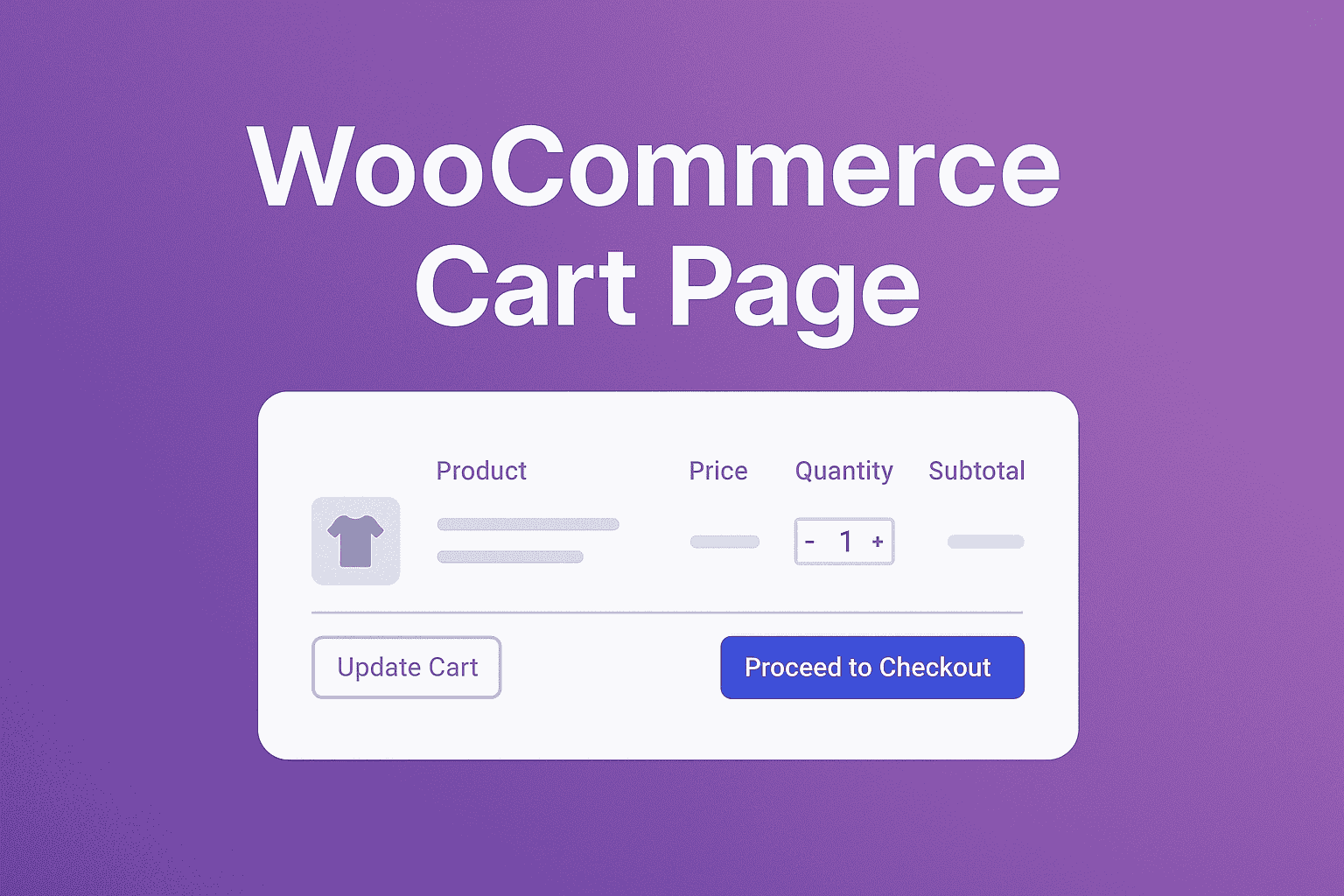
The WooCommerce cart page serves as the digital shopping cart for your online store. It allows customers to review selected products, apply coupon codes, adjust quantities, and proceed to checkout. This page sits right between the product selection and the payment gateway, making it a vital pivot point for purchase decisions.
When you understand how to edit the WooCommerce cart page, you unlock the power to tailor this key part of the customer journey. Default settings are often functional but not personalized. With the right modifications, you can elevate the cart experience to better reflect your brand and enhance usability.
The cart page is generated using shortcodes and templates provided by WooCommerce, or by the Cart block if your theme uses the block-based cart. While this provides a solid base, it often lacks the nuance modern users expect. Knowing how to customize it allows you to control visual styling, call-to-action elements, messaging, and even cross-selling opportunities, all of which play a major role in influencing your customer’s next move.
Why You Should Edit the WooCommerce Cart Page
There are several compelling reasons to customize this page. First and foremost, the cart page has an undeniable impact on conversion rates. Customers who encounter friction at this stage, whether through confusing layouts, slow performance, or limited options, are more likely to abandon their carts.
By learning how to edit the WooCommerce cart page, you improve UX (user experience) dramatically. Features like AJAX-enabled quantity updates, intuitive discount applications, and strategically placed trust badges can increase your store’s credibility and fluidity. All of this results in higher retention and more completed checkouts.
Another reason is branding consistency. The default WooCommerce cart page looks identical across many sites. Customizing it helps differentiate your store and reinforces your unique brand identity. Additionally, by incorporating upsells, reminders, and personalized messages, you can use this space as an effective sales funnel.
How to Edit the WooCommerce Cart Page: A Step-by-Step Guide
There are multiple ways to edit the WooCommerce cart page, each offering different levels of flexibility and complexity. Let’s explore beginner-friendly, developer-focused, and hook-based methods to empower you, regardless of your technical expertise.
Using Plugins (No Coding Required)
If you prefer a code-free solution, plugins are your best friend. Popular tools like CartFlows, WooCommerce Customizer, and ShopEngine allow drag-and-drop editing of the cart page.
These plugins let you:
- Modify button colors and labels.
- Add promotional banners or timers.
- Reorder cart elements.
- Include cross-sell or upsell products.
The best part? These changes require zero technical skill, making them ideal for non-developers who still want to improve functionality and aesthetics.
Editing Templates (Intermediate to Advanced)
For those comfortable with a bit of code, customizing template files offers deeper control. WooCommerce uses a templating system where the cart page structure is defined in cart/cart.php. By copying this file into your theme’s woocommerce/cart/ directory, you can safely override it without affecting plugin updates.
You can:
- Rearrange HTML structure.
- Insert custom fields or messages.
- Add security indicators or shipping info.
- Replace default text and button labels with brand-specific language.
Remember to use child themes to ensure your changes aren’t overwritten by theme updates. Knowing how to edit the WooCommerce cart page at this level gives you unmatched flexibility.
Using Hooks Instead of Full Template Overrides
A middle ground between plugins and a full template override is hooking into the cart page’s existing action points. WooCommerce fires several hooks throughout cart.php that let you inject content without copying the entire template, which means your customization survives WooCommerce core updates automatically. This is usually the better choice unless you genuinely need to restructure the page’s HTML.
// Add a trust message above the cart table
add_action( 'woocommerce_before_cart', 'add_cart_trust_message' );
function add_cart_trust_message() {
    echo '<p class="cart-trust-message">Secure checkout • Free returns within 30 days</p>';
}

// Add a cross-sell nudge below the cart totals
add_action( 'woocommerce_after_cart_totals', 'add_cart_cross_sell_note' );
function add_cart_cross_sell_note() {
    echo '<p class="cart-cross-sell-note">Need help choosing? <a href="/contact">Talk to us</a></p>';
}

// Change the "Update cart" button text
add_filter( 'woocommerce_update_cart_button_text', 'rename_update_cart_button' );
function rename_update_cart_button() {
    return 'Refresh My Cart';
}

// Change the "Proceed to Checkout" button text
add_filter( 'woocommerce_order_button_text', 'rename_checkout_button' );
The key hooks worth knowing on the classic cart page are woocommerce_before_cart, woocommerce_before_cart_table, woocommerce_cart_coupon, woocommerce_after_cart_table, and woocommerce_after_cart_totals. Each corresponds to a specific vertical position on the page, so a quick way to find the right one is to search the WooCommerce plugin’s templates/cart/cart.php file directly for do_action calls and note the order they appear in.
Enhancing UX: Key Elements to Consider
A successful cart page is not only functional but psychologically optimized. Shoppers often abandon carts due to doubts, distractions, or delays. To mitigate this, focus on key areas that influence buyer behavior.
Simplify Navigation and Clarity
Ensure that all buttons are clearly labeled, such as “Update Cart,” “Continue Shopping,” and “Proceed to Checkout.” Use breadcrumbs or navigation links to let users easily go back to product listings. This streamlines the decision-making process and reduces friction.
Add Trust Signals and Urgency
Incorporating trust badges, refund policies, and real-time low stock alerts can ease purchase anxiety. These elements nudge hesitant buyers toward completing their transactions. Page builder plugins with WooCommerce-aware widgets, or the hook snippet above, can help you implement these elements without heavy custom development.
By focusing on user psychology, you elevate the functional purpose of your cart page to a persuasive element that drives action. That’s the essence of knowing how to edit the WooCommerce cart page strategically.
Creative Ways to Personalize the Cart Page
A personalized experience can dramatically improve user retention and brand loyalty. By tailoring the cart page to your target audience, you create a more engaging and memorable experience.
Dynamic Messaging Based on Cart Contents
Using conditional logic plugins or custom code, display specific messages based on the type or quantity of products in the cart. For example, if a customer adds $50 worth of items, you could show a message saying, “Add $10 more for free shipping!” Here’s a simple version of that logic using the hooks above:
add_action( 'woocommerce_before_cart_table', 'show_free_shipping_progress' );
function show_free_shipping_progress() {
    $threshold = 75;
    $current   = WC()->cart->get_subtotal();

    if ( $current < $threshold ) {
        $remaining = wc_price( $threshold - $current );
        echo '<p class="free-shipping-nudge">Add ' . $remaining . ' more to your cart for free shipping!</p>';
    } else {
        echo '<p class="free-shipping-nudge">You’ve unlocked free shipping!</p>';
    }
}
Loyalty Rewards and Gamification
Introduce reward points or unlockable gifts when certain thresholds are met. Gamifying the cart process makes it more enjoyable and encourages users to spend more. Integration with tools like YITH WooCommerce Points and Rewards makes this easy to implement.
If you’re serious about converting browsers into buyers, learning how to edit the WooCommerce cart page to incorporate personalization is an investment worth making.
Best Plugins to Customize the WooCommerce Cart Page
Here’s a curated list of top-rated tools that can simplify your customization journey:
Abandoned Cart Recovery for WooCommerce
The Abandoned Cart Recovery for WooCommerce plugin helps you recover lost sales by sending automated emails to users who abandoned their cart. You can customize the message and incentive based on what’s left in the cart.
CartFlows
Perfect for building high-converting cart pages with pre-designed templates. Its intuitive interface makes it an excellent tool for entrepreneurs and marketers.
Elementor Pro (With WooCommerce Widgets)
Elementor’s visual builder lets you create or redesign the cart page with drag-and-drop functionality. Combined with WooCommerce widgets, it’s powerful and flexible for non-developers.
Using any of these tools makes learning how to edit the WooCommerce cart page a breeze while offering advanced capabilities typically reserved for developers.
Block-Based Cart: What’s Different
If your theme uses WooCommerce’s newer Cart block instead of the classic [woocommerce_cart] shortcode, the customization approach changes. The block-based cart is built from smaller inner blocks (Cart Items, Cart Totals, Cross-Sells) that you rearrange and restyle directly in the block editor, no PHP required for basic layout changes.
For deeper customization on the block cart, the hooks shown above generally don’t fire, since the block renders through the Store API rather than the classic template. Instead, extend the Store API’s cart schema or use a block-compatible cart customization plugin. Check which cart your site is running by opening the Cart page in the block editor, if you see a “Cart” block with nested Filled Cart and Empty Cart inner blocks, you’re on the block-based cart.
Optimizing the Cart Page for Mobile Shoppers
A large share of WooCommerce traffic arrives on a phone, and the default cart table, four or five columns wide on desktop, is one of the harder WooCommerce elements to get right on a narrow screen. Most well-built themes already stack the cart table into a card layout below a certain breakpoint, but if you’re customizing the cart page, it’s worth verifying this explicitly rather than assuming your theme handles it.
What to Check on a Real Phone
Quantity steppers are the first thing to test, the small plus/minus buttons some themes add need to be large enough to tap accurately, at least 40px square is a reasonable minimum. Second, check that the remove-item link (usually an “x” icon) isn’t so close to the quantity field that a shopper trying to update quantity accidentally deletes the item. Third, confirm the coupon code field doesn’t require horizontal scrolling to see the Apply button, a surprisingly common bug on custom cart layouts that were only tested on desktop.
A Simple Mobile-Specific CSS Adjustment
@media (max-width: 480px) {
    .woocommerce-cart table.cart td.product-remove a.remove {
        width: 32px;
        height: 32px;
        display: flex;
        align-items: center;
        justify-content: center;
    }
    .woocommerce-cart table.cart td.actions .coupon {
        display: flex;
        flex-direction: column;
        gap: 8px;
    }
}
This is a starting point, not a complete solution, your theme’s existing cart markup will determine the exact selectors you need. The principle matters more than the exact code: stack elements vertically below a reasonable breakpoint and give every tappable element enough room that a thumb doesn’t miss.
A/B Testing Cart Page Changes
It’s tempting to ship a redesigned cart page and assume it’s an improvement because it looks nicer. The only way to know for certain is to measure it against what was there before.
If your store has enough traffic to make a split test statistically meaningful, generally a few hundred cart visits a week at minimum, tools that integrate with Google Optimize’s successors or dedicated WooCommerce A/B testing plugins can show version A to half your visitors and version B to the other half, then report which one carries more visitors through to a completed order. For lower-traffic stores, a simpler before/after comparison over a matched time period (same days of week, similar promotional activity) is a reasonable substitute, just be honest with yourself about how much noise is in a small sample before declaring a clear winner.
Whichever method you use, track the metric that actually matters: cart-to-checkout conversion rate, not just how the page looks in a screenshot. A cart page with fewer visual flourishes but a higher conversion rate is the one worth keeping.
Troubleshooting Common Cart Page Issues
After you edit the WooCommerce cart page, it’s crucial to test its functionality across devices and browsers. Common issues include:
AJAX Conflicts
If you’ve added custom buttons or fields, test for AJAX conflicts. These can prevent real-time updates to the cart when quantities change or coupons are applied.
Theme Compatibility
Sometimes, your changes may not render correctly due to theme limitations. Always check your site on staging before pushing updates live.
Caching Serving a Stale Cart
Full-page caching plugins should never cache the cart page, it’s inherently dynamic and unique per visitor. If a customer reports seeing an old cart total or the wrong items after you’ve made changes, check that your cache plugin excludes the cart, checkout, and my-account pages by default (most do, but it’s worth confirming after installing a new caching plugin).
Coupon Field Silently Failing
If a custom cart layout hides or restyles the coupon form in a way that breaks its markup, the AJAX handler behind it can stop firing correctly, and customers get no error message, no success message, nothing happens. If you’ve heavily restyled this section, test applying a valid coupon and an invalid one, both should produce a visible notice. Silent failure here is one of the more common support tickets after a cart redesign, and it’s easy to miss in a quick visual QA pass since the page still looks correct.
Learning how to edit the WooCommerce cart page also means learning how to debug and resolve problems efficiently, which is essential for site reliability.
Future-Proofing Your WooCommerce Cart Customizations
As WooCommerce updates frequently, your customizations need to be update-proof. Use child themes and modular plugins where possible to keep your codebase clean and conflict-free.
Maintain Backup Versions
Before making any changes, back up your current cart templates and custom functions. This provides a safety net and allows for quick recovery if issues arise.
Monitor Cart Abandonment Metrics
Use Google Analytics or WooCommerce extensions to track cart abandonment rates. Monitoring the impact of your edits ensures you’re optimizing with data, not guesswork. Look at abandonment rate specifically in the window right after you ship a cart page change, a spike within the first few days is a strong signal something you added is causing friction rather than reducing it.
Mastering how to edit the WooCommerce cart page means more than one-time improvements, it’s about continuous evolution based on user behavior and business goals.

Closing Remarks: Turn the Cart Page Into a Conversion Engine
In conclusion, learning how to edit the WooCommerce cart page opens up tremendous possibilities for improving user experience and boosting revenue. From simple visual tweaks to advanced functionality enhancements, every change you make can bring you closer to a smoother, more effective sales funnel.
By taking the time to personalize, optimize, and test your cart page, you’re not just fixing a part of your site, you’re investing in a high-converting, user-friendly experience that pays off in customer satisfaction and loyalty.
Don’t settle for default. Build a cart page that does more than carry items, it carries your brand forward.
Frequently Asked Questions
Do I need to edit template files to customize the cart page?
Not necessarily. Hooks let you add or modify content without copying the full template file, and they’re less likely to break on WooCommerce updates. Only override the full template when you need to fundamentally restructure the page’s HTML.
Why doesn’t my custom code show up on the cart page?
The most common causes are page caching (exclude the cart page from any caching plugin), a wrong hook name, or the site actually running the block-based cart, which doesn’t fire the classic template hooks at all. Confirm which cart renderer is active before debugging further.
Will editing the cart page affect my checkout page?
No, the cart and checkout are separate templates with separate hooks. Changes to cart.php or cart-specific hooks don’t carry over to checkout automatically, you’ll need to apply matching changes there separately if you want consistent messaging across both pages.
Interesting Reads:
How to Change the Sale Text in WooCommerce In 2025