What is WordPress and How Does It Work?

If you’re wondering, What is WordPress? and how it works, you’re in the right place. WordPress is the world’s most popular website-building platform, powering over 40% of all websites on the internet. Whether you’re a beginner looking to start a blog or a business owner wanting a professional website, WordPress offers an easy-to-use and highly customizable solution.
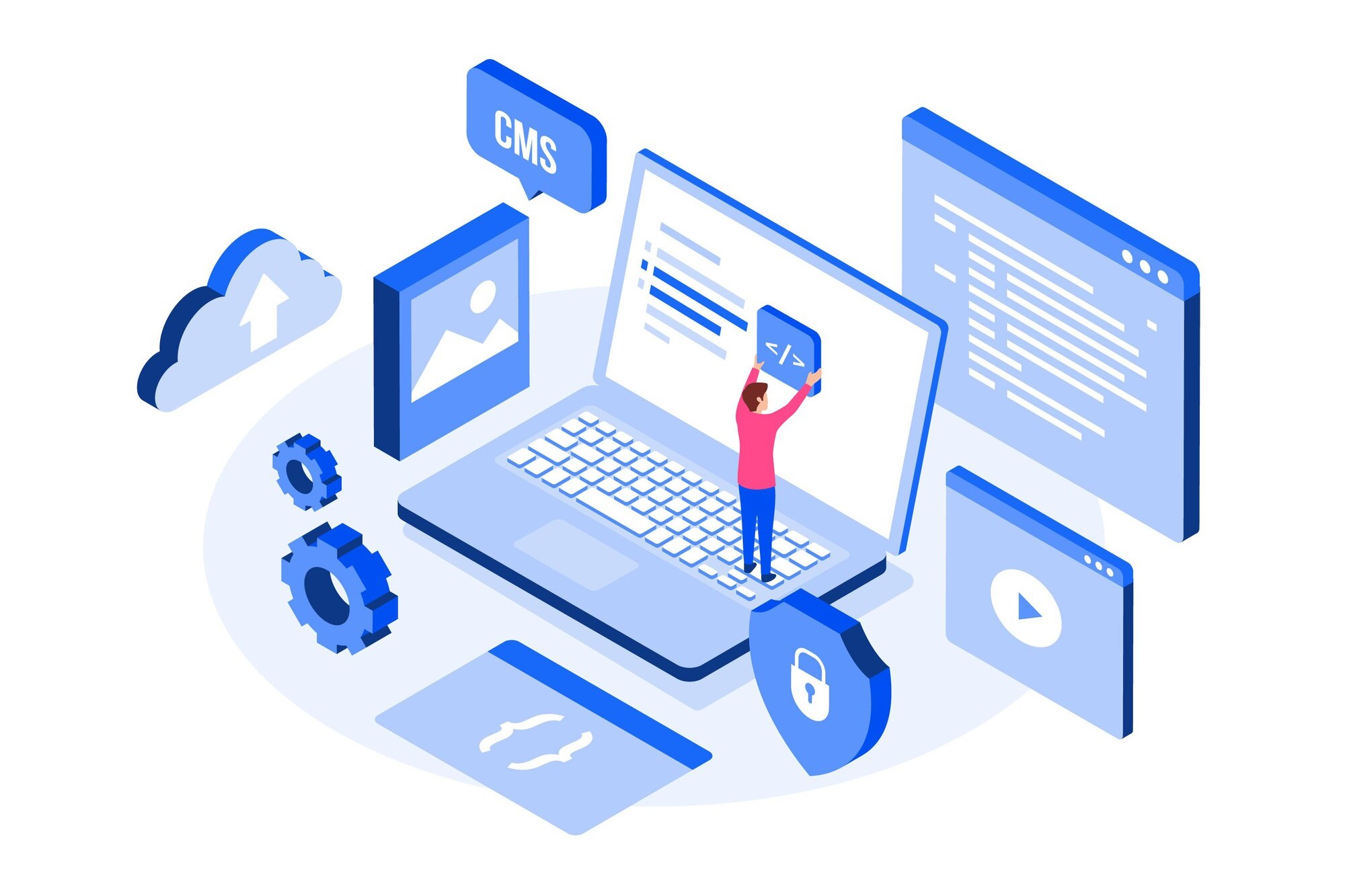
With its flexible content management system (CMS), WordPress allows users to create, edit, and manage websites without needing advanced coding skills. It provides thousands of free and premium themes to design your site exactly the way you want. Additionally, its vast library of plugins helps enhance functionality, from SEO optimization and eCommerce solutions to security enhancements and performance boosts.

What is WordPress?
WordPress is a free, open-source content management system (CMS) that allows users to build and manage websites without needing to code. Launched in 2003, WordPress has grown into a powerful platform that supports various types of websites, including blogs, eCommerce stores, portfolios, and corporate sites.
WordPress.org vs. WordPress.com
One of the biggest points of confusion for beginners is the difference between WordPress.org and WordPress.com. Let’s break it down:
WordPress.org is also known as self-hosted WordPress. This version allows you to download WordPress software for free and install it on your own web hosting service. It gives you complete control over your site, enabling you to install themes, plugins, and custom code.
WordPress.com is a hosted service that provides a more streamlined but limited experience. While it’s easy to use, you’ll have fewer customization options unless you upgrade to a paid plan.
For most businesses and professional websites, WordPress.org is the preferred choice because of its flexibility and control.
Key Features of WordPress
WordPress is popular because of its extensive features that make website creation and management easier. Here are some of its standout features:
1. User-Friendly Interface
WordPress has a simple, intuitive dashboard that allows users to create and manage content without technical expertise.
2. Thousands of Themes
You can choose from thousands of free and premium themes to design your website the way you want.
3. Plugins for Customization
Plugins extend the functionality of your site. Whether you need SEO tools, security enhancements, or eCommerce capabilities, there’s a plugin for it.
4. SEO-Friendly
WordPress is designed with SEO in mind, helping websites rank better on search engines. Plus, plugins like Yoast SEO can optimize your content further.
5. Mobile Responsive
Most WordPress themes are mobile-friendly, ensuring that your site looks great on all devices.
6. eCommerce Integration
With plugins like WooCommerce, you can easily create an online store and start selling products.
How to Set Up a WordPress Website (Step-by-Step Guide)
Setting up a WordPress website is easier than you think. Follow these steps to get started:
Step 1: Choose a Domain Name and Web Hosting
Your domain name is your website’s address (e.g., www.yoursite.com). To get started, you need a reliable web hosting provider, which will store your website’s files and make them accessible online.
Step 2: Install WordPress
Most hosting providers offer a one-click WordPress installation, making it easy to get started. Simply follow the installation prompts, enter your site details, and within minutes, your WordPress site will be ready for customization.
Step 3: Pick a Theme
Browse and install a theme that suits your site’s purpose, then customize it using the WordPress Customizer to match your brand and style.
Step 4: Install Essential Plugins
Some must-have plugins include Yoast SEO for search engine optimization, Elementor for easy page building, WooCommerce for online stores, and Wordfence for security. These plugins enhance functionality, improve website performance, and ensure better security.
Step 5: Create Your Pages and Content
Add important pages like Home, About, Contact, and Blog. Start writing blog posts or adding product listings.
Step 6: Configure SEO Settings
Use SEO-friendly URLs and meta descriptions. Submit your site to Google Search Console.
Step 7: Launch Your Website
Review everything, test your site on different devices, and make it live!
Why Choose WordPress for Your Website?
WordPress is the best choice for website building because it’s free and open-source, offers endless customization, is SEO-friendly and mobile-responsive, allows for easy content management, and supports eCommerce and business websites. It also provides a vast library of themes and plugins, ensuring that users can create a unique and professional-looking site without technical expertise.
Additionally, its strong security features, regular updates, and an active community make it a reliable choice for individuals and businesses alike.

Understanding WordPress Hosting Options
Hosting is the piece beginners underestimate most, and the choice affects everything from site speed to how much technical maintenance falls on you. Shared hosting is the cheapest entry point, often $3 to $10 a month, and works fine for a low-traffic blog or portfolio, though performance can suffer once a site starts getting real traffic, since server resources are shared across many customers on the same machine.
Managed WordPress hosting costs more, typically $20 to $50 a month for a small site, but handles updates, security, backups, and performance optimization specifically for WordPress, which removes a meaningful chunk of ongoing maintenance work. This tends to be the better choice for a business site where downtime or a hacked site has real financial consequences, not just inconvenience. VPS and dedicated hosting sit further up the scale, offering dedicated server resources for high-traffic sites or complex WooCommerce stores, but require more technical know-how to manage properly, or a managed VPS plan that handles that complexity for you at a higher price point. Whichever tier you start on, look closely at what’s actually included, some budget hosts advertise a low headline price but charge extra for basic features like SSL certificates, daily backups, or a staging environment, all of which are worth having from day one rather than adding later under pressure.
WordPress Themes vs. Page Builders: How They Work Together
A common point of confusion for new users is the relationship between a theme and a page builder like Elementor or Beaver Builder. A theme provides the overall structural framework and default styling of a site, headers, footers, typography, color schemes, while a page builder adds a visual, drag-and-drop layer for designing individual page layouts without touching code.
Many modern themes are built specifically to work well with popular page builders, and some, like a handful of block-based themes, rely entirely on the native WordPress block editor instead. For a beginner, starting with a theme that’s explicitly compatible with a well-supported page builder, or with the native block editor, avoids the frustration of fighting against a theme’s built-in styling every time you want to customize a layout, and it saves the headache of a mid-project realization that the theme and builder simply don’t play well together.
A Worked Example: Setting Up a Small Business Site in a Weekend
The seven steps above cover the mechanics, but seeing them applied against a real timeline helps set expectations. Take a freelance photographer building her first WordPress site to replace a basic Instagram-only presence.
Friday evening is spent on domain and hosting: registering a domain matching her business name and signing up with a managed WordPress host, most of which now include one-click WordPress installs. Saturday morning she installs WordPress, picks a portfolio-friendly theme, and spends a couple of hours swapping placeholder images and text for her own photography and bio, resisting the urge to endlessly tweak colors before there’s any real content in place. Saturday afternoon covers plugins: an SEO plugin, a lightweight caching plugin for speed, a contact form plugin, and a gallery plugin suited to displaying high-resolution photos without slowing the site down.
Sunday is content and launch day: writing the About and Contact pages, uploading a curated gallery rather than every photo she’s ever taken, setting up basic SEO titles and descriptions for each page, and finally pointing the domain live. By Sunday evening, the site is functional, not perfect, but live, indexable, and taking real client inquiries, which matters more than waiting weeks for a flawless version that never ships. Most of what she refines over the following month (better photo compression, a proper client inquiry form, testimonials) happens after launch, based on real visitor behavior rather than guesses made before anyone had seen the site. That iterative approach, ship something usable, then improve it with real data, tends to outperform months of pre-launch perfectionism almost every time.
WordPress Security Basics Every New Site Owner Should Know
WordPress’s popularity is exactly why it’s a common target for automated attacks, not because the software itself is inherently insecure, but because its sheer market share makes it a statistically attractive target for bots scanning the web for outdated installations. A handful of habits go a long way toward keeping a new site safe.
Strong, unique login credentials and two-factor authentication stop the most common brute-force attacks before they get anywhere. A security plugin like Wordfence or Sucuri adds a firewall layer and malware scanning that catches problems most site owners would never notice on their own. Limiting the number of plugins to only what’s actually needed reduces the site’s overall attack surface, since every plugin is code written by a third party that could contain a vulnerability. Finally, keeping WordPress core, themes, and all plugins updated promptly closes known security holes before attackers can exploit them, since most successful WordPress hacks target vulnerabilities that already had a patch available, just not yet applied, which makes updating promptly one of the highest-leverage security habits a site owner can build.
Common Mistakes First-Time WordPress Users Make
- Installing too many plugins too fast. Every plugin adds some page weight and a potential compatibility conflict. Start with the essentials (SEO, security, forms, caching) and add specialized plugins only when a specific need arises.
- Skipping regular backups. A site without an automated backup plugin or host-level backup is one bad plugin update away from disaster. This is one of the cheapest insurance policies in web publishing and often gets skipped until it’s too late.
- Ignoring updates. WordPress core, themes, and plugins release security updates regularly. Sites that go months without updating become easier targets for automated attacks that specifically scan for known vulnerabilities in outdated software.
- Choosing a theme based on looks alone. A visually striking theme that loads slowly or isn’t well-coded can hurt both user experience and search rankings. Performance and code quality matter as much as visual appeal.
- Not setting up SEO basics from day one. Waiting months to think about page titles, meta descriptions, and URL structure means starting the indexing and ranking clock later than necessary. These take minutes to configure properly at launch.
- Overloading the homepage with every possible feature. New site owners sometimes try to cram sliders, videos, testimonials, and multiple calls to action onto one page. A focused homepage with a clear primary action usually converts better than a crowded one trying to do everything at once.
- Using the same login credentials across multiple sites or services. If one site or service gets breached elsewhere on the web, reused passwords give attackers an easy path into your WordPress admin panel too. A password manager and unique credentials per site closes this gap.
Frequently Asked Questions
Is WordPress really free to use?
The WordPress software itself (from WordPress.org) is free and open-source. Ongoing costs come from hosting, a domain name, and any premium themes or plugins you choose to add, which together typically run anywhere from $5 to $50 a month for a small business site.
Do I need to know how to code to use WordPress?
No. The core WordPress experience, writing posts, managing pages, installing themes and plugins, is designed for non-coders through its dashboard and block editor. Basic HTML/CSS knowledge helps for advanced customization but isn’t required to run a functional site.
How is WordPress different from website builders like Wix or Squarespace?
WordPress (specifically the self-hosted WordPress.org version) offers far more flexibility and ownership over your site’s code, hosting, and data, at the cost of a slightly steeper learning curve than the more guided, all-in-one experience of Wix or Squarespace.
Can WordPress handle a large, high-traffic website?
Yes. With proper hosting, caching, and optimization, WordPress powers everything from small blogs to major news outlets and large eCommerce stores. Scalability depends far more on hosting infrastructure and site optimization than on any inherent limit in WordPress itself.
How often should a WordPress site be updated after launch?
Core, theme, and plugin updates should be applied as soon as they’re available, ideally within days, especially for security patches. Content updates (blog posts, product listings) depend entirely on the business, but a site that never adds new content also rarely improves its search rankings over time, since fresh, relevant content is one of the signals search engines use to judge whether a site is still actively maintained.
What’s the difference between a WordPress theme and a WordPress plugin?
A theme controls how a site looks, its layout, typography, and overall visual design. A plugin adds new functionality, like contact forms, SEO tools, or an online store, without changing the visual design itself. Most sites use one theme paired with several plugins for the specific features they need, and understanding that split early makes troubleshooting far less confusing later on.
Can I switch WordPress themes later without losing my content?
Yes. Content stored in posts and pages stays intact when you switch themes, since content and design are handled separately in WordPress’s architecture. What can break are theme-specific elements like custom widgets or shortcodes tied to the old theme, so it’s worth reviewing the site carefully page by page after any theme change to catch anything that needs a small fix.
How long does it take to learn WordPress well enough to manage a site independently?
Most people can learn the basics, publishing posts, managing pages, installing plugins, within a few hours of hands-on practice. Becoming comfortable with more advanced customization, like working with the block editor’s full feature set or troubleshooting plugin conflicts, typically takes a few weeks of regular use, and most users keep learning small new tricks well beyond that point as their site’s needs evolve.
The Power and Versatility of WordPress
WordPress is a powerful and versatile platform that makes website creation accessible to everyone. Whether you’re starting a blog, running an online store, or building a corporate site, WordPress provides all the tools you need to succeed. Its flexibility allows users to create anything from a simple personal blog to a complex eCommerce platform. With a vast ecosystem of themes and plugins, it caters to both beginners and advanced developers, making it a preferred choice worldwide.
Additionally, WordPress continuously evolves with new updates, ensuring security, performance, and enhanced features for all users.
Migrating an Existing Site to WordPress
Business owners moving from a different platform, a website builder, a custom-built site, or an older CMS, face a different starting point than someone building from scratch. The core work is the same setup process described above, but with an added step: exporting existing content, pages, blog posts, and product listings, in a format WordPress can import, and carefully preserving the old site’s URLs or setting up redirects so search rankings built on the old platform aren’t lost overnight.
Skipping the redirect step is the single most common migration mistake. A site that simply vanishes from its old URLs and reappears at new ones loses whatever search visibility it had accumulated, sometimes for months, while search engines slowly discover and re-index the new structure. A migration plan that maps every important old URL to its new WordPress equivalent before launch avoids that gap entirely.
Interesting Reads
WordPress vs Wix: Which Website Builder is Right for You?