How to Create a Buy One, Get One Free Offer in WooCommerce

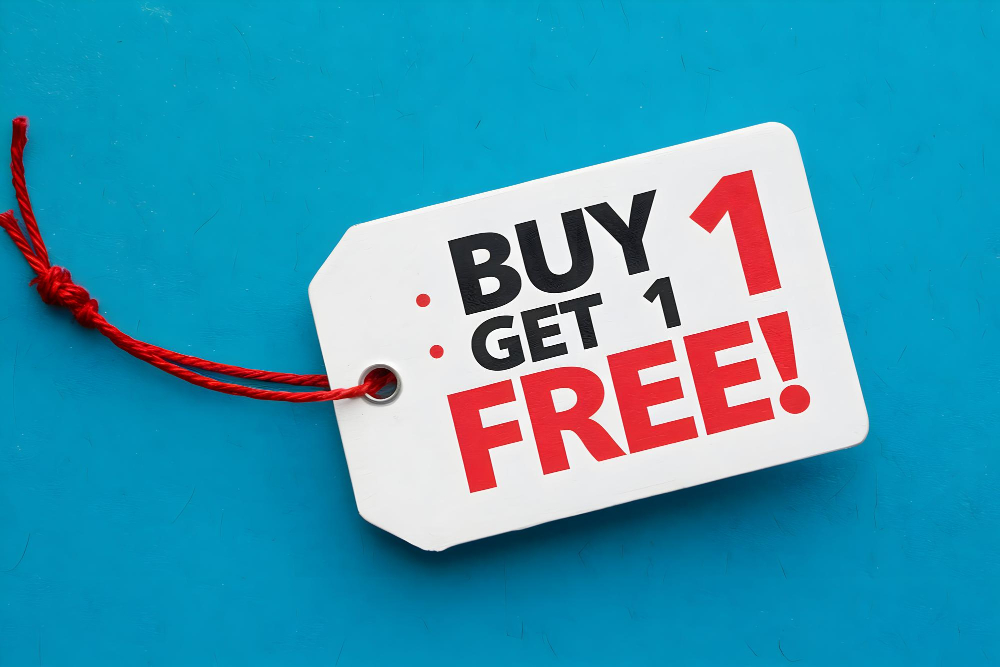
Running a successful online store involves more than just listing products and hoping they sell. One proven tactic for driving sales and increasing customer engagement is the classic Buy One, Get One Free (BOGO) offer. If you’re using WooCommerce and wondering how to create a Buy One, Get One Free offer in WooCommerce, you’re in the right place.
This guide breaks down everything you need to know, from the strategic reasoning behind BOGO offers to the technical implementation inside WooCommerce. Updated August 2026 to reflect current plugin and workflow options. Whether you’re just starting or looking to optimize your existing promotions, this article provides actionable steps, useful plugins, and expert insights.
Let’s dive into the world of smart eCommerce promotions and discover how to create a Buy One, Get One Free offer in WooCommerce that converts.

What Is a Buy One, Get One Free Offer?
A Buy One, Get One Free (BOGO) offer is a promotional strategy where customers receive an additional item for free upon purchasing one. This free item could be identical to the original product or a different but related one.
The appeal of BOGO lies in its simplicity and perceived value. When executed correctly, it not only drives immediate sales but also improves customer satisfaction and loyalty. WooCommerce, being one of the most flexible eCommerce platforms available, offers multiple ways to implement BOGO offers effectively.
Most online stores use plugins, custom code, or built-in settings (depending on the store’s complexity and budget) to bring these offers to life. However, each method requires a good understanding of WooCommerce’s architecture and promotional capabilities.
Why Use Buy One, Get One Free Offers in WooCommerce?
Increased Customer Engagement
People love getting more for less. BOGO deals tap into the psychology of getting a bargain, which significantly boosts user interest and interaction. When shoppers feel they’re getting something “extra,” they’re more likely to complete their purchase and even share it with others.
Inventory Management Made Easy
If you’re overstocked on certain items, BOGO offers can help move inventory faster. Instead of discounting items individually, bundling them in a BOGO deal adds value while keeping your margins more intact.
Higher Average Order Value (AOV)
When you understand how to create a Buy One, Get One Free offer in WooCommerce, you unlock the ability to increase the AOV organically. Customers tend to buy more to maximize the value of the deal, especially when the offer has a time limit or is attached to cart thresholds.
Competitive Edge
Standing out in a crowded market can be challenging. Strategic BOGO deals differentiate your WooCommerce store and encourage brand-switching behavior from customers shopping with competitors.
How to Create a Buy One, Get One Free Offer in WooCommerce: Step-by-Step Guide
Learning how to create a Buy One, Get One Free offer in WooCommerce involves both planning and execution. The method you choose will depend on your store’s structure and goals. Here’s a comprehensive walkthrough:
Step 1: Choose the Right Plugin
While WooCommerce doesn’t offer a native BOGO feature, numerous plugins make it simple to implement. Some of the top plugins include:
- WooCommerce Buy One Get One Free by WooCommerce
- Smart Coupons by StoreApps
- Advanced Coupons by Rymera Web Co
- YITH WooCommerce Gift Products
Each of these plugins allows for detailed configuration of BOGO offers based on product category, cart contents, user roles, and more.
Step 2: Install and Activate the Plugin
After selecting a plugin that suits your needs, go to your WooCommerce dashboard and install it via:
- Plugins > Add New
- Upload the plugin if purchased externally, or search and install directly from the plugin repository
- Activate the plugin
Now you’re ready to create your first BOGO deal.
Step 3: Configure the BOGO Rules
Once the plugin is activated, you’ll usually find a new section in your WooCommerce dashboard like “Coupons,” “Marketing,” or the plugin’s tab. Here’s how to proceed:
- Select “Add New Rule” or “Create New Coupon.”
- Choose the Buy One Get One Free option
- Define the “buy” product(s) and the “get” product(s)
- Set limits (e.g., number of uses per user, product variations)
Make sure to test the rule before publishing it live.
Step 4: Customize Messaging and Design
Your promotion won’t be effective if customers don’t know about it. Ensure you highlight your BOGO offer in:
- Product pages
- Banner sections
- Checkout
- Pop-ups and emails
Clear communication can double the effectiveness of your BOGO campaign.
Creative Ways to Implement BOGO in WooCommerce
Mirror BOGO Offers
This is the classic “Buy One, Get One of the Same Item Free” model. Perfect for consumables, fashion items, and accessories. It’s simple to set up and easy for customers to understand.
Cross-Sell BOGO
Encourage the purchase of high-margin products by offering a related product for free. For example, buy a smartphone and get a phone case free. This increases perceived value and helps promote lesser-known inventory.
Tiered BOGO
Use plugins that support advanced logic to create more enticing deals, such as:
- Buy 2, Get 1 Free
- Buy 3, Get 2 Free
- Buy any 3 items from a category, get 1 from another category free
Limited-Time BOGO
Adding a time limit creates urgency. Flash sales, holiday promotions, and countdown timers can significantly enhance conversion rates when paired with BOGO deals.
Choosing Between the Top BOGO Plugins
Picking a plugin comes down to how complex your rules need to be and whether you already run other WooCommerce extensions that might conflict. Here’s how the main options compare in practice.
WooCommerce Buy One Get One Free is the official extension, which means it’s built and maintained against the core WooCommerce release cycle, so it rarely breaks after updates. It handles the basics well: same-item BOGO, cross-product BOGO, and quantity tiers. Where it falls short is advanced cart conditions, like restricting the offer to a specific user role or combining it with a minimum spend threshold.
Smart Coupons by StoreApps goes further, letting you build BOGO logic on top of its broader coupon automation engine, so the same plugin can also handle store credit, referral rewards, and URL-based coupons. It’s a good pick if you plan to run multiple promotion types beyond BOGO and want one dashboard for all of them.
Advanced Coupons by Rymera Web Co is closer to a rules engine than a simple coupon tool. It supports BOGO combined with cart conditions (cart total, product quantity, specific categories) and includes a free tier that covers basic BOGO setups, which makes it a reasonable starting point if you’re not ready to commit to a paid plugin yet.
If your store already runs a dynamic pricing plugin like WooCommerce Dynamic Pricing & Discounts for quantity breaks or bulk pricing, check whether it also supports BOGO rules before adding a second plugin. Running two pricing engines side by side is one of the more common causes of the “wrong total in cart” bug reported in WooCommerce support forums, since each plugin hooks into the same cart calculation filters and can override the other’s output unpredictably.
Timing a BOGO Campaign for Maximum Impact
When you run a BOGO offer matters almost as much as how you configure it. Retail data consistently shows conversion lifts are highest around three moments: the first week after a product launch (to seed reviews and word of mouth), the tail end of a sales quarter when you need to hit a revenue target, and traditional shopping events like Black Friday or back-to-school season when shoppers are already primed to compare deals.
Running BOGO constantly, on the other hand, trains customers to wait for the next round instead of buying at full price. If you find yourself running the same BOGO deal every month, consider rotating it with a different mechanic (a percentage-off flash sale, a bundle price, or free shipping threshold) so shoppers don’t anchor their expectations on always getting a second item free.
BOGO vs. Percentage Discounts: The Math That Matters
Store owners often assume a straight percentage-off coupon is cheaper to run than a BOGO deal. The truth depends on your margins, and running the numbers before launch saves a lot of guesswork later.
Say a product retails for $40 and costs you $16 to produce or source, a 60% gross margin. A 50%-off coupon on a single unit gives up $20 in revenue but you still cover your $16 cost, leaving $4 profit on that transaction. A BOGO offer on the same product means a customer pays $40 for two units that together cost you $32, leaving $8 profit, twice as much, because you’re still selling at full price on the first unit and only absorbing cost (not lost margin) on the second.
The catch is inventory velocity. BOGO moves two units per transaction instead of one, so if your warehouse or dropship supplier can’t keep pace, you risk stockouts mid-campaign. Run a quick supply check against your last 30 days of sales velocity before setting a live date, and set a per-customer redemption cap in the plugin settings so the promotion doesn’t drain a limited batch in an hour.
Best Practices to Make BOGO Offers Work for You
Don’t Undermine Your Profit Margins
While BOGO is a compelling offer, ensure it doesn’t erode your bottom line. Use it strategically for products with higher margins or overstock issues. Evaluate cost implications before launching.
Use Targeted Marketing
Promote BOGO offers to specific segments of your audience, like first-time buyers, loyal customers, or abandoned cart users. Plugins such as MailPoet or Klaviyo can help automate these campaigns.
Highlight Urgency and Scarcity
Use timers, limited stock indicators, or phrases like “Only valid this weekend” to encourage quick purchases. People act faster when there’s a fear of missing out.
Monitor and Optimize
Use analytics tools like Google Analytics, WooCommerce Reports, or Metorik to track how your BOGO campaigns perform. Adjust based on metrics like conversion rate, cart abandonment, and average order value.
Accounting and Tax Notes You Shouldn’t Skip
A “free” item in a BOGO deal is rarely actually free from a bookkeeping standpoint. Most accountants treat the second item as sold at a $0 line price rather than removed from the order, which means it still needs to appear on the invoice with its own SKU and a $0.00 unit price. This matters for two reasons: sales tax calculation and inventory reconciliation.
In most U.S. states, sales tax is calculated on the amount actually charged, so a properly configured BOGO rule (one where the free item shows as a $0 line rather than a blanket 50% cart discount) usually results in tax only being charged on the paid item. Get this wrong and you either overcharge tax on the free item or underreport revenue. If you use TaxJar or Avalara alongside WooCommerce, test a sample BOGO order in your staging environment and confirm the tax line matches what your accountant expects before the promotion goes live. Your inventory management plugin also needs to decrement stock for both units, not just the paid one, otherwise your stock counts will drift out of sync within days.
Troubleshooting Common Issues with WooCommerce BOGO Deals
Plugin Conflicts
Sometimes, multiple discount plugins can clash, leading to unexpected behavior. Always test your store in a staging environment when implementing new promotional logic.
Inconsistent Cart Behavior
Ensure the BOGO rule is consistently applied during the shopping experience. Incorrect cart totals or missing free products can frustrate users and lead to lost sales.
Theme Incompatibility
Certain WooCommerce themes may not render BOGO notifications properly. Use theme-friendly plugins or consult your developer to make necessary adjustments.
How to Create a Buy One, Get One Free Offer Without Plugins
If you prefer to avoid third-party plugins, it’s still possible to manually create a BOGO offer. Here’s how:
Use WooCommerce Coupons (Basic Approach)
- Navigate to Marketing > Coupons
- Click Add Coupon
- Choose Fixed Cart Discount
- Add conditions under the “Usage Restriction” and “Usage Limits” tabs
While this isn’t a true BOGO, you can simulate it by adding equivalent value discounts and manually setting up customer messaging.
Use Custom Code (Advanced Approach)
For developers, WooCommerce hooks like woocommerce_before_calculate_totals and woocommerce_cart_calculate_fees can be used to write logic that adds a free product to the cart when a specific product is purchased.
Always back up your site and test code thoroughly before pushing to production.
Real-Life Case Studies of WooCommerce Stores Using BOGO
Case Study 1: Fashion Retailer
A mid-sized fashion store used a BOGO deal (“Buy a shirt, get a tie free”) during the holiday season. The result? A 38% increase in revenue compared to their previous campaign. A clear call to action and a timed countdown contributed to the success.
Case Study 2: Organic Cosmetics Store
By implementing a “Buy One Get One Free” offer on facial masks, a WooCommerce beauty store saw a 50% surge in repeat customers. They also reduced their surplus stock by 80% within two weeks.
Both examples underscore the potential when you know how to create a Buy One, Get One Free offer in WooCommerce with intent and strategy.
Displaying BOGO Offers Without Confusing Shoppers
A surprising number of BOGO campaigns underperform not because the offer is weak, but because customers can’t tell what they’re getting until the cart page. If a shopper adds one item and the “free” item doesn’t auto-add, or worse, silently requires them to pick a matching size or color first, they’ll assume the promotion is broken and abandon the cart.
The fix is to make the mechanics visible on the product page itself, not just in the cart. Add a short badge or banner near the price (“Buy 1, Get 1 Free, automatically applied”) and, if the free item requires a selection, surface that selector on the same page rather than after checkout begins. Test the full flow as a guest user with an empty cart. That single test catches the majority of BOGO configuration bugs before customers ever see them.
Frequently Asked Questions
Can I run multiple BOGO offers at the same time?
Yes, but be cautious. Too many overlapping promotions may confuse customers. Prioritize clarity and test how different promotions interact.
Is BOGO better than percentage discounts?
It depends on your business goals. BOGO offers work well for increasing units sold, while percentage discounts are more flexible and suitable for larger cart values.
Can I limit BOGO to specific users?
Most premium BOGO plugins allow you to set user roles (e.g., wholesale vs. retail) or restrict offers to logged-in users only.
Do I need to charge sales tax on the free item in a BOGO deal?
In most jurisdictions, no, because tax is calculated on the amount actually paid. Confirm this with your accountant or tax automation plugin, since rules vary by state and country, and some jurisdictions do tax the item at its full retail value regardless of the discount structure.
How long should a BOGO campaign run?
Most retailers see the strongest results with a window of five to fourteen days. Shorter windows create urgency but may not give slower-traffic stores enough conversions to justify the setup effort, while longer windows tend to flatten out the sense of scarcity that makes BOGO effective in the first place.

Wrapping Up: Craft a BOGO Strategy That Boosts Sales
Knowing how to create a Buy One, Get One Free offer in WooCommerce gives your business a powerful edge. But it’s not just about technical setup. Strategy, execution, and customer communication all play critical roles.
By combining the right plugins, targeted marketing, and a clear promotional strategy, you can turn BOGO from a simple tactic into a conversion powerhouse. Start small, test frequently, and scale what works.
If you haven’t already experimented with this type of promotion, now is the perfect time. WooCommerce gives you all the tools you need, use them wisely.
Interesting Reads:
How to Add Google Address Autocomplete to WooCommerce