How to Add Recently Viewed Products in WooCommerce

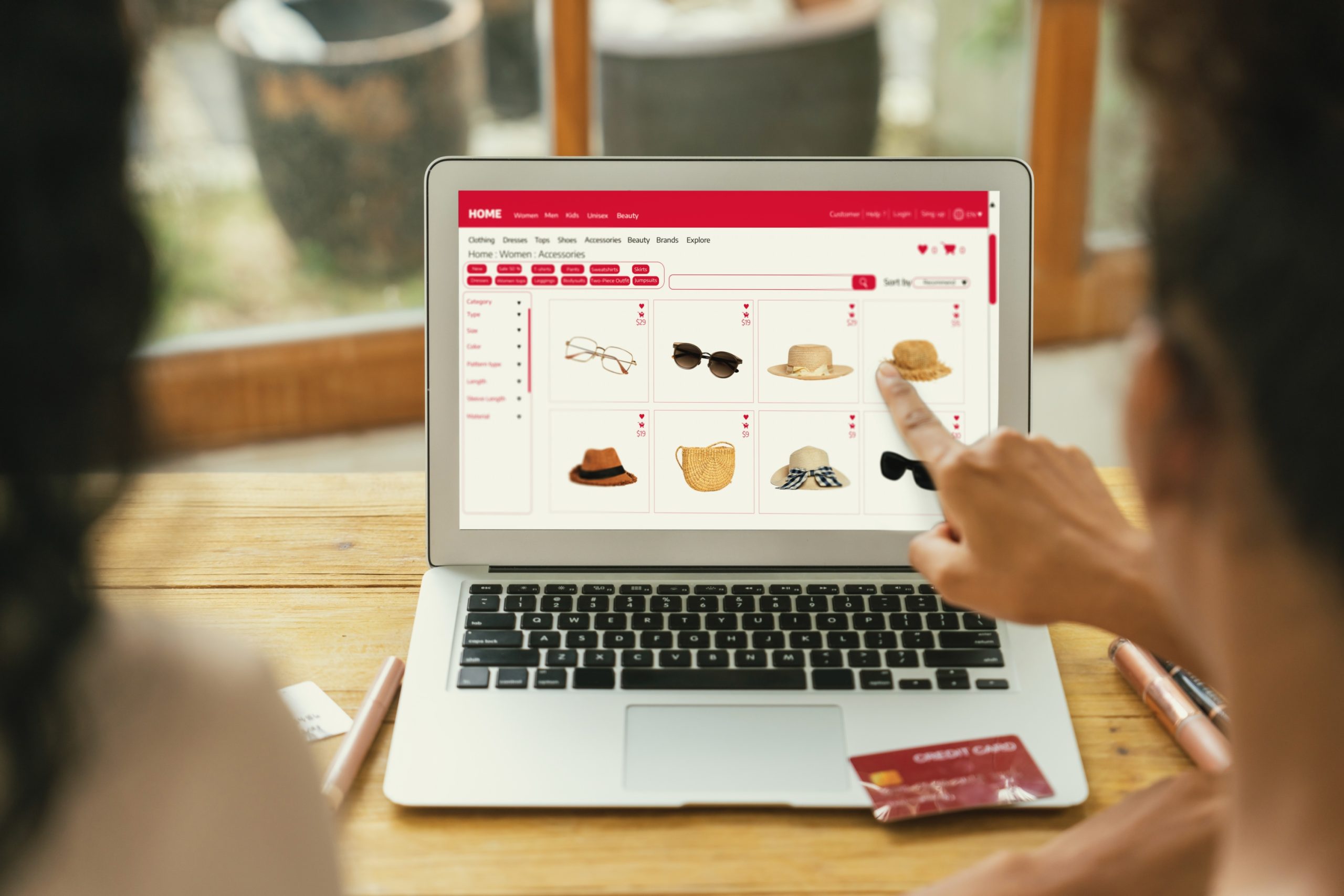
Running a WooCommerce store means paying attention to how shoppers actually browse, and one of the strongest signals you have is what they’ve already looked at. Adding a “recently viewed products” section isn’t a cosmetic flourish, it’s a deliberate move that lifts engagement, lowers bounce rates, and gives buyers a quick path back to items they were considering but didn’t commit to yet.
This guide walks through how to add recently viewed products in WooCommerce from both angles: the strategic case for the feature, and the actual implementation. You’ll see why it works, where to place it for maximum impact, and how to ship it either with a plugin or a small code snippet.

What Are Recently Viewed Products?
Recently viewed products are items a user has looked at during their session on your store. This feature keeps a log of the products and typically displays them in a widget, sidebar, or on product and cart pages.
From a customer’s perspective, it acts like a digital breadcrumb trail. Shoppers often click through multiple products before deciding on one. By seeing what they’ve recently viewed, they can easily return to a product without having to search for it again. This convenience improves usability and fosters more confident purchase decisions, particularly on stores with large catalogs where re-finding a specific item through category browsing is genuinely annoying.
WooCommerce ships a basic [woocommerce_recently_viewed_products] shortcode, but it’s limited in styling and placement, which is why most stores still need a tailored solution. Knowing how to add recently viewed products in WooCommerce properly is essential for any store owner who wants to maximize the customer experience rather than settle for the bare-minimum default.
Why Should You Add Recently Viewed Products in WooCommerce?
Knowing how to add recently viewed products in WooCommerce is a genuinely useful skill for improving your store’s performance. But why exactly is this feature so valuable?
First, it enhances the overall user experience. Shoppers navigate through many pages, comparing sizes, prices, colors, and more. A recently viewed products section helps them easily track back and re-evaluate choices without frustration or having to retrace their browsing path manually.
Second, it boosts conversions. When visitors see items they’ve previously considered, it triggers memory and emotional connection, both powerful factors in ecommerce decision-making. Adding recently viewed products keeps these items top of mind, subtly encouraging customers to finalize their purchases rather than forgetting about a product they were genuinely interested in.
Moreover, this feature reduces cart abandonment and increases cross-selling opportunities. Imagine a user who viewed five items but added only one to their cart. By showing the remaining four again, you’re giving them another chance to reconsider and potentially buy more, without any additional ad spend or email follow-up required.
The Psychology Behind Recently Viewed Products
The concept of recently viewed items taps directly into cognitive psychology, specifically the “recency effect.” This is the idea that people tend to remember the last few items in a sequence more vividly than items they saw earlier in a session.
By using this principle in ecommerce, you can nudge users toward actions they were already considering. Whether it’s a pair of shoes, a smartphone, or a handmade candle, recently viewed products remind users of what they found interesting. This psychological push increases the likelihood of a return visit, deeper site engagement, and eventual conversion.
Even better, this strategy complements other marketing techniques like retargeting, upselling, and personalized recommendations. It forms part of a cohesive user journey that feels personalized and intuitive rather than like a generic storefront showing the same products to every visitor.
How to Add Recently Viewed Products in WooCommerce (Without Plugins)
Let’s roll up our sleeves and get technical. If you want to learn how to add recently viewed products in WooCommerce without relying on plugins, here’s a clean method using custom PHP code.
This process requires basic knowledge of WordPress theme editing. We recommend using a child theme or a site-specific plugin to avoid losing changes during theme updates.
Step 1: Create a Session to Store Product IDs
Add this code snippet to your theme’s functions.php file:
function store_recently_viewed_products() {
    if (!is_singular('product')) return;

    global $post;
    if (empty($_SESSION['recently_viewed'])) {
        $_SESSION['recently_viewed'] = array();
    }

    $viewed_products = $_SESSION['recently_viewed'];

    if (($key = array_search($post->ID, $viewed_products)) !== false) {
        unset($viewed_products[$key]);
    }

    array_unshift($viewed_products, $post->ID);
    $viewed_products = array_slice($viewed_products, 0, 5);

    $_SESSION['recently_viewed'] = $viewed_products;
}
add_action('template_redirect', 'store_recently_viewed_products');
Step 2: Display the Recently Viewed Products
To display them, paste the following where you’d like the section to appear, typically in sidebar.php or a custom widget area:
function display_recently_viewed_products() {
    if (empty($_SESSION['recently_viewed'])) return;

    $recent_products = array_filter(array_unique($_SESSION['recently_viewed']));
    echo '<h3>Recently Viewed Products</h3><ul>';

    foreach ($recent_products as $product_id) {
        $product = wc_get_product($product_id);
        echo '<li><a href="' . get_permalink($product_id) . '">' . $product->get_name() . '</a></li>';
    }

    echo '</ul>';
}
add_action('woocommerce_sidebar', 'display_recently_viewed_products');
And just like that, you’ve added a functional feature without bloating your site with extra plugins. One caveat worth flagging: this snippet relies on PHP sessions, which don’t play well with most page caching setups. If your host runs full-page caching (common on managed WordPress hosting), you’ll need to exclude pages using this feature from the cache, or switch the storage mechanism to a cookie-based or client-side approach instead.
How to Add Recently Viewed Products in WooCommerce Using Plugins
If coding isn’t your cup of tea, or if you want more flexibility and design options, using a plugin is a smart alternative. Several solid plugins make this process painless.
1. Recently Viewed Products for WooCommerce
Recently Viewed Products for WooCommerce displays the products recently viewed by members and guests on a separate page, and it’s a lightweight option if you just need the core feature without extra design complexity.
2. YITH WooCommerce Recently Viewed Products
YITH is a trusted name in the WooCommerce ecosystem. This plugin offers polished templates, responsive design, and shortcode integration for total control over placement, making it a strong choice if design flexibility matters more than a bare-bones setup.
3. ProductX, Gutenberg Product Blocks
ProductX includes a block specifically for recently viewed items and integrates seamlessly with block-based themes, which makes it the natural choice if your store is already built around the WordPress block editor rather than a page builder plugin.
To install any of these: go to your WordPress dashboard, navigate to Plugins, then Add New, search for the plugin by name, install and activate it, then configure the settings under WooCommerce or Appearance, Widgets depending on the specific plugin.
Remember, while plugins simplify setup, always test compatibility and performance impact before going live, particularly on a theme you haven’t tested this specific feature with before.
Where to Display Recently Viewed Products for Maximum Impact
Now that you know how to add recently viewed products in WooCommerce, placement becomes your next strategic decision.
Sidebar widgets work well for product and category pages. Below product descriptions helps users stay engaged after they’ve scrolled past the main content. Cart and checkout pages smartly nudge last-minute additions right before a customer commits to their order. Home page sections serve as a reminder for returning visitors who may not have browsed a specific category yet on this visit.
The goal is to balance visibility with subtlety. You don’t want the section to feel intrusive, but you do want it to be noticed without competing with the primary call to action on the page.
Best Practices for Using Recently Viewed Products
Adding the feature is one thing, using it effectively is another. Here are a few professional tips worth following.
Limit the number of items shown, four to six products max. Overloading this area can feel overwhelming and pushes more important page elements further down the screen. Style it consistently so the design matches your theme for a seamless feel rather than looking like a bolted-on afterthought. Track interaction using analytics tools to see how users actually engage with these products, rather than assuming the feature is working just because it’s live. And combine it with retargeting, sync user behavior with your email campaigns or ad platforms for a more complete personalization strategy.
Also, avoid duplicating content. If a product already appears in another recommendation section (like “you may also like”), exclude it from the recently viewed list so you’re not showing the same item twice on one page.
Performance Considerations Store Owners Often Miss
A recently viewed products widget sounds lightweight, but a poorly implemented one can quietly slow down every single page load on your store. The most common mistake is running a fresh database query for every product in the list on every page load rather than caching the result, on a store with meaningful traffic, that adds up fast. If you’re using the custom code approach, consider caching the rendered widget output with a short expiration rather than rebuilding it from scratch on every request.
The other overlooked issue is image loading. A row of five or six product thumbnails, especially if they’re not lazy-loaded, adds real weight to every page. Make sure whichever method you choose, plugin or custom code, is using WordPress’s native lazy loading for these images rather than loading them eagerly regardless of whether the visitor scrolls to that section.
Recently Viewed vs. Related Products vs. Frequently Bought Together
Store owners often bolt on every recommendation widget WooCommerce and its plugin ecosystem offer, without thinking through how they differ, and the result is a product page cluttered with three or four sections all trying to do slightly different jobs. It’s worth being precise about what each one actually does.
Related products are generated automatically based on shared categories or tags, they’re WooCommerce’s native “you might also like this” signal and require zero setup, but they’re not personalized to the individual shopper at all. Frequently Bought Together shows items genuinely purchased together by other customers, a purchase-pattern-based recommendation rather than a browsing-based one. Recently viewed products is the only one of the three that’s entirely personalized to that specific visitor’s own session, it’s not a recommendation at all in the traditional sense, it’s a memory aid. That distinction matters when you’re deciding where each section goes: recently viewed products work best positioned where a returning-attention moment makes sense, like the cart page or a return visit to the homepage, while related products and frequently bought together fit more naturally on the product page itself where the shopper is actively evaluating a purchase.
Handling Recently Viewed Products for Variable Products
Stores selling variable products (a t-shirt in five colors and four sizes, for instance) run into a specific wrinkle with recently viewed tracking: should the widget log the parent product, or the specific variation the shopper looked at? Logging only the parent product is simpler to implement and matches what most of the plugins listed above do by default, but it loses the specific color or size the shopper was actually interested in, which can mean sending them back to a product page where they have to reselect their preference from scratch.
If your catalog leans heavily on variable products with meaningfully different variations (not just size, but genuinely different colorways or configurations), it’s worth checking whether your chosen plugin supports variation-level tracking, or extending the custom code snippet above to store the variation ID alongside the parent product ID. YITH’s plugin handles this reasonably well out of the box; the free custom-code route above needs a small modification to capture $_GET['variation_id'] if you want that level of precision.
Case Study: Increased Conversions Through Recently Viewed Products
One fashion retailer added a “Recently Viewed” widget to their sidebar and reported a 17% increase in return visits and a 12% boost in conversions within two months. Shoppers described a smoother experience and were more likely to return later to complete their purchase.
Such results aren’t coincidental. By simply understanding how to add recently viewed products in WooCommerce, this store owner tapped into natural buying behaviors and created a more intelligent shopping experience without needing to redesign the entire site.

Frequently Asked Questions
Does WooCommerce track recently viewed products by default?
WooCommerce includes a basic [woocommerce_recently_viewed_products] shortcode that uses a cookie to remember what each visitor has looked at. It works, but layout and styling are minimal, which is why most stores end up using a plugin or a small custom snippet for proper placement and design.
Will recently viewed products slow my site down?
Not meaningfully, if implemented correctly. Most implementations store product IDs in a cookie or session and only query the database for those handful of IDs when rendering the widget. If you’re seeing slowdowns, check that the widget isn’t running uncached database queries on every page load and that lazy-loaded product images are enabled.
How many products should the widget show?
Four to six is the sweet spot for most stores. Fewer than four feels empty, more than six leads to decision fatigue and pushes important page elements (related products, reviews) further down the screen. Test with your own analytics if you want a more confident number for your specific catalog.
Does this feature work for logged-out visitors, or only registered customers?
Both, in most implementations. The session or cookie-based storage methods described above track browsing behavior regardless of login status, which matters since most first-time visitors to a store aren’t logged in yet. If you switch to a database-backed approach tied to user accounts, make sure it gracefully falls back to session storage for guests rather than simply not showing anything.
Should recently viewed products persist across devices?
Only if you’re tracking logged-in users through a database table tied to their account rather than a browser cookie or session. Cookie-based tracking is device-specific by nature, a shopper who browses on their phone and returns on a laptop won’t see the same recently viewed list. For most stores this is an acceptable tradeoff given the added complexity of cross-device tracking, but it’s worth knowing the limitation exists before a customer asks why their history “disappeared.”
Can I exclude out-of-stock products from the recently viewed list?
Yes, and it’s worth doing. Showing a shopper a product they were interested in, only for them to click through and find it’s sold out, is a minor but avoidable frustration. Most dedicated plugins include a stock-status filter in their settings; if you’re using the custom code approach, add a stock check inside the display loop and skip any product where $product->is_in_stock() returns false.
Final Thoughts: A Simple Addition, A Powerful Result
Adding recently viewed products in WooCommerce is not just a trend, it’s a foundational UX improvement that can have a lasting impact on conversions, customer satisfaction, and brand loyalty.
Whether implementing it manually or through a plugin, it’s a low-effort, high-impact strategy. Take advantage of how users shop, think, and decide. Make their journey easier, and they’ll reward you with loyalty and more purchases.
If you want to scale your WooCommerce store smartly, knowing how to add recently viewed products in WooCommerce is one tactic you can’t afford to overlook. Start with whichever method matches your comfort level, a plugin if you want something running in the next ten minutes, custom code if you want full control over the caching and display logic, and adjust the placement and product count based on what your own analytics tell you once it’s live.
Interesting Reads:
How to Create a Buy One, Get One Free Offer in WooCommerce