How to Add a Buy Now Button in WooCommerce


Speed matters. In the world of online shopping, every extra click is an opportunity for hesitation, distraction, or cart abandonment. That’s why one of the most effective, low-effort changes you can make to your WooCommerce store is adding a Buy Now button, a small upgrade with a big impact.
This guide explains step-by-step how to add a Buy Now button in WooCommerce, why it enhances user experience, and the best tools for the job, including WooCommerce Blocks and YITH WooCommerce One-Click Checkout. Updated June 2026 with the latest plugin options. Whether you’re an experienced developer or a first-time store owner, this guide is packed with practical strategies to simplify checkout and increase conversions.

What Is a Buy Now Button in WooCommerce?
A Buy Now button in WooCommerce is a call-to-action button that allows customers to bypass the traditional cart page and proceed directly to the checkout page. It typically sits alongside or replaces the “Add to Cart” button, offering a faster path to purchase.
Unlike the default WooCommerce flow, which requires users to view the cart and then manually continue to checkout, a Buy Now button cuts out those middle steps. This direct approach caters to shoppers who are ready to buy, no distractions, no delays.
The good news? Learning how to add a Buy Now button in WooCommerce is not only achievable but also highly customizable.
Why You Should Add a Buy Now Button in WooCommerce
Adding a Buy Now button isn’t just a design tweak, it’s a user experience strategy. Here’s why it’s so effective:
1. Speeds Up the Customer Journey
Modern shoppers value speed. With a Buy Now button, you remove multiple steps from the purchase process. Customers no longer need to review their cart, click “Proceed to Checkout,” or navigate additional pages. They see, they click, they pay.
2. Reduces Cart Abandonment
One of the most common causes of cart abandonment is a complicated or lengthy checkout process. By letting customers check out immediately, you minimize friction and improve conversion rates.
3. Enhances Mobile Shopping
Mobile users often have less patience and more distractions. A Buy Now button caters to their need for efficiency, giving them the fastest route to purchase. Fewer taps, more sales.
4. Boosts Conversions for Specific Products
Certain products, such as digital downloads or limited-time offers, perform better when customers can buy them instantly. Adding a Buy Now button to these items can significantly lift sales.
The Psychology Behind “Buy Now” Buttons
Understanding why a Buy Now button works can help you implement it more effectively.
Instant Gratification
The term “Buy Now” appeals to our desire for immediate results. It bypasses decision fatigue by offering a clear, direct action.
Urgency and Commitment
Compared to “Add to Cart,” which implies indecision, “Buy Now” communicates urgency and commitment. It nudges users toward completing the purchase.
Trust and Confidence
Customers who click “Buy Now” are often confident about their purchase. Giving them a frictionless path to checkout increases the chance of success.
How to Add a Buy Now Button in WooCommerce Manually
For store owners with some technical know-how, the manual method offers full control without installing extra plugins.
Step-by-Step Instructions
- Access Your Theme’s functions.php File
- Go to
Appearance > Theme File Editorin your WordPress dashboard. - Open the
functions.phpfile for your active theme.
- Go to
- Insert the Code Snippet
add_action('woocommerce_after_add_to_cart_button', 'custom_buy_now_button');

function custom_buy_now_button() {
    global $product;
    $checkout_url = wc_get_checkout_url();
    echo '<a href="' . esc_url($checkout_url . '?add-to-cart=' . $product->get_id()) . '" class="button buy-now-button" style="margin-left:10px;background-color:#28a745;color:#fff;">Buy Now</a>';
}
- Style the Button (Optional)
Add this CSS underAppearance > Customize > Additional CSSto match your brand:
.buy-now-button {
    background-color: #28a745;
    color: #ffffff;
    padding: 10px 20px;
    border-radius: 4px;
    font-weight: bold;
    display: inline-block;
    margin-top: 10px;
}
Pros of the Manual Method
- No plugin overhead
- Fully customizable
- Faster loading speeds
Cons
- Requires basic PHP knowledge
- May break with theme or WooCommerce updates
If you’d rather avoid custom code, the plugin route offers simplicity and flexibility.
How to Add a Buy Now Button in WooCommerce Using Plugins
If you prefer a more user-friendly, plug-and-play method, WooCommerce offers excellent plugin options.
1. YITH WooCommerce One-Click Checkout
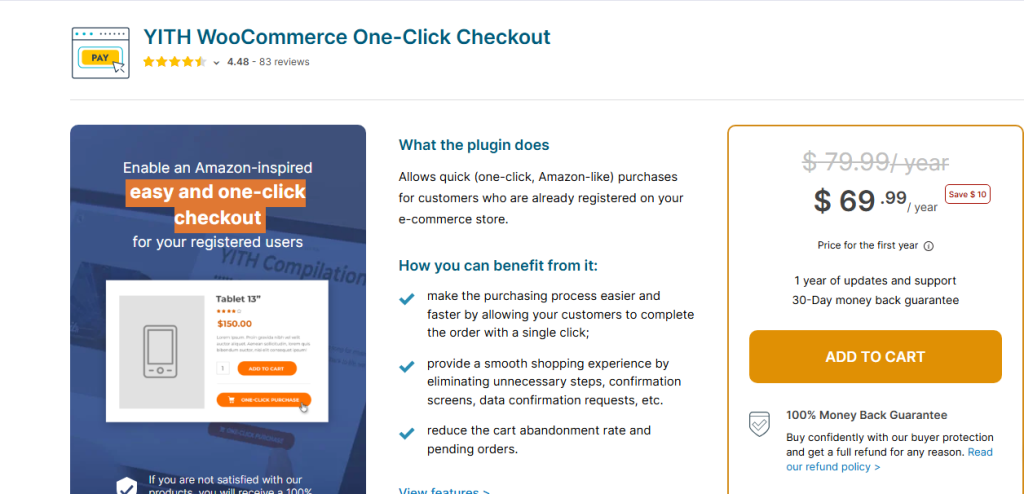
YITH WooCommerce One-Click Checkout is a powerful, lightweight plugin designed to make purchasing as fast as possible.
Features:
- Instantly redirects to checkout
- Customizable button label and appearance
- Works with both simple and variable products
- Supports guest checkout and user login
Setup Instructions:
- Navigate to Plugins > Add New.
- Search for YITH WooCommerce One-Click Checkout.
- Install and activate the plugin.
- Go to YITH > One-Click Checkout Settings.
- Customize the button’s behavior, placement, and design.
2. Quick Buy Now Button for WooCommerce
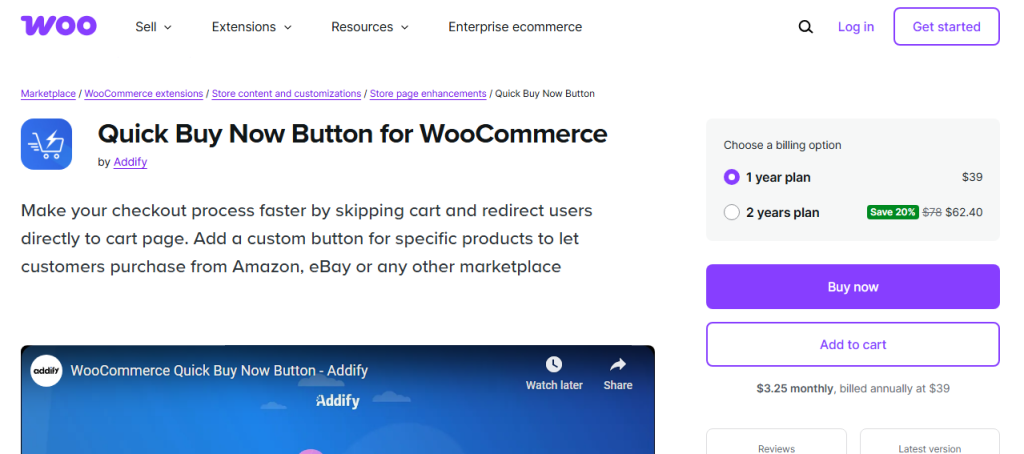
If you’re looking for an intuitive, performance-focused solution to simplify checkout, the Quick Buy Now Button for WooCommerce plugin is a fantastic alternative. It’s designed to let you place a customizable Buy Now button across your product and shop pages with minimal configuration.
Features:
- Adds a prominent Buy Now button next to or below the Add to Cart button
- Instantly redirects to the checkout page on click
- Works with simple and variable products
- Allows styling and placement customization
- Mobile-optimized with responsive layouts
This plugin is ideal for store owners who want a simple solution without compromising flexibility or performance.
How to Use It:
- Go to Plugins > Add New in your WordPress dashboard.
- Search for the Quick Buy Now Button for WooCommerce.
- Install and activate the plugin.
- Navigate to WooCommerce > Settings > Quick Buy Now.
- Configure the buttons:
- Label text (e.g., “Buy Now,” “Instant Checkout”)
- Button color and style
- Redirect destination (typically set to the checkout page)
You can also specify whether the button should appear on product pages, shop loops, or both.
Whether you choose YITH or Quick Buy Now Button for WooCommerce, these tools make it easy to implement a professional-grade Buy Now experience.
Where to Place the Buy Now Button
Position matters. A Buy Now button should be strategically placed to maximize visibility and engagement.
Product Page
Place it directly below the product title or next to the Add to Cart button. This lets customers choose between continuing to browse or checking out instantly.
Featured Product Sections
If you’re promoting a product on your homepage, consider placing a Buy Now button in featured product blocks for immediate engagement.
Mobile Optimization
Ensure that the button is thumb-friendly and responsive. Test across multiple devices to verify usability.
Measuring Buy Now Button Performance
Installing the button is only the beginning. You need data to validate its success.
Use Google Analytics
Track events like button clicks and successful checkouts. Use Google Tag Manager to trigger events based on the Buy Now button class.
Use Heatmaps
Tools like Hotjar can show where users are clicking. If the Buy Now button is underperforming, it may need repositioning or a color update.
Common Buy Now Button Mistakes (and Fixes)
Even a small feature like this can create big problems if not implemented correctly. Here’s what to avoid:
Broken Redirects
Make sure your checkout URL is dynamically generated using wc_get_checkout_url(). Hardcoding the URL can break redirection.
Styling Inconsistency
If the Buy Now button doesn’t match your theme’s design, it could reduce trust. Use CSS to style it consistently.
Plugin Conflicts
Some cache or security plugins may interfere with redirection scripts. Test in incognito mode and disable plugins temporarily if the button fails.
Advanced Customizations: Conditional Logic for Buy Now
Want more control? You can add logic to determine when and where the Buy Now button appears.
Example: Show Only for Specific Categories
if ( has_term('digital', 'product_cat', $product->get_id()) ) {
    // Show Buy Now button
}
Example: Logged-in Users Only
if ( is_user_logged_in() ) {
    // Show Buy Now button
}
These tweaks help you tailor the experience to different product types or customer segments.

Handling Inventory and Race Conditions on Popular Products
A Buy Now button that skips the cart page introduces a subtle inventory problem worth planning for: when multiple customers click Buy Now on the same low-stock item within seconds of each other, WooCommerce needs to correctly reserve stock at the point of checkout rather than at the point of the button click, otherwise two customers can both reach the payment page believing an item is available when only one unit remains. WooCommerce’s core stock management handles this reasonably well by default, reducing stock at order placement rather than at cart addition, but if you’re using a custom Buy Now snippet that manually manipulates the cart, test this scenario specifically with a low-stock test product before launching it on a genuinely popular item.
For flash sales or limited drops where this race condition risk is highest, consider adding a short stock reservation window (some inventory plugins support holding stock for a few minutes once it’s in an active checkout session) so a customer who reaches the payment screen isn’t told the item sold out from underneath them mid-transaction, which is one of the more frustrating checkout experiences a store can create.
Buy Now Button Copy: What Actually Converts Better
The literal words on the button matter more than most store owners assume, and it’s worth testing rather than defaulting to “Buy Now” without consideration. Generic research across e-commerce checkout flows consistently shows that first-person phrasing (“Buy It Now” versus a passive “Purchase”) and specificity (“Get It Today” when same-day shipping is genuinely available) tend to outperform generic alternatives, though the actual winner varies by audience and should be tested on your own traffic rather than assumed from a general best-practices list. Avoid vague alternatives like “Continue” or “Proceed”, they fail to communicate urgency or clarity about what happens next, which is the entire point of a dedicated Buy Now button in the first place.
Button color also deserves a genuine test rather than a default choice. Green performs well in many tests because it’s culturally associated with “go” and safety, but a button color that clashes with your brand’s palette or blends into the page rather than standing out will underperform regardless of the psychological associations, visibility against the surrounding page matters more than the specific hue chosen.
Buy Now vs. Express Checkout Options (Apple Pay, Google Pay, Shop Pay)
A custom Buy Now button and a native express checkout button solve a similar problem in different ways, and it’s worth understanding how they overlap before building a custom solution from scratch. WooCommerce Payments and most modern payment gateways (Stripe, PayPal) now support express checkout buttons like Apple Pay, Google Pay, and PayPal’s one-touch checkout, which appear directly on the product page and let a customer complete a purchase using saved payment details without ever touching a form field. These typically outperform a generic “Buy Now” button on mobile specifically, since they skip manual card entry entirely rather than just skipping the cart page.
A custom Buy Now button still has a role even alongside express checkout options: it captures customers who don’t have Apple Pay or Google Pay set up, or who prefer entering shipping details manually because they’re ordering to a different address than their saved default. The strongest setups run both side by side, express checkout buttons for speed with saved payment methods, and a standard Buy Now button beneath them for everyone else, rather than treating them as competing solutions to the same problem. Layering both also protects against a single point of failure, if a particular express payment provider has an outage, customers still have a working path to checkout through the standard button.
Measuring Whether the Button Actually Increased Conversions
Skipping this step is the single most common mistake with any conversion-focused feature: shipping it, feeling good about the idea, and never actually confirming it moved a real number.
Adding a Buy Now button and assuming it’s working because it looks good is a common mistake. Set up a genuine before-and-after comparison: note your product page to purchase conversion rate for at least two to four weeks before adding the button, using WooCommerce Analytics or Google Analytics 4’s e-commerce reporting, then compare the same metric for an equivalent period afterward. Look specifically at the conversion rate for sessions that included a product page view, not just overall site conversion, since a Buy Now button only affects the tail end of that particular path.
If you want a cleaner signal, run an A/B test rather than a simple before-and-after: tools like Google Optimize’s replacements (Convert, VWO) or a WooCommerce-specific A/B testing plugin can split traffic between a version with the button and a version without, controlling for seasonal or traffic-source variation that a simple before-and-after comparison can’t rule out. A genuine lift of even 3 to 5 percent in product-to-purchase conversion is a meaningful result worth keeping; if the numbers move less than that or actually decline, it’s worth checking whether the button is confusing customers about what happens next (does it skip the cart entirely, does it still let them add more items) rather than assuming the concept itself failed.
Buy Now Buttons and Subscription or Pre-Order Products
Not every product type behaves the same way with an instant-checkout button, and it’s worth handling subscriptions and pre-orders deliberately rather than applying the same Buy Now logic across the whole catalog. For a subscription product (using WooCommerce Subscriptions), a Buy Now button that skips straight to checkout can actually reduce the customer’s understanding of what they’re committing to, since the recurring billing terms are often clearest on the product page itself, right next to the price. Consider either omitting the Buy Now button on subscription products entirely, or making sure the checkout page clearly restates the billing frequency and next charge date before the customer confirms.
Pre-order products carry a similar consideration: a customer clicking Buy Now on an item that won’t ship for six weeks should see that expected ship date clearly before or during checkout, not discover it buried in a confirmation email afterward. A few of the WooCommerce pre-order plugins support this natively; if you’re using custom code for the Buy Now button, make sure the redirect target still displays pre-order messaging rather than routing around it, since silently skipping that context is exactly the kind of thing that generates a support ticket and a refund request later.
Frequently Asked Questions
Does WooCommerce have a built-in Buy Now button?
Not natively. WooCommerce’s default flow routes customers through the cart first. Adding a Buy Now button requires a plugin or a custom PHP snippet in your theme’s functions.php file.
Will a Buy Now button work with variable products?
Yes, when using a plugin like YITH One-Click Checkout or Quick Buy Now Button. The custom code approach works best with simple products and requires additional logic for variables.
Can I show the Buy Now button on the shop/archive page as well?
Yes. Most plugins allow placement on shop archive pages, not just individual product pages. This can increase impulse buys from customers browsing your catalog.
Final Thoughts: A Button That Means Business
Learning how to add a Buy Now button in WooCommerce is one of the smartest and simplest ways to boost your store’s performance. You’re not just adding a button, you’re removing obstacles from the customer journey.
With options for both code-savvy users and plugin-based solutions, you can implement this feature in minutes. Whether you use the YITH One-Click Checkout plugin or WooCommerce Blocks, you’ll be creating a frictionless shopping experience your customers will love.
Every second counts in eCommerce. Don’t make your users wait. Add that Buy Now button, streamline the purchase process, and watch your conversions rise.
Interesting Reads:
How to Add Recently Viewed Products in WooCommerce