How to Automate Service Delivery on Your WooCommerce Website


Most service businesses hit the same wall around client number fifteen or twenty. The work itself hasn’t gotten harder. What’s gotten harder is everything around the work: chasing payment status, writing the same “here’s your update” email for the third time this week, and trying to remember whether client B is waiting on you or you’re waiting on client B.
That wall is what automation is for. Not automation in the abstract sense of “using more software,” but specifically automating the repetitive administrative layer that sits between doing good work and getting paid for it. On WooCommerce, that means combining the right plugins with a workflow you actually follow, not one you set up once and forget.
This guide walks through that setup in order: order automation first, then communication, then milestone tracking, then payments, then delivery, then the advanced layer with Zapier. Skip ahead if you’ve already handled the earlier steps, but read them in order the first time. Each layer depends a little on the one before it.
Step 1: Automate Order Processing with Woo Sell Services
Woo Sell Services is built specifically for the gap stock WooCommerce leaves open: turning a one-time “paid” status into a real service workflow with milestones, in-order messaging, approval steps, and notifications at each stage.
Setting It Up
- Install and activate Woo Sell Services from your WordPress dashboard.
- Go to WooCommerce → Woo Sell Services and configure milestone structure, communication tools, and notification triggers.
- Add new service-based products under WooCommerce → Products.
- Define service details, timelines, and which order status changes should fire an automated update.
Once configured, this layer runs quietly in the background. A client places an order, gets an automatic confirmation, and moves through whatever milestone sequence you’ve defined without you drafting a single email by hand.
One thing worth doing before you launch: walk through your own checkout as a test customer. Order the cheapest service you offer, watch every automated email arrive, and check the timing. It’s a fifteen-minute exercise that catches embarrassing gaps, like a “your order is complete” email that fires before you’ve actually delivered anything.
Step 2: Automate Client Communication
Manual email is where most of the wasted time actually lives. Not in writing the emails themselves. In remembering to write them, and remembering who’s waiting on what.
A few tools handle different pieces of this.
- Woo Sell Services gives you a built-in chat tied to each order, so buyer and seller messages stay in one place instead of scattered across three inboxes.
- WP Mail SMTP makes sure WooCommerce’s automated emails actually land in the inbox instead of getting flagged as spam, which happens more often than store owners expect with default PHP mail.
- Twilio can push SMS updates for time-sensitive milestones, useful if your clients don’t check email quickly.
- Live chat tools like Tidio or Crisp can handle pre-sale questions automatically, using canned responses for the handful of questions that come up on every single order.
Faster response times aren’t just a nice-to-have here. Clients who get a same-day reply are measurably more likely to leave a positive review and refer someone else. A three-day silence, even when you’re just busy delivering good work, reads as neglect.
Step 3: Set Up Milestone-Based Service Tracking
For anything longer than a single session, milestones do two things at once. They keep the client informed without you having to narrate every step, and they give you natural checkpoints to collect partial payment instead of waiting until the very end.
Building Milestones in Woo Sell Services
- Go to WooCommerce → Products → Add New.
- Select the service product type that Woo Sell Services enables.
- Define each milestone with a rough estimated completion window.
- Turn on automated notifications for when a milestone is marked complete.
- Require client approval before the next milestone unlocks.
A concrete example: a branding project might split into discovery call, initial concept, revisions round, and final files. Four milestones, four natural checkpoints, four moments where the client feels progress instead of silence.
Approval requirements do double duty. They reduce disputes because there’s a clear record of what the client signed off on, and they slow down scope creep because “one more small change” now has to happen inside a defined milestone instead of quietly expanding the whole project.
Step 4: Automate Payment Processing
Manual invoicing is one of the easiest things to automate and one of the most commonly left half-done. Connecting the right gateway removes it almost entirely.
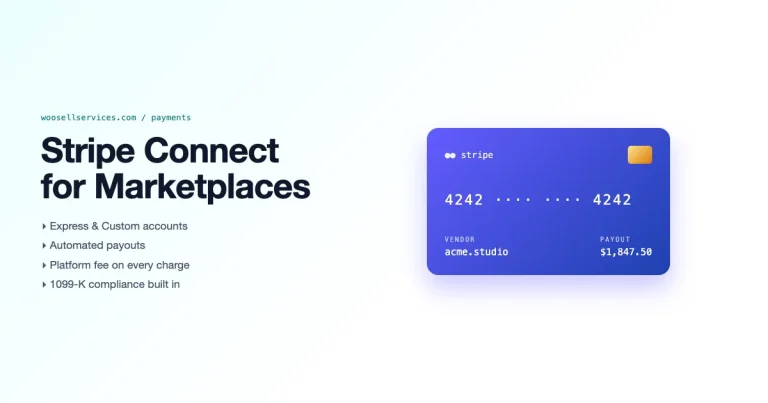
Stripe handles recurring billing well if any part of your service model is retainer-based. PayPal covers both one-time and subscription payments and remains the gateway a lot of international clients already trust. Razorpay is the stronger choice if a meaningful share of your client base is in India. Authorize.Net is common for US-based B2B clients who expect a more traditional merchant processor.
Automated payments solve a specific, annoying problem: the client who fully intends to pay but simply forgets until you follow up, twice. A scheduled charge or a milestone-triggered invoice removes that entire back-and-forth.
Step 5: Automate Order Completion and Delivery
The last mile of a service, actually handing over the finished work, is where a lot of businesses quietly revert to manual habits even after automating everything else.
- Configure Woo Sell Services to mark an order complete automatically once the final milestone is approved.
- Connect Google Drive or Dropbox so final files upload and share automatically rather than being manually attached to an email.
- Use a PDF invoice plugin so a receipt generates and sends the moment payment clears.
- Turn on a completion notification so the client knows, without ambiguity, that the engagement is finished.
That last point matters more than it sounds like. An engagement that just quietly stops, with no clear “we’re done” signal, leaves clients unsure whether to expect more work or follow up again. Ambiguity there costs you reviews and referrals you’d otherwise get.
Step 6: Layer in Zapier for Everything Else
Woo Sell Services and the tools above cover the core service loop. Zapier is where you connect that loop to everything else your business runs on.
A few workflows worth setting up early: a Slack notification the moment a new service order comes in, so nobody on a small team misses it. An automatic Google Calendar event when someone books a consultation slot, pulled straight from the order details. A sync that pushes every new order into whatever CRM you use, whether that’s HubSpot, Zoho, or a simple spreadsheet-based system. A follow-up email sequence in Mailchimp or ActiveCampaign that triggers a few days after delivery, checking in and opening the door for repeat work.
None of these require code. Zapier’s trigger-and-action model means each one is a five-minute setup once you know which WooCommerce event you want to key off of.
Step 7: Automate Follow-Ups and Upsells
The easiest sale you’ll ever make is to someone who already paid you once and liked the result. Most businesses leave that entirely to chance.
A basic follow-up sequence covers a thank-you email with a small discount on the next service, sent automatically a set number of days after delivery. A loyalty structure, even an informal one where repeat clients get priority scheduling, encourages people to come back instead of shopping around. And a simple upsell prompt, offered right at project completion when satisfaction is highest, converts far better than the same offer sent cold three months later.
None of this needs to be complicated. A single automated email asking “want to book your next session while this is fresh” outperforms most elaborate re-engagement campaigns built later, after the client has moved on.
What Automation Doesn’t Fix
It’s worth being honest about the limits here. Automation removes repetitive administrative work. It does not fix a service that’s inconsistent, a pricing model that doesn’t cover your time, or a business where the actual delivery quality varies wildly from client to client.
If clients are unhappy, automating the emails you send them just means they get disappointed faster and with better formatting. Fix the underlying delivery problem first. Automation is for scaling something that already works, not for papering over something that doesn’t.
There’s also a point where automation becomes impersonal. A milestone notification is fine to automate. A genuine “thank you for trusting us with this” at project close reads better coming from you directly, even if it takes five extra minutes. Save the personal touch for the moments that actually call for it, and automate the rest.
A Day in the Life, Before and After
Before automation, a typical Tuesday for a solo consultant with eight active clients might look like this. Two emails asking “any update on my project,” neither of which needed asking if a milestone notification had already gone out. One invoice written from scratch because the last one got buried in a different thread. Twenty minutes spent digging through email to confirm whether client four’s payment actually cleared. A missed follow-up with a past client who would have booked again if anyone had reminded them the offer window was open.
None of that is dramatic on its own. Stacked across a working week, it’s easily six to eight hours, close to a full workday, spent on tasks a plugin handles for free.
After automation, that same Tuesday looks different. The status update emails already went out automatically when each milestone was marked complete, so the “any update” messages mostly stop arriving. The invoice generated and sent itself the moment the milestone was approved. Payment status is visible in the WooCommerce dashboard instead of buried in a search. The past client got a re-engagement email three days after their last project wrapped, and two of them already replied wanting to book again.
The work itself didn’t get any easier. What changed is where the hours went.
What This Actually Costs
Woo Sell Services and stock WooCommerce cover the core loop without extra monthly fees beyond hosting. WP Mail SMTP has a solid free tier that’s enough for most solo operators. Zapier’s free plan handles a modest number of monthly automation runs, usually enough for a business with fewer than fifty orders a month, and paid tiers scale from there as volume grows. Twilio is pay-per-message, cents per SMS, so it’s worth reserving for milestones that genuinely benefit from an instant text rather than every single notification.
None of this adds up to a meaningful cost next to what it replaces. If automation buys back even three hours a week for a consultant billing $100 an hour, the tools have paid for themselves several times over before the first invoice of the month goes out.
Common Mistakes When Automating Service Delivery
Automating the wrong order first. Set up payment processing and order confirmation before anything fancier. A perfectly automated follow-up sequence means nothing if the initial order confirmation is broken.
Writing robotic automated emails. Just because a message sends itself doesn’t mean it has to read like a form letter. Spend the extra ten minutes writing an automated confirmation that sounds like you, since clients notice the difference between a template and something that was actually written with care.
Never testing the full flow after changes. Every time you add a new milestone or change a notification trigger, place a test order. Automation that breaks silently is worse than doing things manually, because nobody notices until a client complains.
Over-automating the relationship. If every single touchpoint is automated, from the first email to the last, the business starts to feel like nobody’s actually running it. Keep at least one or two moments, project kickoff and project close are good candidates, where you show up personally.
Ignoring the data automation generates. Every one of these tools produces a small trail of information: how long orders typically take, which milestone clients get stuck on most often, which follow-up emails actually convert. Check it occasionally. It usually points at exactly one bottleneck worth fixing.
A Realistic Timeline for Setting This Up
You don’t need to build all seven steps in one weekend. A reasonable order: get Woo Sell Services and a payment gateway running first, since nothing else works without them. Add communication automation in week two. Milestones and delivery automation in week three, once you’ve seen how a real order flows through the system. Zapier and the follow-up sequences last, since they’re additive rather than essential.
Trying to build everything at once usually means none of it gets properly tested, and a broken automated email to a paying client is worse than no automation at all.
Frequently Asked Questions
Will automation make my service feel impersonal?
Only if you automate the wrong parts. Confirmations, receipts, and status updates are expected to be instant and don’t need a human touch. Save your actual attention for the parts of the relationship that benefit from it, like a real check-in call or a personal note at project close.
How long does the full setup take?
A basic version, order processing plus one communication tool plus a payment gateway, can be running in an afternoon. The full seven-step system, done properly with testing at each stage, is closer to three to four weeks of gradual setup alongside your normal client work.
Do I need Zapier if I only have a handful of clients?
Not necessarily. Zapier earns its cost once you’re juggling enough orders that manual tracking starts causing real mistakes. Below that threshold, the core Woo Sell Services and payment automation covers most of the benefit.
What’s the most commonly skipped step?
Testing the full order flow as a customer before launch. It’s the fastest step and the one most people skip, and it’s also where the most embarrassing mistakes hide.
Can I automate service delivery without touching any code?
Yes. Everything in this guide runs through plugin settings screens and third-party dashboards. Zapier’s automations are built with a visual trigger-and-action interface, not scripts, so none of this requires a developer to set up or maintain.
Automating Service Delivery, One Layer at a Time
Automating service delivery on your WooCommerce website is not a single switch you flip. It’s a stack: order processing, communication, milestones, payments, delivery, and the connective layer that ties it all to the rest of your business. Build it one layer at a time, test each one with a real order before moving to the next, and you’ll end up with a system that runs quietly in the background while you focus on the work that actually pays.
Start automating your WooCommerce service business today and spend your attention on growth instead of status updates.
Interesting Reads
Why Businesses Should Sell Services with WooCommerce
5 Best WooCommerce Payment Gateways to Sell Services Online
Online Shop and Online Marketplaces: A Complete Guide for Modern Sellers
Measuring Whether the Automation Is Actually Working
Six months after building this out, revisit it with real numbers rather than a general sense that things feel smoother. Compare average response time to client messages before and after, compare how many status-update emails you are still writing by hand, and check whether the re-engagement sequence is generating actual repeat bookings or just landing in an inbox unread.
If a specific automated step, a follow-up email, a milestone notification, is not producing any measurable effect after a few months, cut it rather than leaving it running out of habit. Automation that nobody checks the results of tends to accumulate quietly, and a workflow built two years ago for a service you no longer offer is worth pruning the same way you would clean up an unused plugin.