How to Sell a Website Care Plan as a Product in WooCommerce
Package a website maintenance retainer as a WooCommerce product: scope, tiers, licence costs, intake questions, monthly reports and billing.

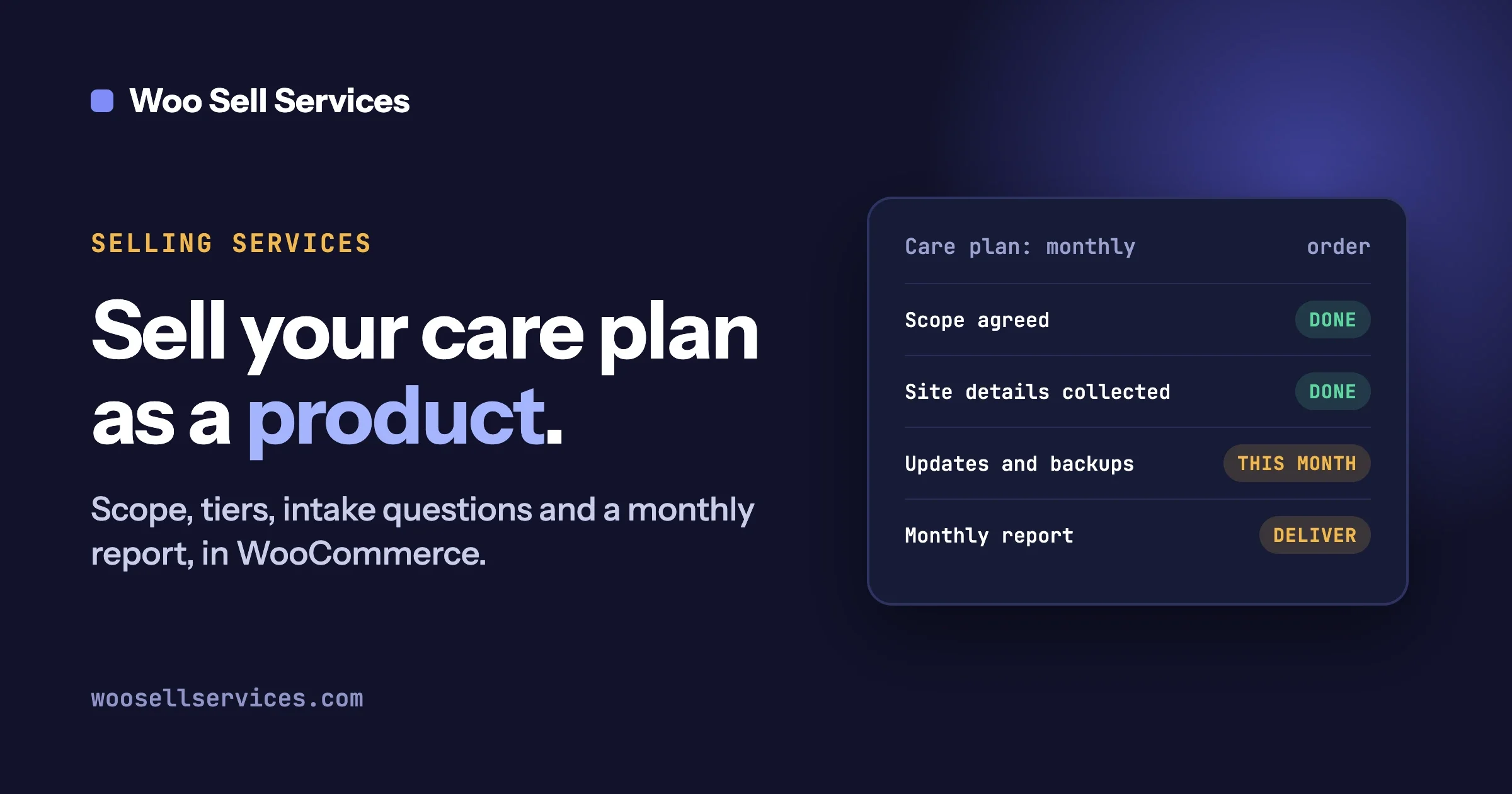
Yes, a website care plan sells well as a product in a WooCommerce store, as long as three things are in place: the scope is written down in plain words, the client’s site details are collected at checkout (or right after payment), and the monthly report is delivered through the order. This guide shows how to set that up, with copy-ready templates you can paste into your own store.
In this guide
- Why a product beats a quote
- Writing the scope (with a template)
- Tiers, and the licence cost trap
- Questions to ask after payment
- Running the month, with a report template
- Billing each month, honestly
- When a client asks if AI can do this
- Setup with Woo Sell Services, and common questions
What is a website care plan, and why sell it as a product?
A care plan (also called a maintenance retainer) is a monthly or yearly arrangement where you look after a client’s website: you apply updates, check backups, watch for problems and fix small things. Most freelancers and small agencies already do this work. The question is only how it is sold.
The usual way is a quote. The client emails, you ask what they have, you write a proposal, they reply a week later, and you chase. Every client gets slightly different terms because you wrote each one from memory. Selling the plan as a product changes that in four ways:
- One price, one scope. The buyer sees what is included before paying. Fewer awkward conversations later about what “maintenance” meant.
- Payment comes first. Work starts after the order is paid, not after a long email thread.
- Every client gets the same intake. You stop forgetting to ask for the hosting login.
- A record exists. What was agreed, what was asked and what was delivered all sit in one place, the order.
This is the same idea behind any productized service, which simply means a service with a fixed scope, a fixed price and a repeatable process. If you want examples from other trades, our post Productized Services: 12 Examples You Can Sell covers them, and we will not repeat those here. This post stays on one example, the care plan, because it has a few traps that the others do not.
A quote is still better for very large or unusual sites. Offer the plan as the default and keep a “talk to us” option for those.
How do you write the scope of a care plan?
Write the scope as a short list of what is included, a short list of what is excluded, and two numbers: how fast you respond and how many small changes you do each month. Scope problems are the most common reason care plans go wrong. The symptom is a client who assumed something was covered and a seller who feels they are working for free. The check is simple: could a stranger read your product description and tell what happens when the client asks for a new page? If not, the scope is too vague. The fix is to put the answer in writing before they pay.
The five parts of a good scope
- Included work. Name the routine tasks: updates to WordPress core, plugins and themes, off-site backups, uptime checks, security checks, and a monthly report.
- Excluded work. Name what is not covered: redesigns, new features, content writing, fixing damage caused by a plugin the client installed without asking, recovery from a hack that began before the plan started.
- Response times. Say when you reply, not when you fix. “We reply within one working day” is a promise you can keep.
- Small changes allowance. A small change is a task of a stated size, such as a text edit, swapping an image, or adding a menu item. Say how many are included each month and whether unused ones carry over (we suggest they do not).
- What counts as extra work. Anything outside the list, or beyond the allowance. Say how extra work is agreed: you quote it, the client approves, then you start.
Copy-ready scope template
Paste this into your product description and edit the numbers to match what you can actually do.
WEBSITE CARE PLAN: [Plan name]

What is included each month
- Updates to WordPress core, plugins and themes, applied after a backup
- Off-site backup of the site, with a restore test once a month
- Uptime monitoring of the home page, checked every [5/15] minutes
- Security checks: malware scan, login protection review, user list review
- [Number] small changes (text edits, image swaps, menu or link changes, up to [30] minutes each)
- A monthly report delivered on the order

What is not included
- New pages, redesigns or new features
- Writing or translating content
- Work caused by plugins or code added by anyone else without telling us
- Recovery from damage that began before the plan started
- Third-party licences or subscriptions (see "Licences and tools" below)

Response times
- We reply to every message within [1] working day, Monday to Friday
- Urgent issue (the site is down or showing errors to visitors): we reply within [4] working hours
- A reply is not a fix. We tell you what we found and the next step.

Extra work
- Anything outside this list, or beyond the small-change allowance, is quoted first.
- We start only after you approve the quote in writing on the order.

Never changed without asking
- Anything listed in your "do not change without asking" answer
- Removing or replacing a plugin, theme or page builder

Licences and tools: see the licences clause.
Ending the plan: stop at the end of any billing period; we hand over a final report.
The line “A reply is not a fix” saves a lot of arguments.
This is a template, not legal advice. If your plan carries real liability (for example, you promise a recovery time after a failure), have a lawyer in your country read your terms.
How do you set up two or three tiers without confusing buyers?
Use two or three tiers that differ in only two or three things, such as small changes and response time, and keep every other line identical. Buyers get confused when tiers differ in ten ways. The symptom is a pricing table nobody can choose from, and a lot of “which one is right for us?” emails. The fix is to decide what one thing really separates a small client from a larger one.
A simple pattern:
Tier | Who it suits | What changes |
|---|---|---|
Essential | A brochure site that rarely changes | Updates, backups, monitoring, report. No small changes included. |
Standard | A site the owner edits and sometimes needs help with | Everything in Essential, plus a few small changes each month and a one-day reply. |
Plus | A site that earns money (a store or bookings) | Everything in Standard, plus more small changes and a faster urgent reply. |
To keep tiers clear:
- Same tasks, different amounts. Only the allowance and the response speed change.
- Name tiers by the kind of site, not by metal. “For a site that earns money” tells a buyer more than “Gold”.
- Start with two. Add a third once you see what clients ask for.
In WooCommerce, the easiest way to offer tiers is a variable product, where the tier is the variation (Essential, Standard, Plus) and each has its own price. The plugin described later in this guide works with simple, variable, grouped and external products, so the tier choice can live on a single product page.
What is the cost trap in a flat yearly care plan?
The trap is quietly paying for the client’s tools out of your flat fee. Many agencies and hosts bundle everything into one yearly package and then carry costs they do not control: a page builder licence that renews at a higher price, a premium plugin licence per site, extra backup storage as the site grows. The symptom is a plan that looked profitable in month one and loses money in month nine, with nobody having noticed. The check is a simple list. The fix is to write down what you pay for on the client’s behalf, price it in, and say in the terms who owns what.
Step 1: list what you pay for
For each client site, open the plugin list and your own billing records, and write down every paid item that you buy or renew. Typical categories:
- Page builder or theme licences
- Premium plugin licences (forms, SEO, caching, security, store extensions)
- Backup storage (it grows as the site grows)
- Monitoring or scanning tools billed per site
Mark each one as one of three kinds: bought by you in your own account and used across many clients, bought by you per client, or bought by the client in their own name.
Step 2: price it in or pass it through
Items you buy per client belong in the plan price, or on a separate line the client pays. Items shared across clients (an agency licence) need a fair share added to each plan. Take the numbers from your real bills and each vendor’s own pricing page on the day you set your price. We quote no vendor prices here, because they change.
Also think about growth. Backup storage grows and licences can renew at a different price. Add a small buffer and review your costs once a year.
Step 3: write the licences clause
The part many sellers skip is ownership. If you buy a licence in your own account to run a client’s site, what happens when the client leaves? The clean answer is that licences bought in the client’s name stay with the client, and licences bought in yours stay with you. Paste this and adapt it:
LICENCES AND TOOLS

1. Licences bought by the client, in the client's own name or account, belong to
   the client. If the plan ends, they stay with the client and we hand over
   the login or licence key.

2. Licences bought by us, in our own account, belong to us. We use them to
   provide the plan. If the plan ends, those licences are not transferred, and
   the client may need to buy their own to keep receiving updates.

3. The price of this plan includes the following licences and tools that we
   pay for: [list].

4. The price of this plan does not include the following, which the client
   pays for directly: [list].

5. If a vendor raises the price of a licence listed in point 3 by more than
   [x]%, we may adjust the plan price at renewal, with [30] days' notice.
Check each licence’s terms before you promise to share it, since some forbid use by anyone but the holder. We have not read any specific vendor’s terms for this guide, so we name none. This is not legal advice.
What should you ask the client after they pay?
Ask for the site address, how you will get in, the hosting details, who to contact, what must never be changed without asking, and the best time for updates. Ask these after payment (or at checkout), once, in the same order every time. The symptom of skipping this is the first week of every plan spent chasing a login. The check is whether your first day of work needs anything you do not already have. The fix is a fixed question set, answered on the order.
We already cover the general thinking behind intake forms in Client Intake Form: Questions to Ask (Templates), so read that for the wider idea. Below is the question set specific to a care plan.
Copy-ready question set for a care plan
- What is the full address of your site? (Include https:// and tell us if there is also a staging or test copy.)
- How will you give us access to the admin area? Pick one: a new administrator account made for us, a temporary link, or a secure password-sharing tool. Please do not send passwords in a chat message or email.
- Who hosts your site? (The company name and, if you know it, the plan.)
- Do we have access to the hosting account? If not, who does, and can they help us if needed?
- Who is your domain registered with, and who holds that login?
- Who should we contact about the site, and how? (Name, email, phone if you want urgent calls.) Add a second person if the first is away.
- Which paid plugins, themes or page builders does the site use, and whose account holds the licences? (If you are not sure, tell us what you know and we will check.)
- What must we never change without asking you first? (For example: the checkout, a specific page, a booking form, a plugin you rely on.)
- What is the best time of week for updates? (For example: weekday evenings, or Sunday morning. Tell us when your site is busiest so we avoid it.)
- Is there anything that has gone wrong on this site before? (An old hack, a plugin that broke the site, a slow period.)
- Is there anything else we should know?
Why access method matters: a password sent by email stays in two inboxes forever. A dedicated administrator account can simply be deleted when the plan ends.
How do you run the month on the order?
Keep everything for that client on the order. Post a short note each time you do something, share files there, and finish the month by delivering the report. Without this, the client asks at renewal what they are paying for. A visible trail answers that in advance.
The updates log
Our plugin does not include a separate “updates log” feature, so we do not claim one. What it does give you is a conversation thread on the order, shared files and a status tracker. Use the thread as your log: after each round of updates, post one short message. Something like:
Update round, [date]
- WordPress core: updated from [x] to [y]
- Plugins updated: [list]
- Backup taken before updating: yes
- Site checked after updating: home page, contact form, checkout
- Anything unusual: none
Short and boring is the goal. Over a year, those messages are the proof that the plan was delivered.
Messages and files
Use the order thread for questions too, rather than scattered email. Small-change requests, replies and client files all go there, and both sides are notified. If a colleague also works on the site, a vendor can add a co-author or a support agent to a service or a single order.
The monthly report
The monthly report is the product the client actually sees. Keep it to one page, in plain words, with a clear “what needs your decision” section. Copy this:
MONTHLY CARE REPORT: [Client site] : [Month]

Summary (two sentences)
[The site is healthy / the site needs attention on one item. Here is the one thing that matters this month.]

1. Updates done
- WordPress core: [version]
- Plugins updated: [names and count]
- Themes updated: [names]
- Skipped on purpose, and why: [e.g. "Plugin X held back: the new version changes the checkout. We will test on a copy first."]

2. Backups verified
- Backups ran on: [dates]
- Restore test: [done on date / result]
- Where backups are stored: [location]

3. Uptime
- Checked every [x] minutes
- Downtime this month: [none / total time, with dates and cause]

4. Security checks
- Malware scan: [clean / found and removed]
- User accounts reviewed: [any unknown administrators: none]

5. Small changes made this month
- [List, and how many of the allowance were used]

6. What needs your decision
- [Item, why it matters, what we suggest, deadline]
- [If nothing: "Nothing needs your decision this month."]
Only report numbers your tools actually give you, and always include section 6, even when empty.
To deliver it through the order: attach the report file (a PDF is fine) to the order, and then, depending on how you bill (next section), mark the delivery. The plugin’s own order flow is that the seller attaches the final file and marks delivery. How that step behaves on each renewal of a recurring order is something we have not tested, so for recurring plans we suggest attaching the report to the shared conversation thread each month and checking how your own store behaves on a test order first.
How do you bill a care plan each month?
There are two honest options, and what the plugin itself does matters here. Woo Sell Services does not bill on a schedule by itself. It turns a WooCommerce product into a service order (requirements, conversation, files, delivery). It does not charge a card every month. Its own product page says it can sell a service on a recurring plan where WooCommerce Subscriptions is active, with every renewal order kept in one conversation thread. So the choice is below.
Option 1: a one-month product the client buys again
Sell a “Care plan: one month” product (or one year). The client buys it, answers the questions, you do the month, you deliver the report, and the order completes. Next month, they buy it again.
- Good because: nothing extra to install, and each month has its own report.
- Weak because: the client has to remember to re-buy, and you will chase some of them.
A yearly product with a monthly report works too, but state your refund and cancellation terms clearly, since a client who leaves in month four has paid for the year. Not legal advice.
Option 2: pair the plugin with a subscription plugin
If you want the card charged automatically each month, WooCommerce needs a subscription plugin to do the billing. Woo Sell Services states that it works with WooCommerce Subscriptions for recurring services, and that renewals stay in one conversation thread. A subscription plugin handles the schedule, the renewal orders and the payment retries. Woo Sell Services handles the service side: the questions, the thread and the files.
- Good because: billing is automatic, and the year sits in one conversation.
- Weak because: it is a second plugin to buy and maintain, and you need a payment gateway that supports automatic renewals.
Before relying on this for live clients, run a test: buy the plan, answer the questions, let a renewal happen, and check where the renewal order and your report appear. We have not run that test for this guide, so we describe only what the plugin’s page states, and the subscription plugin only in general terms. Read its own page for what it supports with your payment gateway.
Start with Option 1 while you have only a few care plan clients. Move to Option 2 when chasing re-purchases becomes a monthly chore. The scope, questions and report stay the same.
What do you say when a client asks, “Can AI do this for me?”
Say that some of it, yes, and some of it still needs a person. The symptom is a client who has read that AI can run a site and wonders why they pay monthly. The fix is to explain what is being paid for.
What tools can take over, in plain terms: routine, rule-based work. Automatic updates for plugins you trust, scheduled backups, uptime alerts, scans that flag known problems, and drafts of reports. An assistant can also help read an error message or draft a report from your data.
What still needs a person:
- Deciding whether an update is safe for this site. An automatic update can break a checkout. Someone has to test it.
- Checking that a backup can really be restored. An untested backup is a hope.
- Taking responsibility. When something breaks at 9pm, a person answers, and a tool does not sign the agreement.
A fair short answer to give a client: “Tools handle the routine parts and we use them. What you pay for is a person who checks the result, tests before changing anything, and answers when something goes wrong. If you only need automatic updates and backups, a tool alone may be enough for a simple site, and we will tell you so.” That last sentence is the honest one, and clients tend to trust it.
How do you set this up in WooCommerce with Woo Sell Services?
You create the care plan as a normal WooCommerce product, tick the Service box, attach the question set, and test one order from both sides. Woo Sell Services is an addon for WooCommerce, so WooCommerce must be installed and active first. The steps below use only features listed on the plugin’s product page.
- Install and activate. Install WooCommerce, then Woo Sell Services, and activate both.
- Create the product. In the WordPress admin go to Products and add a new product. Give it the plan name and paste your scope template into the description. Set the price.
- Tick the Service box. In the Product data panel, a Service checkbox appears beside Virtual and Downloadable. Tick it. This works on simple, variable, grouped and external products, so a variable product with your tiers as variations is fine.
- Set the estimated delivery time. Choose a number of days. For a monthly plan, set it to match your report date. You can update the delivery date later from the service page.
- Attach the questions. Add the care plan question set from earlier. After the first time, save it as a reusable set so the next plan (or the next tier) starts with the same questions.
- Test as a buyer. Place an order on your own store. After payment, you should be asked the questions. Answer them as a client would.
- Test as the seller. Open the order, write a message, attach a file, and use the status tracker. The buyer is notified on each step, and the vendor gets an email on each new order.
- Deliver and close. Attach the report as the final file and mark delivery. The buyer can then rate and review.
You can see the full feature list on the Features page.
Questions people ask
Is it better to sell a care plan monthly or yearly?
Monthly is easier for the client to say yes to, and yearly is easier for you to manage. Many sellers offer both, with the yearly price a little lower than twelve months paid one by one. Whichever you choose, put the cancellation and refund terms in the product description so nobody is surprised.
How many small changes should a plan include?
Start low and measure. After three months, look at how many clients actually use and adjust the tiers. A number taken from real usage beats a guess.
Can you include the client’s plugin licences in your price?
You can, as long as you are allowed to under the licence terms. Read each vendor’s terms first, because some licences cannot be used by a third party on the licence holder’s behalf. If in doubt, ask the client to buy the licence in their own name and keep it with them. Our licences clause above covers both cases.
Does Woo Sell Services charge the client every month?
No, it does not bill on a schedule by itself. Billing comes from WooCommerce: either a one-month product the client buys again, or a subscription plugin. The plugin’s product page states that it works with WooCommerce Subscriptions for recurring services, keeping every renewal in one thread.
If you want to see everything the plugin does for service orders, the Features page lists it in full. If you would like the care plan flow adjusted to your own business, such as different questions per tier or extra order screens, our Custom development page explains how a project starts, with a short discovery call first.