WooCommerce Bookings for Service Businesses: Appointments, Deposits and Staff Calendars
What WooCommerce Bookings does for a service business: how to set up appointments, deposits and staff calendars, what the documentation says about limits, and the alternatives.

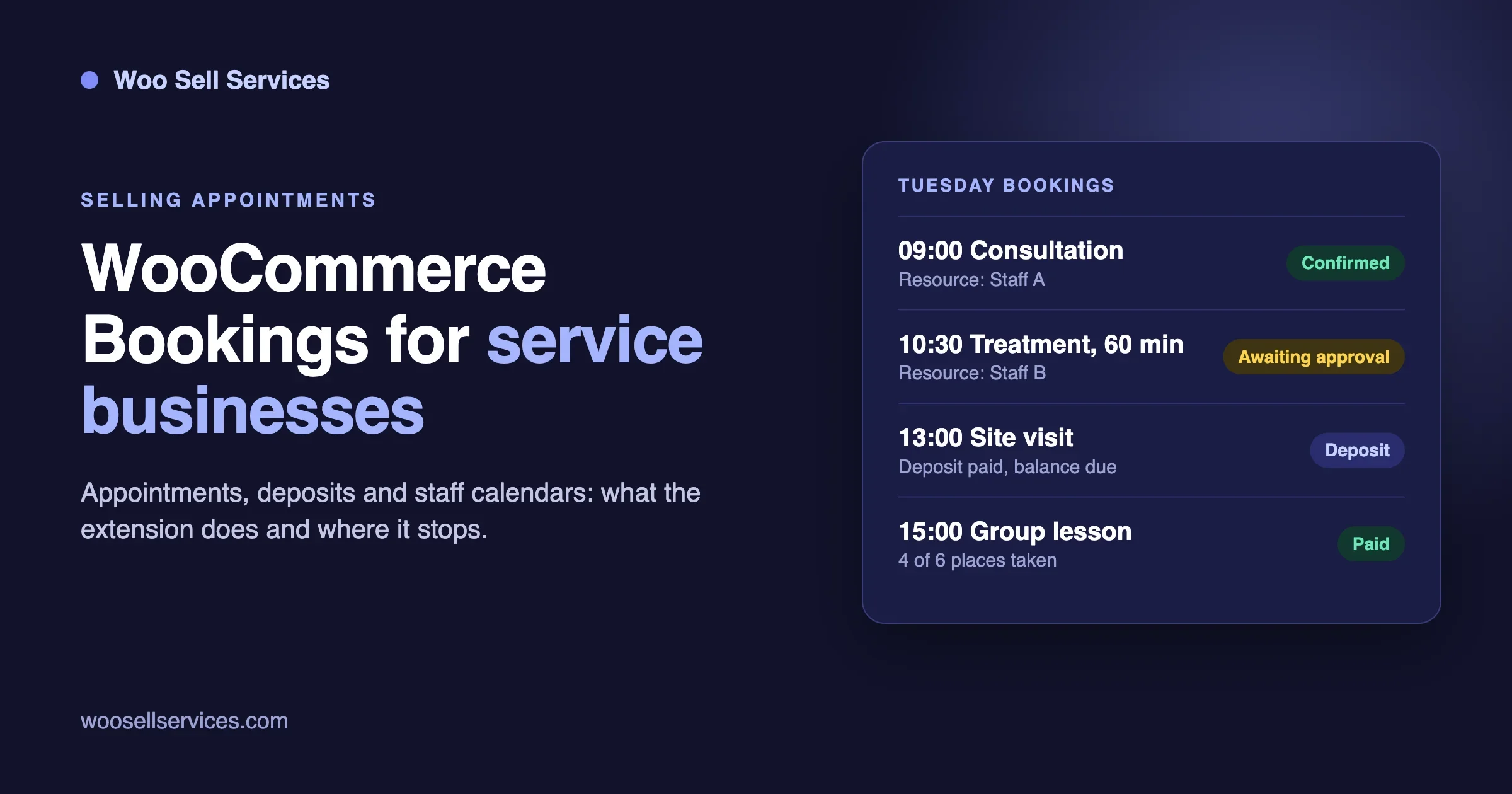
WooCommerce Bookings is the official WooCommerce extension for selling appointments, and it is the first place most service sellers look. A hairdresser, a physio, a tutor, a photographer and a consultant all sell the same thing: a slot of their time. This post explains what WooCommerce Bookings does for a service business, how to set up appointments, deposits and staff calendars with it, and where it stops. Facts about the extension come from its own WooCommerce.com product page and documentation, read on 11 November 2026. The setup advice is ours.
We did not install or test the extension for this post. Where we describe a setup, it is a plan to try on a staging copy of your store, not a tested result.
What is the short answer?
Yes, WooCommerce Bookings can sell timed appointments for a service business. You create a bookable product, set how long one booking lasts, set when it can be booked, and the customer picks a date and time on the product page, then pays through the normal WooCommerce checkout. The product page lists fixed time slots, bookings in days, hours or minutes, buffers between bookings, and resources such as staff, rooms and equipment.
Two things matter before you buy. First, deposits are not part of the extension. The product page lists WooCommerce Deposits as a separate extension that is sold separately. Second, the documentation says only one Google Calendar can be connected to a site, so each staff member does not get a calendar of their own from the extension alone. We explain both below, because they decide whether this tool fits your business.
What does WooCommerce Bookings actually do?
The WooCommerce.com product page lists these features. We use its own wording where we can.
- Time slots and ranges. You can offer fixed time slots or flexible booking ranges, in days, hours or minutes.
- Blocked time and buffers. You can mark time off as unbookable and add buffers between bookings.
- Group sizes. You can set a minimum and maximum number of participants per booking.
- Pricing rules. The page lists group, individual, time-based (early bird or weekend) and person-type pricing, such as a child price.
- Resources. A resource can be staff, a room or equipment. Each has its own availability, which stops double booking.
- Availability rules. Rules work at store, product and resource level, with lead time and buffers.
- Time zones. Availability can be shown in the customer’s time zone.
- Confirmation. A booking can need your approval before it is final.
- Reminder emails. The page lists emails on booking, on confirmation and a day before.
- Cancellation settings. You choose whether customers can cancel.
- Calendar and manual bookings. A calendar view can be filtered by product or resource, and you can add bookings by hand from the calendar.
- Import and export. Bookings can be moved in and out as CSV files.
- Payments. It works with any WooCommerce payment gateway.
- Google Calendar sync. The page says bookings are reflected in 60 seconds or less.
Version, requirements and reviews on the product page
When we read the page it showed version 3.14.0. It lists PHP 7.4, WordPress 7.0 or higher (tested with 7.1) and WooCommerce 11.1 or higher (tested with 11.2). It shows 20K+ active installs. The page does not show a last-updated date. It lists several quality checks as passed, including known vulnerability checks.
The page shows an average rating of 2.7 out of 5 from 60 reviews. Of those, 20 percent are five stars and 38 percent are one star. That is a low and split score, and you should know it before you pay. We did not read every review in full, so we will not tell you why people scored it low. A few reviews we saw mention the single Google Calendar, a calendar bug, an email issue with a translation plugin, and the complexity of using it with vendors. Those are one customer’s words each, not proof of how the extension behaves on your store. Read the reviews yourself and look for stores that sell appointments, not rentals.
What does it cost?
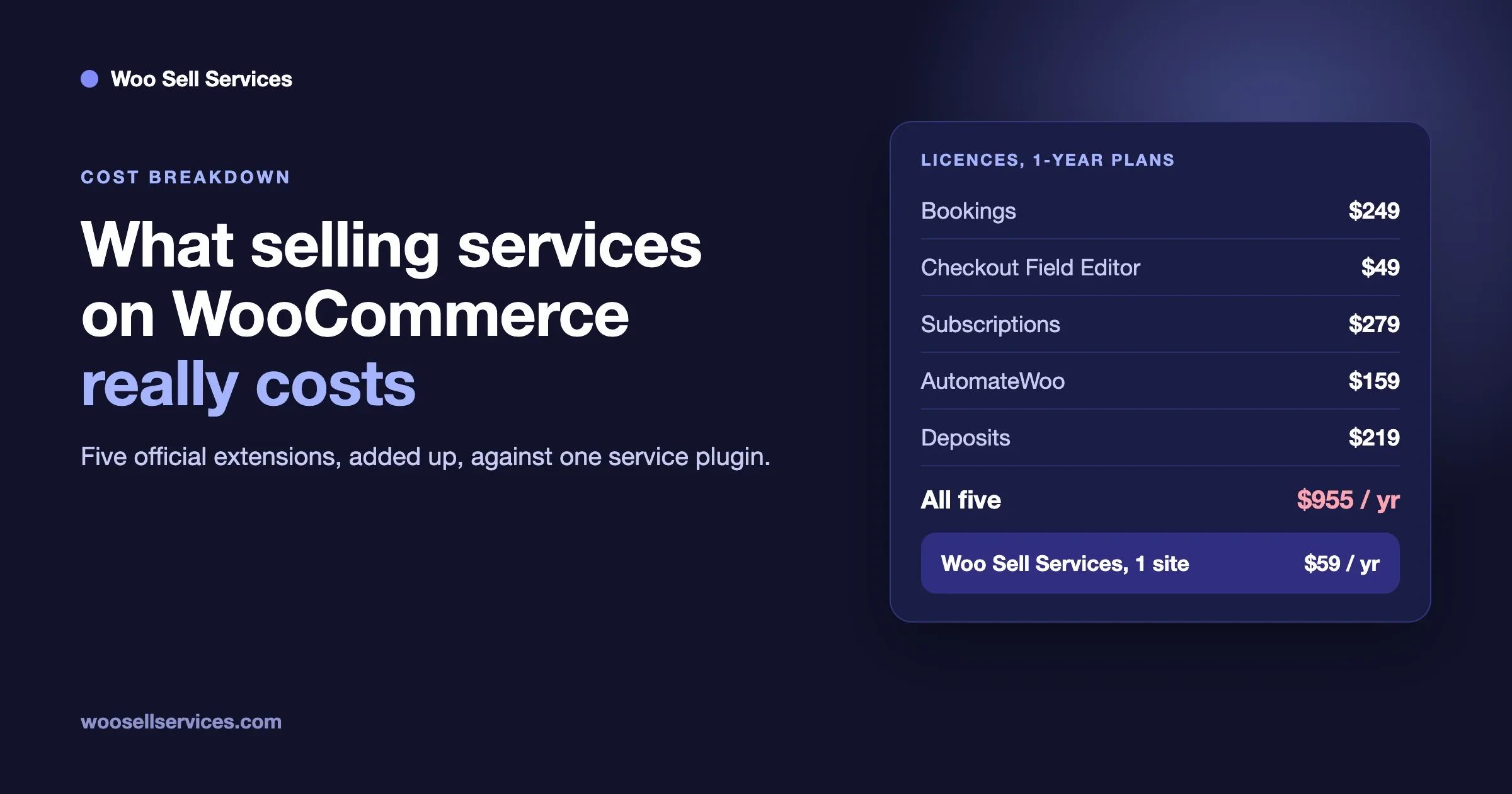
The product page lists a one-year plan and a two-year plan with a 30-day money-back guarantee. Prices on the page appear in a local currency, and when we read it the page showed Indian rupees. So we do not quote a number here. Open the page from your own location, note the price and the date you checked, and add the cost of WooCommerce Deposits if you need it.
Which service businesses fit it?
It fits a business where the customer books a time with you or your staff and the booking itself is the product. The documentation describes it as an extension for appointment-based bookings, rentals, reservations and time-based services. These are the common fits:
Think salons, physiotherapy, personal training, one-to-one lessons, consultation calls, photo studios and on-site visits with a travel buffer.
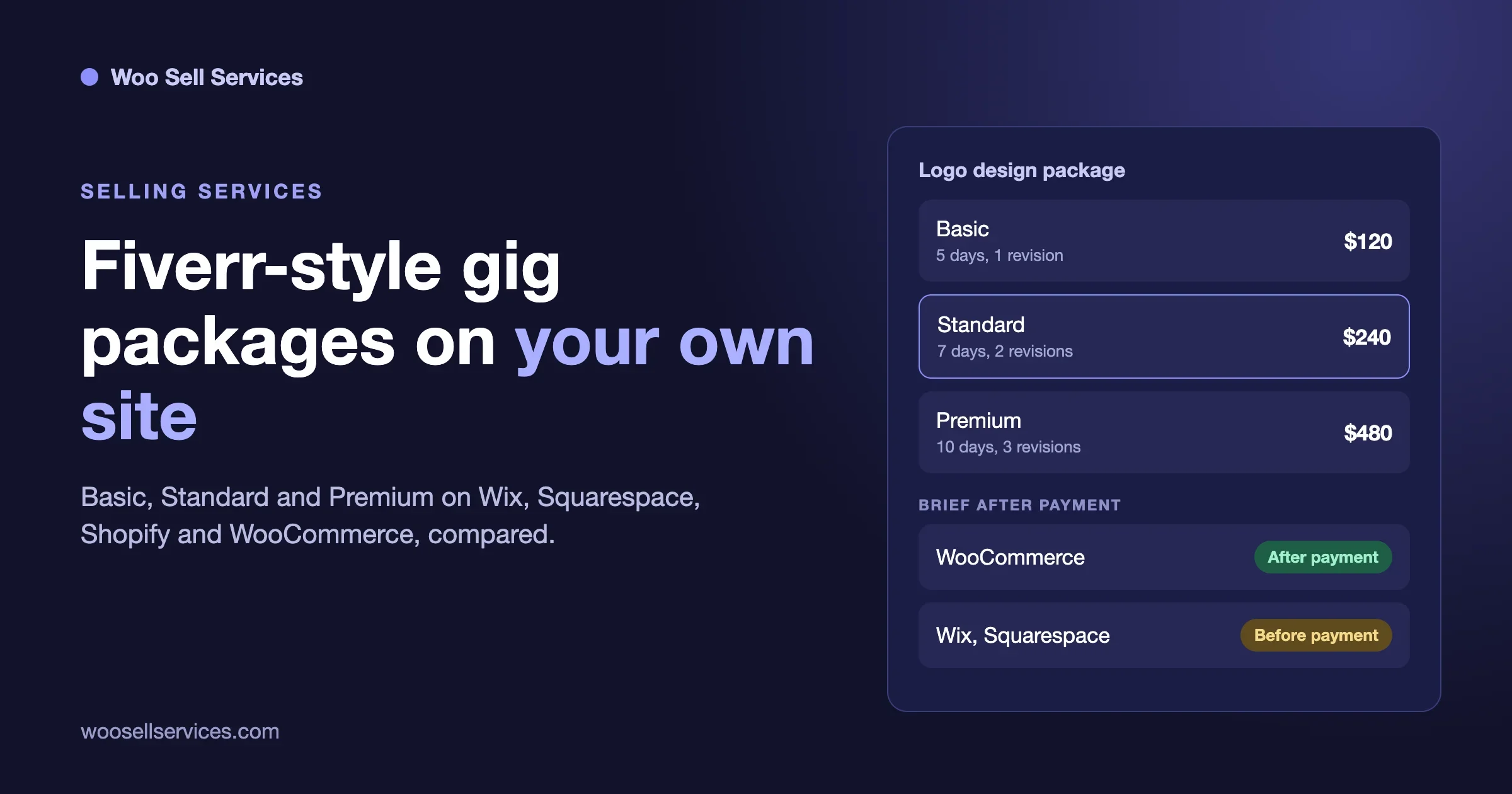
It is a weaker fit if the customer buys finished work rather than a time slot. A logo, a report or a website audit has a due date, not an appointment. For that kind of service you want a brief, a delivery step and a status, not a calendar. We compare the ways to sell that work in fixed price, quote, milestones or retainer.
How do you set up an appointment service?
This section follows the official documentation for creating a bookable product. Again, it is a plan for staging, not a tested recipe.
Step 1: Write down the service before you touch the store
Decide how long one appointment lasts, how much time you need between customers, which days and hours you work, who delivers the service and what the customer must bring or tell you first. A one-line promise helps: “A 45 minute hair colour consultation with one stylist, booked up to 30 days ahead.” If you cannot say it in a line, the product will be confusing to buy.
Step 2: Create the bookable product
The documentation gives two routes. From scratch, go to Products, Add new product, and choose Bookable product in the product type list. From a template, go to Bookings, Add Product, pick a template card and choose Use template. The page says a template creates a draft, plus any resources and person types it includes. If your service has no physical shipping, tick Virtual, which removes the Shipping tab.
Step 3: Set the duration
You choose a duration type, a block size and a unit of months, days, hours or minutes. There are two main types. With fixed blocks, the customer books one block, so a one-hour appointment is one block of 1 hour. With customer defined blocks, the customer picks how many blocks to book, inside a minimum and a maximum. The documentation gives an example: 30 minute blocks with a minimum of 2 and a maximum of 10 allow one to five hours. Most appointment services use fixed blocks. Hourly coaching or studio time suits customer defined blocks.
Step 4: Set the price
The documentation separates a base cost, which is a one-off charge, from a block cost, which applies to each block. Its example is a block cost of 75 with one-day blocks, which totals 150 for two days when no other costs apply. For an appointment service, you will often set only a block cost, or a base cost for a call-out fee plus a block cost for the time.
Step 5: Set availability
On the Availability tab you set capacity, the advance booking window, buffer periods and the dates and times that can be booked. The documentation says store, product and resource rules can overlap, and their priorities decide which rule applies. That is powerful, and it is also where mistakes hide. If a rule you set at store level does not seem to apply, check the priority on the other rules before you assume the extension is broken.
Step 6: Test every path on staging
Book a slot as a customer. Book the same slot again and check it is gone. Book across a buffer. Cancel. Look at the emails the customer and you receive. Book from a browser set to another time zone. Then add a booking by hand from the calendar and check that it blocks the slot for customers.
How do staff calendars work?
In WooCommerce Bookings, staff are modelled as resources. The documentation says that when you tick Has resources on a product, a Resources tab appears. A resource represents staff, a room, equipment or another asset. It has its own availability, so one stylist can work Tuesday to Friday and another Monday to Wednesday.
The documentation adds a detail that matters if you share staff between services: a shared resource’s availability applies across every product that uses it. So if one therapist is the resource for both a 30 minute and a 60 minute treatment, booking one blocks the time for the other. That is what you want, and it is the reason to build the therapist as a resource and not to copy the schedule onto each product.
What the Google Calendar sync does and does not do
The WooCommerce.com documentation for the Google Calendar integration describes two modes.
- One way. Bookings made in the store are pushed to a connected Google Calendar so you can view them. Nothing comes back.
- Two ways. Bookings are still pushed. Bookings also imports upcoming Google Calendar events for the next two years, including events created before you connected. Imported events become store-wide availability rules that block bookings, and higher-priority availability rules can override them.
It also lists limits that a service business should read twice.
- One calendar per site. Only one Google Calendar can be connected to a site from the admin account, so all bookings go to that single calendar.
- No native staff calendars. The document does not describe support for a calendar per staff member or per resource. Resource details appear only in the event description. For staff who want bookings in their own calendars, it points to a Zapier workaround and links a feature request for multiple calendars.
- Which bookings sync. By default, bookings sync when their status is Complete, Confirmed or Paid.
- Edits do not flow back. A booking made in your store must be edited in the store admin. Changes you make to its Google event do not sync back, in either mode.
- Past bookings. They cannot be synced.
- Token expiry. If you use your own Google app and the Google Cloud project is in Testing mode, refresh tokens expire after seven days, so the connection drops until you authorise it again. Moving the project to Production mode avoids that.
One customer review on the product page raises the single-calendar limit as a cause of double bookings with another booking site, and a vendor reply on that review suggests a Zapier workaround. We quote that as a review and a reply, not as a test. The point for you is simple. If you take bookings in other places, such as the phone, a walk-in diary or another platform, turn on two-way sync or keep every booking in the store, and check that it blocks the slot before you rely on it.
A plan for a small team
Here is a plan that stays inside what the documentation says, for a business with three staff.
- Create each person as a resource and set their own hours.
- Link each service to the resources who can deliver it.
- Connect one Google Calendar for the business and use it as the shared view. Use two-way sync if the front desk adds time off there.
- Let each person use the calendar view in WordPress, filtered to their own resource, for their daily list.
- If staff insist on a calendar in their own account, plan for the Zapier route in the documentation, or ask a developer. Customisation falls outside the support policy, the document says.
How do you take a deposit?
A deposit is a common way to cut no-shows. WooCommerce Bookings itself does not list deposits as a feature. The product page names WooCommerce Deposits as a separate extension that is sold separately, and says it offers fixed or percentage deposits. The Bookings documentation for creating a product does not mention deposits, so we cannot tell you from that page how the two connect. The Deposits page does say more.
What the WooCommerce Deposits page says
When we read it, the page showed version 2.4.8 and tested-with notes for WordPress 7.1 and WooCommerce 11.1. It listed these features.
- Fixed amount or percentage deposits.
- Custom payment plans with schedules set in days, weeks or months.
- Store-wide defaults with per-product overrides: inherit, optional, required or off.
- Support for variable products and the Cart and Checkout blocks.
- A Bookings integration, which the page says can multiply a fixed deposit by the number of people booked.
- Follow-up payments that appear as scheduled orders in the customer’s account.
- Manual refunds from the order.
It also lists limits. It does not store card data or automatically collect the later payment, and one reviewer said customers had to log in to pay their balance. The page says there are no built-in payment reminder emails. It says it is not designed for refundable security deposits. The rating on the page was 2 out of 5 from 15 reviews, and about 5,000 active installs. As with Bookings, the price showed in rupees, so we give none.
What that means for an appointment business
Think about the day of the appointment. If the customer paid a deposit online and owes the rest, who collects it and how? You have three choices. Collect the balance in person and mark the order by hand. Send the customer a link to pay the balance online before the visit, and remind them yourself. Or ask for the full price up front and offer a clear cancellation window. For a low-priced slot, full payment is simpler than a deposit. For a high-priced half-day session, a deposit lowers the risk of a no-show.
If you plan to take deposits, write the rules in the booking page before you build anything: how much, when the balance is due, and what happens to the deposit if the customer cancels or does not show. Then test a deposit booking through to the balance on staging, including a cancellation.
Should you approve bookings first?
Some services need you to check a request before you commit, such as a home visit outside your area or a session that needs special equipment. The documentation describes a Requires confirmation setting for this. The customer submits a request at checkout without paying, and the button reads Request Confirmation. You confirm under Bookings, All Bookings. If payment is due, the confirmation email includes a Pay for booking link.
The page carries a warning. Bookings that require confirmation cannot be purchased together with ordinary products, and mixing them removes the other items from the cart. If your store sells goods as well as appointments, think about that before you turn it on. It also says there is no separate switch for this payment option in the WooCommerce payment settings.
What about cancellations and refunds?
You can let customers cancel, and set a cutoff. The documentation example is a cutoff of 2 days, which means cancellation must happen more than two days before the start. It then states: “Customer cancellation does not automatically send a refund.” That is a policy question, not a setting. Decide in advance whether a late cancellation loses the deposit, the whole fee or nothing, and print that on the product page and in the confirmation email. Our post on revisions, scope changes and cancellations has wording you can adapt.
Also check the law where you work. Consumer rules about cancelling services differ by country and by type of service, and we do not give legal advice in this post.
Where does it stop for a service business?
WooCommerce Bookings is a scheduler with a checkout. It answers “when” and “who”. A service business often has more questions than that.
Need | Does Bookings cover it? | What to do |
|---|---|---|
Pick a time and pay | Yes, per the product page | Use it |
Block staff and room clashes | Yes, through resources | Model staff and rooms as resources |
Take a deposit | Not in Bookings itself | Add WooCommerce Deposits or charge in full |
A calendar for each staff member | Not natively, per the documentation | Use the filtered calendar view, or plan a workaround |
Ask the customer questions before the visit | Not listed | Add an intake form |
Hold files, notes or a chat with the client | Not listed | Use a separate tool |
Recurring weekly appointments | The page says it is not built to handle recurring events on its own | Pair with a subscription extension and test it |
One-off event tickets | The page points to another extension, Box Office | Use a ticket tool |
“Not listed” means the page did not list it, which does not prove the extension cannot do it. Ask the vendor if one of these is a must for you.
The intake problem
An appointment without information wastes the first ten minutes. A therapist wants to know about injuries. A photographer wants the location and the number of people. A consultant wants the question. Bookings sells the slot, but the page does not list a form for answers. Add one after checkout and link it in the confirmation email. Our client intake form guide has question sets you can copy.
The recurring problem
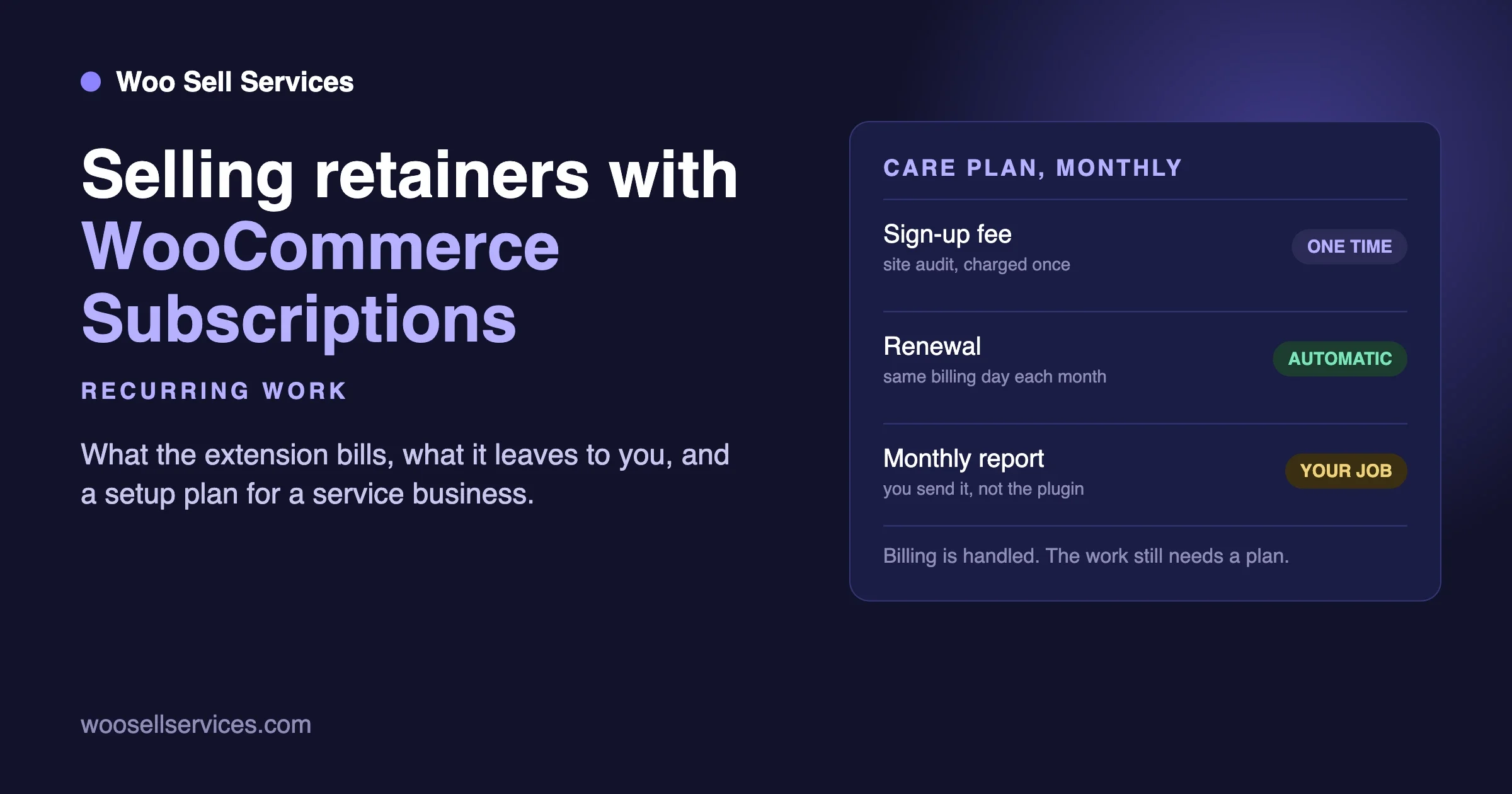
Many service customers want the same slot every week. The product page says the extension is not built to handle recurring events on its own and lists WooCommerce Subscriptions among the related extensions for recurring billing. How the two behave together is something to test on staging, not to assume. We cover the subscription side in WooCommerce Subscriptions for services.
What are the alternatives?
We are not ranking plugins here. A separate roundup on our sister site, WooCommerce Booking, Calendar and Appointment Plugins for Service Businesses from woocustomdev.com, covers booking models and sync problems in depth, and we do not repeat it. This section only lists what each vendor’s own page says about three other tools, so you can compare facts on the day you read them. None of them is something we tested.
Flexi Booking and Appointment for WooCommerce
This is a WooCommerce.com extension from Tyche Softwares. Its page showed version 9.1.0, PHP 7.3 or higher, WordPress 5.9 or higher and WooCommerce 3.9 or higher, tested with WordPress 7.1. It lists resources that can be staff, rooms or equipment with their own schedule and pricing, and customers can pick a resource or have one assigned. It lists two-way Google Calendar sync through OAuth. We did not see deposits mentioned on that page, and the page showed no rating. The price showed in rupees, so we give none.
Bookly
Bookly is on WordPress.org with 60,000+ active installs and a 4.4 out of 5 rating from 469 five-star reviews out of 587 on the page we read. The free version is limited to five services and no online payments. The page lists unlimited staff and services, online payments, Google Calendar and WooCommerce compatibility as Pro features, and lists deposits among its add-ons. It is a full booking system that can work with WooCommerce, not a WooCommerce product type, so the customer journey is different.
Amelia
Amelia is on WordPress.org with 90,000+ active installs and a 4.6 out of 5 rating from 796 reviews on the page we read. The free Lite version lists a calendar, booking forms and double-booking prevention. The page lists resources, recurring appointments, packages, Google Calendar and payments through WooCommerce as premium features. Like Bookly, it runs its own booking flow.
Common problems to expect
These come from how booking tools work in general, and from what the documentation warns about. They are not results of a test.
A booking did not reach the calendar
By default, a booking syncs only when its status is Complete, Confirmed or Paid. An unpaid or pending booking will not appear. Check the status before you check the connection.
The Google connection dropped
If you use your own Google app and the project is in Testing mode, tokens expire after seven days. Check the project mode in Google Cloud.
A launch checklist
- The product page says what the appointment includes, how long it lasts and where it happens.
- Price, deposit and balance rules are visible before checkout.
- Cancellation cutoff and refund rules are written on the page and in the email.
- Each staff member and room is a resource with correct hours.
- Buffers cover travel, set-up and clean-up.
- You tested a booking, a clash, a cancellation, a manual booking and a time-zone change on staging.
- You tested the calendar sync with a pending, a paid and a cancelled booking.
- The confirmation email links to your intake form.
- You checked the vendor’s current price, requirements and reviews on the day you buy.
Questions service sellers ask
Can a customer pick their stylist or therapist?
The product page says resources have their own availability. Whether the customer chooses a resource or one is assigned depends on how you set the product up. Check the Resources tab documentation and test it.
What if we need to run services, not just book them?
Then the booking is the start of the job. You still need intake, messages, files and a delivery step. Our own product, Woo Sell Services, covers that side for WooCommerce stores: the buyer answers your questions after payment, and chat, shared files and a status tracker live on the order. See the features page for what it includes. We make it, so judge it by that page and compare it with the others on your list.
What we could not confirm
- We did not install or test WooCommerce Bookings, Deposits or any alternative, so every setup step is a plan, not a result.
- We did not read every review. We cannot say why the Bookings rating is 2.7 out of 5.
- Prices showed in Indian rupees on the WooCommerce.com pages, so we recorded none.
- The Bookings documentation we read does not explain how deposits attach to a bookable product. We only know what the Deposits page says.
- The product pages show no last-updated date, so we cannot say how recent each version is.
- We did not check whether a customer can pick their own staff member, or how Bookings behaves with Subscriptions.
How can we help?
If you sell appointments on WooCommerce and need staff calendars, deposits or an intake step that the stock extensions do not give you, our team can plan the set-up and build the missing parts through hooks and filters, not by editing the plugin. See our WooCommerce customization services and custom development page, or contact us with a short note about what you sell and how you take bookings today. If you are still choosing how to price what you sell, start with our post on pricing models for services.
Sources
- WooCommerce Bookings, WooCommerce.com product page, read 11 November 2026.
- Creating a Bookable Product, WooCommerce.com documentation, read 11 November 2026.
- Managing WooCommerce Bookings, WooCommerce.com documentation, read 11 November 2026.
- WooCommerce Bookings: Google Calendar Integration, WooCommerce.com documentation, read 11 November 2026.
- WooCommerce Deposits, WooCommerce.com product page, read 11 November 2026.
- Flexi Booking and Appointment, WooCommerce.com product page, read 11 November 2026.
- Bookly, WordPress.org plugin page, read 11 November 2026.
- Amelia, WordPress.org plugin page, read 11 November 2026.