Revisions, Scope Changes and Cancellations on a WooCommerce Service Order: Set Them Up Before the First Dispute
How to handle revisions, scope changes and cancellations on a WooCommerce service order: the rules to write, copy-ready wording, and what each WooCommerce and service status does.

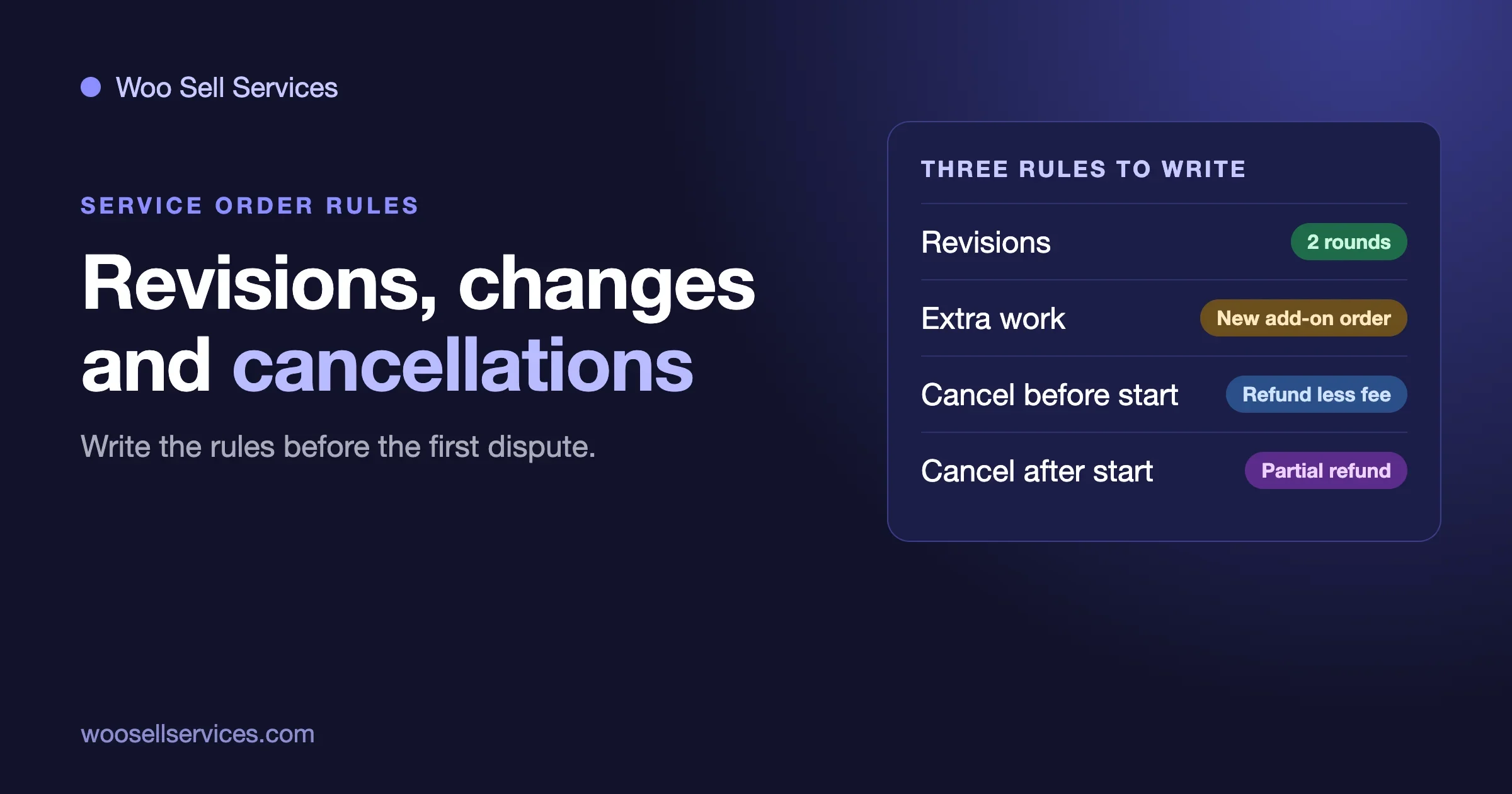
Every service seller gets the same three messages sooner or later. “Can you change a few things?” “Actually, can you also add this?” And “I would like to cancel.” If you have written down what happens in each case before the order, these are ordinary events. If you have not, each one is a negotiation, and negotiations with a paying customer are where refunds and disputes begin.
This guide shows how to set up all three on a WooCommerce store before the first problem: the rules to write, the words to put on the product page, and how each rule maps to what WooCommerce and Woo Sell Services do with the order. It is a companion to our guides on choosing between fixed price, quote, milestones and retainer and on order statuses for service work.
A note on sources. We build and support Woo Sell Services, so we say clearly where each fact comes from. The product page (version 5.8.7, updated September 2026, read on 23 October 2026) does not describe a revision, cancellation or refund process for service orders, and we will not claim one. What we know about how the plugin behaves comes from a test we ran on 18 October 2026 on a clean store with WordPress 7.1.3, WooCommerce 11.2.1 and Woo Sell Services 5.8.7, written up in our order statuses guide. Where this guide describes behaviour, it is that test. Where it describes a rule you should write, it is our advice, and your terms are yours to decide.
The short answer
- Revisions: state how many rounds of changes are included and how a buyer asks for one. In our test, a buyer who answered “No” to a final delivery sent the order back to Work In Progress, and the seller could deliver again.
- Scope changes: anything outside the written scope is a new, paid item. Agree it in the order chat, sell it as a separate small product, and keep the record on the order.
- Cancellations: write three cases: before you start, after you start, and after delivery. Say what is refunded in each. Refunding is done in WooCommerce, and the gateway usually keeps the fee on the original payment.
- Write it before the sale. A rule that appears after the buyer pays is a dispute. A rule on the product page that they saw before paying is a policy.
Why these three need rules in advance
Physical goods come with a built-in end: the parcel arrives, or it does not. A service has no such edge. The work is subjective (“I wanted something more modern”), the boundaries move (“while you are at it”), and the customer’s situation changes (“we have paused the project”). A product page that only says “Logo design, $200” invites all three.
The fix is not a long legal document. It is three short rules, written in plain words, shown where the buyer decides: on the product page, before checkout. Short beats long, because buyers read short.
Part 1: Revisions
What is a revision, and what is not?
A revision is a change to work you delivered, to bring it closer to what was agreed. It is not a new idea. “The colour is not the one in the brief” is a revision. “Now I would like it in a different style” is a change of direction, and belongs in the next part.
This distinction matters because buyers do not know it, and sellers often do not say it. Put it into the description in one sentence: “Revisions fix differences from the brief. New ideas or a different direction are quoted separately.”
Decide four numbers
- How many rounds are included. One, two or three are common for fixed-price services. Pick a number you can afford, not the number that sounds generous.
- How long the buyer has to ask. A change window after each delivery, such as five working days, stops a job from staying open for months.
- What a round covers. One consolidated list of changes, sent as one message, is a round. A new message every day is not.
- What happens after the last round. A further round is a paid extra, at a price you state.
How a revision looks on a Woo Sell Services order
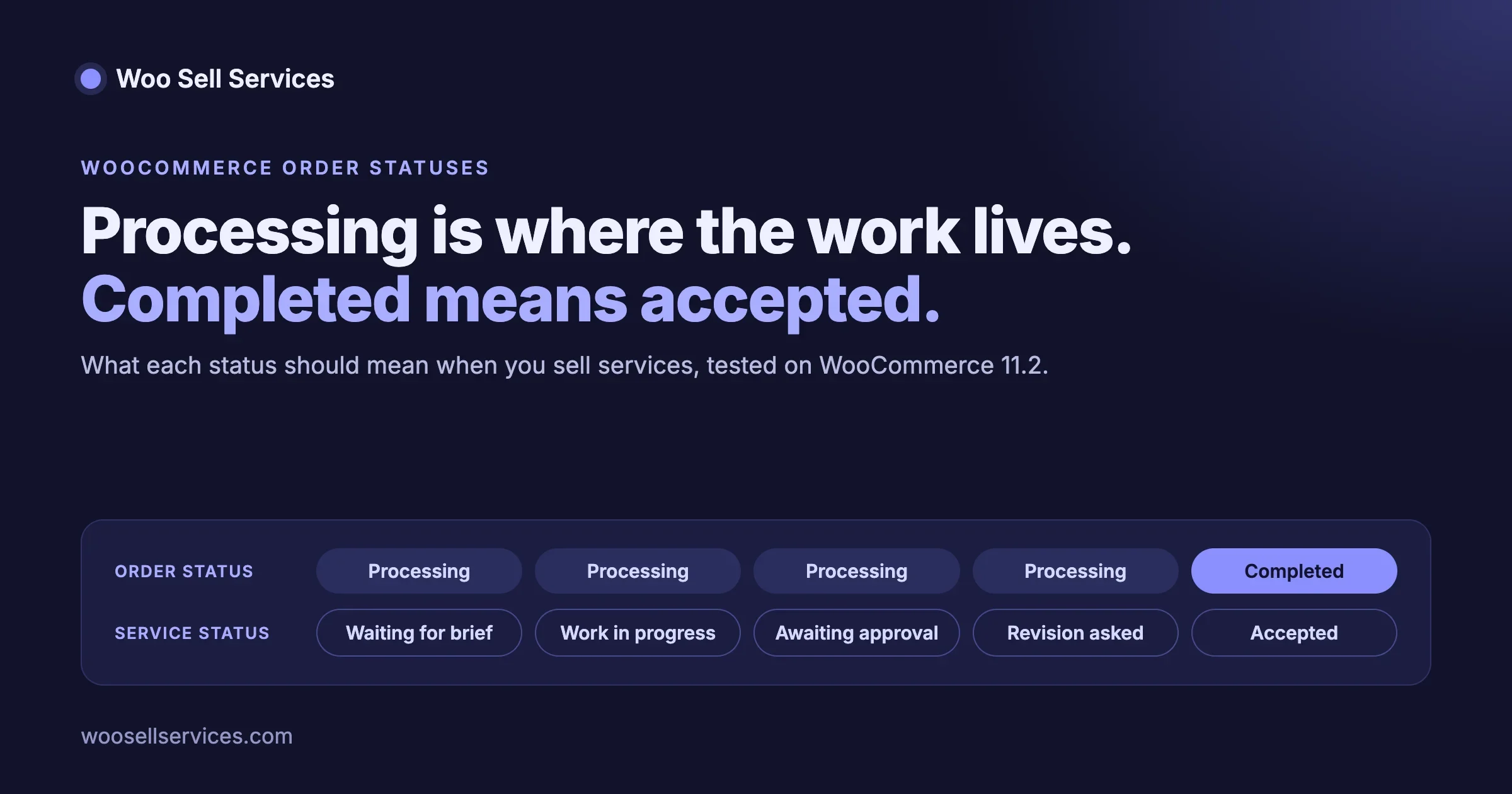
In our test, the whole delivery loop ran on the service status, not the WooCommerce order status. The order went through these steps:
Moment | WooCommerce status | Service status |
|---|---|---|
Buyer pays | Processing | Waiting For Requirement |
Buyer sends the brief | Processing | Work In Progress |
Seller sends a final delivery | Processing | Waiting For Approval |
Buyer answers No and asks for a change | Processing | Work In Progress |
Seller delivers again, buyer answers Yes | Completed (set automatically) | Waiting For Review, then complete once reviewed |
Two things follow. First, a revision does not need any status change from you in WooCommerce: the order stays in Processing, which is exactly where an open job should be. Second, the plugin does not count rounds. We did not see a setting that limits how many times a buyer can answer No. The limit lives in your terms and in your own tracking, so write each round into the order chat as it happens: “Revision 1 of 2 received, delivering by Thursday.”
The buyer who never answers
Some buyers receive the delivery and go quiet. The order then sits open. Woo Sell Services has a setting, Auto complete service order after, that completes the order a set number of days after the final delivery if the buyer has not responded. On our fresh install it was set to 5 days. We would put the same number into the product description, so that the rule on the page and the setting match: “If you do not reply within 5 days of a final delivery, we treat it as accepted.”
Pick the number for your kind of buyer. Consumers on holiday and companies with approval chains need longer than five days. A window that is too short gives you the wrong kind of dispute: “you closed my order before I saw it.”
Copy-ready revision wording
Revisions
- Two rounds of changes are included.
- A round is one list of changes sent in one message on the order.
- Revisions fix differences from the brief you gave us. A new idea
  or a different direction is quoted separately.
- Send your changes within 5 days of each delivery. If we do not hear
  from you within 5 days of the final delivery, we treat it as accepted.
- A further round after the included ones costs [price].
Replace the numbers and the price with your own, and make the 5 days match the auto-complete setting.
Part 2: Scope changes
The two kinds of scope change
Scope changes come in two kinds. The first is an addition: “please also do X.” The second is a replacement: “we do not want Y any more, we want Z.” Both change what you will deliver, and so both change what you should be paid. Neither is a revision.
The rule: no work on a change until it is agreed and priced
Writing it down is easy. Following it is hard, because the request arrives politely and the extra work looks small. A rule that helps: reply to every change request with a price or a “yes, included,” before you do anything. “Happy to. That is a $60 add-on, delivered in two days. Shall I send the link?” Done in this order, the customer decides with the price in front of them.
How to sell a change in WooCommerce
Woo Sell Services’ product page does not mention quotes, custom offers or add-ons, so we do not claim a built-in tool for this. You have three ways to do it with WooCommerce itself.
- A small add-on product. Create a service called “Extra page” or “Additional revision round,” at a fixed price. When a change is agreed, send the buyer the link. They buy it, and the add-on gets its own order, its own delivery date and its own record. This is the cleanest, because every extra is a normal paid order.
- A manual order. WooCommerce lets store staff add orders from the admin and share them with the customer for payment. Whether a service created this way runs through the Woo Sell Services order flow is something we have not verified, so test it on a staging copy first.
- Variations on the main product. If most changes are the same few things (rush delivery, an extra page), offer them as options on the original product from the start. Woo Sell Services works with variable products, and the buyer picks tiers at checkout.
Move the delivery date when the scope moves
The product page says the delivery date can be updated later from the service page. Use it. When a scope change adds time, update the date and say why in the chat: “With the extra page, delivery moves from Friday to the following Wednesday.” A buyer who agreed in writing to a new date cannot later say you were late.
Keep the agreement on the order
Every order has a chat thread, shared files and a status tracker, with notifications to both sides. That makes the order the place where the agreement lives. Make it a rule that scope changes are agreed in the order chat, not by email or by message app. If a customer writes to you elsewhere, answer there with “Thanks, I have copied this onto your order so we have one record,” and paste it in.
Copy-ready scope change wording
Changes to the scope
- The scope is what is listed under Included on this page.
- Anything else is quoted before we start it and bought as a
  separate item. We do not begin extra work until you have agreed
  the price and any change to the delivery date.
- Agreements about changes are made in the order chat, so that
  both of us have one record.
Part 3: Cancellations and refunds
Write three cases, not one
A single line, “no refunds on services,” fails twice: it annoys honest buyers, and in many places it will not hold up against consumer law. Write three cases instead.
- Before you start. The buyer cancels after paying but before you have done any work. Most sellers refund in full, minus what the payment gateway kept.
- After you start, before delivery. Some work exists. State how you work out what is refunded: a percentage by stage, or the time spent at your stated rate.
- After delivery. Delivered work has been used or accepted. Most sellers refund only if the work does not match the brief, after the revision rounds are spent.
The gateway fee is part of the answer
Refunds do not usually give the processing fee back. We read this on 23 October 2026 on two sources. WooPayments’ fee page says transaction fees are not refunded when you refund a customer. PayPal’s US business fees page says that refunding a commercial transaction carries no fee but the fees you originally paid to receive the payment are not returned. Check your own gateway, because rules differ. The effect is that a full refund costs you the original fee, so say in your terms whether “full refund” means the price or the price less the fee.
Local law comes first
Consumer rules on online purchases and services differ by country, and some give buyers a cooling-off period or special rights when a service starts quickly. We have not verified the rules for your country, and we are not lawyers. Check them before you finalise wording, because a term that conflicts with local law does not help you.
How a cancellation looks in WooCommerce
There are three outcomes, and what the buyer sees differs for each. From our test:
WooCommerce status | What the buyer sees on the service |
|---|---|
Cancelled | A cancelled notice, and the conversation is closed. The order moves to their Cancelled list. |
Refunded (a full refund) | The service is listed under Cancelled. |
Failed | Not sent to the service page, and listed under Cancelled in their services. |
Note what the table does not say. In our test, a Cancelled order closed the conversation, which means the buyer can no longer write to you on the order. Before you cancel, send any last message you need, such as the refund details, because afterwards the chat is closed. Our guide on statuses also warns against completing a service order by hand: the buyer’s list files it under Completed, and WooCommerce sends its completed-order email.
How to refund
Refunds are made in WooCommerce from the order screen, using the refund button. You can refund the whole order or part of it, and you choose, where your gateway supports it, to send the money back through the gateway or to record the refund manually and pay it yourself. A partial refund is the right tool for the “after you start, before delivery” case, where some work has been done. Add an order note with the reason and the amount, so that the record explains itself.
Decide who can cancel
In a store with several people, write down who may cancel and refund. A support person who refunds in a hurry to calm a customer costs you more than the delay. A rule such as “refunds over $100 need a second person” is simple and works.
Copy-ready cancellation wording
Cancellations and refunds
- Before we start: cancel any time and we refund the price paid,
  less any payment processing fee we cannot recover.
- After we start, before delivery: we refund the price paid minus
  the work done so far, calculated from [the stages / our hourly
  rate] and shown to you in writing.
- After delivery: we refund only if the work does not match the
  brief and the included revisions have been used.
- To cancel, message us on your order. Your statutory rights are
  not affected.
Put it where the buyer sees it
A rule only counts if the buyer could see it before paying. Three places:
- The product description. A short “Revisions, changes and cancellations” section under Included and Not included, no more than ten lines.
- The requirement questions. Woo Sell Services asks the buyer your questions after payment, and lets you save a set of questions and reuse it. Add a final question that asks the buyer to confirm they have read the terms. It is not a legal shield, but it creates a record and puts the terms in front of them again. Our guide to client intake form questions has sets you can start from.
- The first message on the order. Send one short message when the brief arrives: what happens next, the delivery date, and a reminder of the revision rule.
Test your rules like a buyer would
Do this once, on a staging copy or in test mode, with a service you will really sell. It takes less than an hour and finds the surprises.
- Buy the service. Check the order lands in Processing and the brief form opens.
- Send the brief, deliver, and answer No as the buyer. Check the service goes back to Work In Progress.
- Deliver again, answer Yes, and check the order completes and the review request arrives.
- Buy it again and cancel before you start. Check what the buyer sees, and that the refund comes back through your gateway.
- Buy it a third time, deliver, and do not answer. Wait for the auto-complete window, or set it to one day for the test, and check what happens.
- Buy the add-on product for a scope change. Check it gets its own order and delivery date.
Common traps
The “unlimited revisions” promise
Symptom: one customer sends a ninth round of changes and you are losing money. Check: does any page say “unlimited”? Fix: change it to a number, and apply it from new orders. Prevent: never use the word on a fixed-price service.
The delivery that is never accepted
Symptom: delivered orders sit open for weeks. Check: your auto-complete setting and whether the product page mentions it. Fix: set a number of days you can defend, and write it down. Prevent: send a reminder in the chat on day three.
Cancelling too early
Symptom: you cancel an order, and the buyer cannot reply to your refund note because the chat has closed. Check: send your last message first. Fix: email the buyer from the order if you need a reply. Prevent: make the final message a step in your cancellation routine.
Refunds that ignore the fee
Symptom: you promise “a full refund” and discover the gateway kept its fee. Check: your gateway’s refund rule. Fix: say in the terms what “full” means. Prevent: price the fee into your services.
Frequently asked questions
Does Woo Sell Services limit the number of revisions?
We did not see such a setting in our test, and its product page does not mention revisions. In our test a buyer who answered No to a final delivery sent the service back to Work In Progress. The limit is a rule in your terms.
Can I ask for a deposit?
The product page does not mention deposits or partial payments, and WooCommerce core does not include them. You can split a big job into stages, each its own paid order, as we describe in our guide on pricing models. A deposits extension is another route, which you should test with your service orders first.
What if the customer disputes the payment with their bank?
Keep the evidence: the written scope the buyer saw before paying, their answers to your questions, the chat, the delivery and your terms. The order holds most of it. Gateways publish fees for disputes, for example $15 for a standard dispute on PayPal’s US page (confirm for your country), and WooPayments lists $15.00 refunded if you win.
Should I offer a money-back guarantee?
It is a business choice and a local-law question. A clear “if the work does not match the brief after the included revisions, we refund” often does more good than harm, because it removes the buyer’s fear and costs you little when your delivery is good.
Do these rules apply to retainers?
Yes, with changes. Add how a buyer cancels a recurring plan and when the last payment is taken. WooCommerce Subscriptions is needed for recurring services, and our care plan guide covers the scope of a monthly plan.
The complete setup: these rules on one order, with Woo Sell Services
Rules on a product page only work if the order itself can carry them out. Here is how the pieces above map onto Woo Sell Services, using only what its product page states (version 5.8.7, read on 23 October 2026), plus our own test of 18 October described earlier.
What the plugin gives you
- A service product. A Service checkbox in the Product data panel, next to Virtual and Downloadable, working on simple, variable, grouped and external products. Tiers are ordinary variations.
- The brief, after payment. Your requirement questions are asked once the buyer has paid, so work starts when the brief is in. Question sets can be saved and reused on the next service.
- A delivery date the buyer can see. An estimated delivery time on the product, which you can update later from the service page.
- One place for the job. A chat thread, shared files and a status tracker on the order, with notifications to both sides and an email to you on each new order.
- Delivery and rating. You attach the final file and mark delivery, and the buyer can rate the order. The rating syncs to the standard WooCommerce product review.
- Helpers on an order. A co-author or a support agent can be added to a service or to a single order.
- Recurring services. Where WooCommerce Subscriptions is active, a service can be sold on a recurring plan, with every renewal kept in one conversation thread.
- Several sellers. It works with Dokan, WCFM and WC Vendors, and vendors manage their services from the frontend.
How it covers each rule in this guide
Rule you write | What the order gives you |
|---|---|
Revisions | The delivery loop from our test: a buyer who answers No sends the service back to Work In Progress, and you deliver again. The number of rounds is your rule, written on the product page. |
Scope changes | The order chat as the one record of what was agreed, a delivery date you can move with a reason, and a separate add-on service for the extra work. |
Cancellations | A buyer’s list split into active, completed and cancelled orders, and a cancelled notice that closes the conversation. Refund amounts are your rule, and refunds are made in WooCommerce. |
Disputes | The brief, the messages, the files and the delivery, all on the order. The product page does not describe a dispute process, so the plugin gives you the record and not a resolution step. |
Be clear about what is not on the product page: it does not mention quotes, milestones, deposits, revisions limits or a refund workflow. Those stay as rules and as the WooCommerce steps described above. If you need them built into the flow, that is custom work, which we can scope on a call.
What it costs
The page lists three plans, and every plan includes the full feature list; the plan only sets the number of sites. Personal, for one site, is $59 a year or $199 lifetime. Professional, for five sites, is $129 a year or $299 lifetime. Agency, for unlimited sites, is $299 a year or $499 lifetime. The page says every renewal after the first year is billed at 30 percent of the base price. Professional and Agency include priority email support and live chat for urgent issues. There is no free version listed, so there is nothing to label as free and Pro. See the pricing page for the current figures.
A path you can follow
- Install Woo Sell Services on a staging copy of your WooCommerce store.
- Create one service, write the three rules into its description, and set the delivery time.
- Save a requirement question set that ends with a confirmation of the terms.
- Run the six-step test above, then go live with that one service.
- Add services one at a time, reusing the same question set and wording.
You can try the plugin first on the live demo listed on the product page.
What to do this week
Pick your best-selling service. Write the three rules in the wording above, with your numbers. Put them on the product page. Set the auto-complete days to match. Then run the six-step test. If you need quotes, deposits or a refund approval step built around your process, our team can do that as custom work.
To run these rules on an order that holds the brief, the chat, the delivery date and the hand-over, see Woo Sell Services and the pricing page. For custom work around quotes and refunds, start with a short discovery call.