WooCommerce Order Statuses for Service Work: What Each One Should Mean
What Pending, On hold, Processing and Completed should mean when you sell services in WooCommerce, how the service status sits beside them, and three tested traps: completing by hand, Downloadable services and bank transfer orders.

WooCommerce order statuses were designed for parcels. “Processing” means someone is packing a box; “Completed” means it has shipped. When the product is a logo, an audit or a month of SEO work, those words need a clear meaning in your store, or your customers get a “your order is complete” email before anyone has started the job.
This guide explains what each WooCommerce order status should mean for service work, how the service’s own progress tracker sits beside it, and when (rarely) to add a custom status. We tested every status on a clean store before writing it, and found three traps that catch service sellers. Each one has a fix below.
The short answer
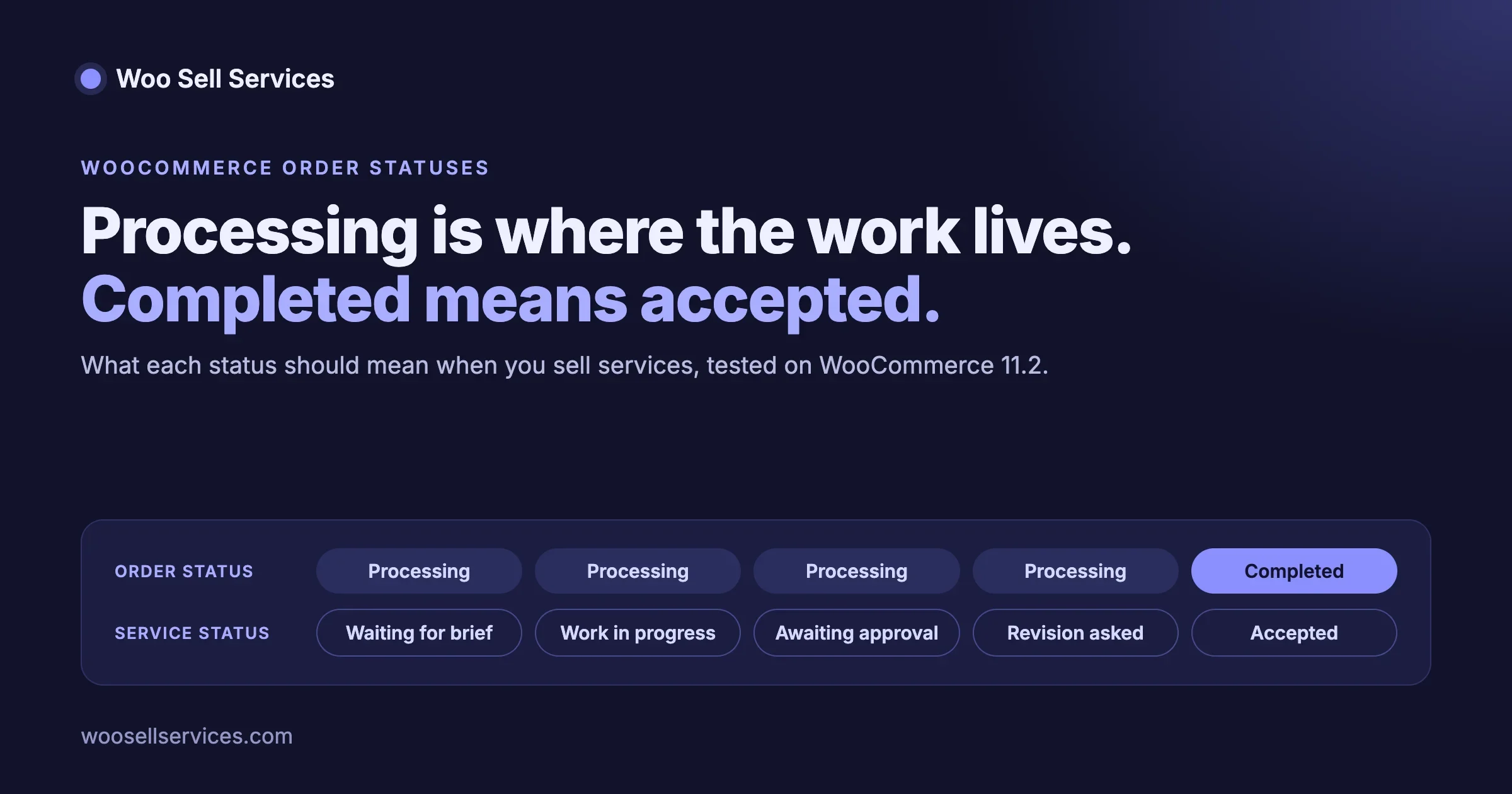
- A service order has two statuses. The WooCommerce order status says whether you have been paid. The service status (Waiting For Requirement, Work In Progress, Waiting For Approval and so on) says where the work is. Do not use one to track the other.
- Processing is where the work lives. From payment until the buyer accepts the final delivery, a healthy service order stays in Processing.
- Completed should mean the buyer accepted the work. Let the buyer’s acceptance set it, not your own click. With Woo Sell Services that happens automatically.
- Three traps: completing an order by hand before delivery, ticking Downloadable on a service product, and bank transfer orders that skip the payment instructions. Each is covered below with a fix.
- Custom statuses: usually you do not need one. If you add one, test it first; in our test, an order in a custom status disappeared from the buyer’s list of services.
Two statuses on every service order
It helps to name the two layers before deciding what each WooCommerce status should mean.
WooCommerce order status | Service status | |
|---|---|---|
Answers | Has the money arrived, and is the order still open? | Where is the work right now? |
Values | Pending payment, On hold, Processing, Completed, Cancelled, Refunded, Failed (plus Draft during block checkout) | Waiting For Requirement, Work In Progress, Waiting For Approval, Waiting For Review, Order Complete |
Who sees it | You in WooCommerce, Orders; the buyer in My Account, Orders and in WooCommerce emails | The buyer and seller on the order’s service page, as a step tracker |
Who changes it | Payment gateways, you, and Woo Sell Services when the buyer accepts the delivery | The buyer’s and seller’s actions on the order |
The service tracker the buyer sees has six steps: Placed Order, Provided Requirements, Order in Progress, Approve final delivery, Order Completed, Review the Delivery. All of that happens while the WooCommerce order sits in Processing.
What each WooCommerce status should mean for a service
WooCommerce’s own documentation describes each status in shipping terms. Here is what each one should mean when you sell services, and what we saw a buyer able to do in each, using Woo Sell Services 5.8.7 on WooCommerce 11.2.1.
Status | WooCommerce meaning | What it should mean for a service | What the buyer can do |
|---|---|---|---|
Pending payment | Order received, not paid | Not a job yet. Do not start. | The brief form stays closed until they pay (from the plugin code) |
Failed | Payment declined or failed | Not a job. The buyer may try again. | Not sent to the service page; listed under Cancelled in their services (from the plugin code) |
On hold | Awaiting payment confirmation, common with bank transfer and cheque | Booked but not paid. Do not start until you confirm payment. | Sees the order with a notice; the brief form stays closed |
Processing | Paid, awaiting fulfilment | Paid and in progress: brief, work, messages, revisions, delivery | Sends the brief, messages, receives and accepts the delivery |
Completed | Fulfilled, no further action | The buyer accepted the final delivery, or the acceptance window ran out | Leaves a review; the order moves to their Completed list |
Cancelled | Cancelled by you or the buyer | The job will not happen | Sees a cancelled notice; the conversation is closed |
Refunded | Fully refunded | The job was stopped and paid back | Listed under Cancelled in their services |
What we tested
On 18 October 2026 we set up a clean store: WordPress 7.1.3, WooCommerce 11.2.1 with High-Performance Order Storage and the block checkout, and Woo Sell Services 5.8.7 on default settings. We created a service in the product editor (“Brand Strategy Session”, $150, Virtual, Service, 4 days, one required question) and bought it as a customer several times.
Test | What happened |
|---|---|
Cash on delivery | Order went to Processing. The buyer went straight to the service page and could send the brief. |
Buyer accepted the final delivery | The order moved from Processing to Completed on its own, and the buyer was asked for a review. |
Direct bank transfer | Order went to On hold. The buyer went to the service page, which said the order was on hold and to contact the site administrator. The bank details were not shown. |
Owner marked the bank transfer order Processing | The brief form opened for the buyer. |
Owner marked an order Completed before delivery | The service page carried on (Work In Progress, messages open), but the buyer’s Services list moved the job to Completed. |
Owner cancelled an order | The service page showed a cancelled notice and closed the conversation; the order moved to the Cancelled list. |
Service also ticked Downloadable, paid online | WooCommerce skipped Processing and set the order to Completed at payment. |
Order put in a custom status | The order disappeared from all three of the buyer’s service lists (Active, Completed, Cancelled). |
The order notes showed the emails sent along the way: new order and processing order (WooCommerce), then submit requirement, requirements received, services order ready and order accepted (Woo Sell Services), and finally WooCommerce’s completed order email when the buyer accepted.
One order, both statuses, step by step
This is one of our test orders from purchase to review, with the WooCommerce status and the service status the buyer saw in their Services list at each point. It is the pattern a healthy service order should follow.
Moment | WooCommerce order status | Service status |
|---|---|---|
Buyer pays (cash on delivery) | Processing | Waiting For Requirement |
Buyer sends the brief | Processing | Work In Progress |
Seller sends a final delivery | Processing | Waiting For Approval |
Buyer answers No, asks for a change | Processing | Work In Progress |
Seller delivers again, buyer answers Yes | Completed (set automatically) | Waiting For Review, then complete once reviewed |
Notice that the WooCommerce status changed only twice: once at payment and once at acceptance. Everything that happened in between, including a round of revisions, was tracked by the service status. That is the whole idea: the order status is about money and closure, the service status is about the work.
Trap 1: completing a service order by hand
Symptom: a buyer writes “it says my order is complete, but I haven’t received anything”, or their service sits under Completed in My Account while the work is still going.
Check: open the order in WooCommerce, Orders and read the order notes. If you see “Order status changed from Processing to Completed” with no “Order accepted” email before it, someone completed it by hand.
Why it matters: in our test the service page kept working after a manual Completed, so the job itself was not lost. But the buyer’s Services list follows the WooCommerce status, so it filed an unfinished job under Completed, and WooCommerce sends its “your order is complete” email the moment the status changes.
Fix: set the order back to Processing. The service page did not need any repair in our test; the job continued where it was.
Prevent: make it a store rule that nobody completes a service order by hand. The buyer’s acceptance completes it. For buyers who never respond, use the auto-complete setting described below instead.
Trap 2: ticking Downloadable on a service
Symptom: paid service orders arrive already marked Completed, and buyers get a completed-order email at checkout.
Check: edit the product. If both Virtual and Downloadable are ticked alongside Service, that is the cause.
Why it happens: WooCommerce skips Processing for orders where every product is both virtual and downloadable, because it assumes the customer already has what they bought. That is right for an ebook and wrong for a service. In our test, an online payment for a service marked Virtual and Downloadable went straight to Completed; the same service marked only Virtual stayed in Processing.
Fix: untick Downloadable on service products. If you want to give buyers a file such as a brief template, attach it in a message on the order, or link to it in the description of your first requirement question.
Prevent: after creating any new service, buy it once in test mode and check the order lands in Processing. We have asked the plugin team to make service orders always wait in Processing whatever boxes are ticked.
Trap 3: bank transfer and cheque orders
Symptom: buyers who pay by bank transfer ask where to send the money, or say the site told them to contact the administrator.
Check: place a test order with Direct bank transfer. With default settings, Woo Sell Services sends the buyer straight to the service page, which says the order is on hold and to contact the site administrator, instead of WooCommerce’s order received page with your bank details.
Fix for now: in the Woo Sell Services settings, untick Redirect to conversation page (“Redirect to conversation page after service order has been placed”). We tested this: the buyer then lands on WooCommerce’s order received page with “Our bank details” shown. The cost is that card buyers also see that page first instead of jumping to the brief; they reach the service from My Account, Services, and the requirement email links to it. The bank details also go out in WooCommerce’s on-hold order email, so check that email is enabled.
Then: when the money arrives, set the order to Processing. In our test that opened the brief form for the buyer straight away.
We have reported the redirect behaviour to the plugin team so that unpaid orders keep the payment instructions without you changing the setting.
Two settings that act on status
Auto-complete after final delivery
Some buyers never click accept. Woo Sell Services has a setting, Auto complete service order after, that completes a service order a set number of days after the final delivery if the buyer has not responded. On our fresh install it was 5 days. Put the same number in your terms (“delivery is treated as accepted after 5 days”), so buyers know the window, and make it long enough for a busy client to review the work.
Requirement reminder
If a buyer pays but does not send the brief, the plugin can remind them. On our install the reminder was set to 12 hours. In the code, the reminder looks only at orders in Processing, which is one more reason to keep service orders in Processing while they are open.
When should you add a custom order status?
Store owners often reach for a custom status such as “In review”, “Awaiting assets” or “Revision requested”. For service work, most of those already exist as service steps, which the buyer sees on the order page:
Custom status people add | Already covered by |
|---|---|
Awaiting brief / Awaiting assets | Service status Waiting For Requirement, plus the reminder |
In progress / Working | Service status Work In Progress |
In review / Sent to client | Service status Waiting For Approval, after a final delivery |
Revision requested | The buyer answering No to a final delivery: in our test the service went back to Work In Progress and the seller could deliver again |
Late | The seller moving the delivery date on the order, with a message explaining why |
The case for a custom status is a business step WooCommerce cannot express, outside the work itself: for example “Awaiting purchase order” for clients whose finance team must approve the spend before you start.
If you add one, know what we saw. An order in our custom status (“In review”, registered the usual way with a short code snippet) vanished from the buyer’s Services list: it appeared in none of Active, Completed or Cancelled. Moving it back to Processing brought it back. In the plugin’s code, the auto-complete job and the requirement reminder also look only at the standard statuses. So keep any custom status for the time before work starts, move the order to Processing as soon as you begin, and test it with a real order first. We have asked the plugin team for a way to map custom statuses into the buyer’s lists.
A simple status policy for your store
Write this down for anyone who touches orders, and stick it beside your order screen:
- Pending payment and Failed: not a job. Do nothing; WooCommerce will cancel unpaid orders after your hold-stock time if you use it.
- On hold: check your bank. When the money arrives, set Processing. Never start work on On hold.
- Processing: the job is open. Track it with the service status, not the order status.
- Completed: never set by hand. The buyer’s acceptance or the auto-complete setting does it.
- Cancelled: agreed with the buyer in writing on the order first, then set it, and refund if they paid.
- Refunded: use WooCommerce’s refund button so the payment gateway, stock and reports all match.
Once a week, filter WooCommerce, Orders by Processing and look at the oldest orders. Anything older than its delivery time plus a few days needs a message. Then filter by On hold: any order there for more than a week is a buyer who meant to pay and did not, and a short reminder with your bank details usually settles it. Finally, glance at your Completed orders from the last week and check each one has an “Order accepted” note or an auto-complete behind it, so you catch any that were completed by hand before the buyer saw the work.
Rewrite the status emails in service language
Each status change sends an email, and WooCommerce’s default wording is written for parcels. On our store, WooCommerce, Settings, Emails listed WooCommerce’s own emails next to the six that Woo Sell Services adds: Submit requirement, Requirements received, Services order ready, Order accepted, Order rejected and Conversation notification. Five quick edits make the whole sequence read like a service business:
Sent when | What to change | |
|---|---|---|
Processing order (WooCommerce) | Payment received | Replace “we are processing your order” with “Thanks, we have your order. Next step: send us your brief from the link in the next email.” |
Order on-hold (WooCommerce) | Bank transfer or cheque order placed | Say that work starts once payment arrives, and keep the bank details in it. |
Submit requirement (Woo Sell Services) | After payment | Say exactly what you need and how long the brief takes to fill in. |
Services order ready (Woo Sell Services) | Final delivery sent | Tell the buyer how many days they have to accept before the order completes on its own. |
Completed order (WooCommerce) | Buyer accepted, or the window ran out | Thank them for the project and ask for the review, instead of “your order has been shipped” style wording. |
Keep each email short and point to the order page, where the full history lives.
What about subscriptions and retainers?
If you sell monthly work with WooCommerce Subscriptions, each renewal creates a new order with its own status, while Woo Sell Services keeps every renewal in one conversation thread. The same rules apply to each renewal order: Processing while that month’s work is open, Completed when it is accepted. Our guide to selling a maintenance retainer with WooCommerce covers the setup.
Frequently asked questions
Which WooCommerce order status should a service order be in while I work on it?
Processing. It means paid and not yet fulfilled. Track the progress of the work with the service status (Waiting For Requirement, Work In Progress, Waiting For Approval), not by changing the order status.
When should a service order be marked Completed?
When the buyer accepts the final delivery. Woo Sell Services sets Completed automatically at that point. If the buyer does not respond, the auto-complete setting completes it after the number of days you choose.
Why did my service order go straight to Completed?
Most likely the service product is ticked both Virtual and Downloadable. WooCommerce skips Processing for orders where every item is virtual and downloadable. Untick Downloadable on services.
Why can’t my customer send their requirements?
Check the order status. In our test the brief form stayed closed while the order was On hold or Pending payment, and opened as soon as the order was set to Processing.
Do I need a custom order status plugin for services?
Usually not. The service status already covers waiting for the brief, work in progress, waiting for approval and delays. Add a custom status only for a business step outside the work, and test it, because in our test an order in a custom status disappeared from the buyer’s service lists.
Can I edit what each status email says?
Yes. WooCommerce’s emails are under WooCommerce, Settings, Emails, and Woo Sell Services adds six of its own to the same list. See the table above for what to change in each.
What happens when a buyer turns down a delivery?
In our test, answering No to a final delivery kept the order in Processing, set the service back to Work In Progress, and let the seller send a new final delivery. Put your revision limit in the listing so buyers know how many rounds are included.
How we tested this
On 18 October 2026 we installed WordPress 7.1.3, WooCommerce 11.2.1 (High-Performance Order Storage on, block checkout) and Woo Sell Services 5.8.7 on a local test store with default plugin settings. We bought a service with cash on delivery and with direct bank transfer, moved orders through On hold, Processing, Completed and Cancelled as a store owner would, delivered the work, turned down one delivery and accepted another, completed an order by hand, tested a service marked Virtual and Downloadable with an online payment, and put an order in a custom status. Status definitions are from WooCommerce’s order statuses documentation, read the same day.
Selling services with WooCommerce? See what Woo Sell Services does, compare plans and pricing, or start with how to sell services with WooCommerce. Need your order flow customised? Talk to us about WooCommerce customization.