Black Friday for Service Sellers on WooCommerce: Prepaid Packages, Retainer Discounts and Coupons That Do Not Break Scope
How to run Black Friday on a WooCommerce service store: prepaid packages that expire, retainer discounts that end on time, and coupon settings that cap volume and keep scope. Checked on 21 November 2026.

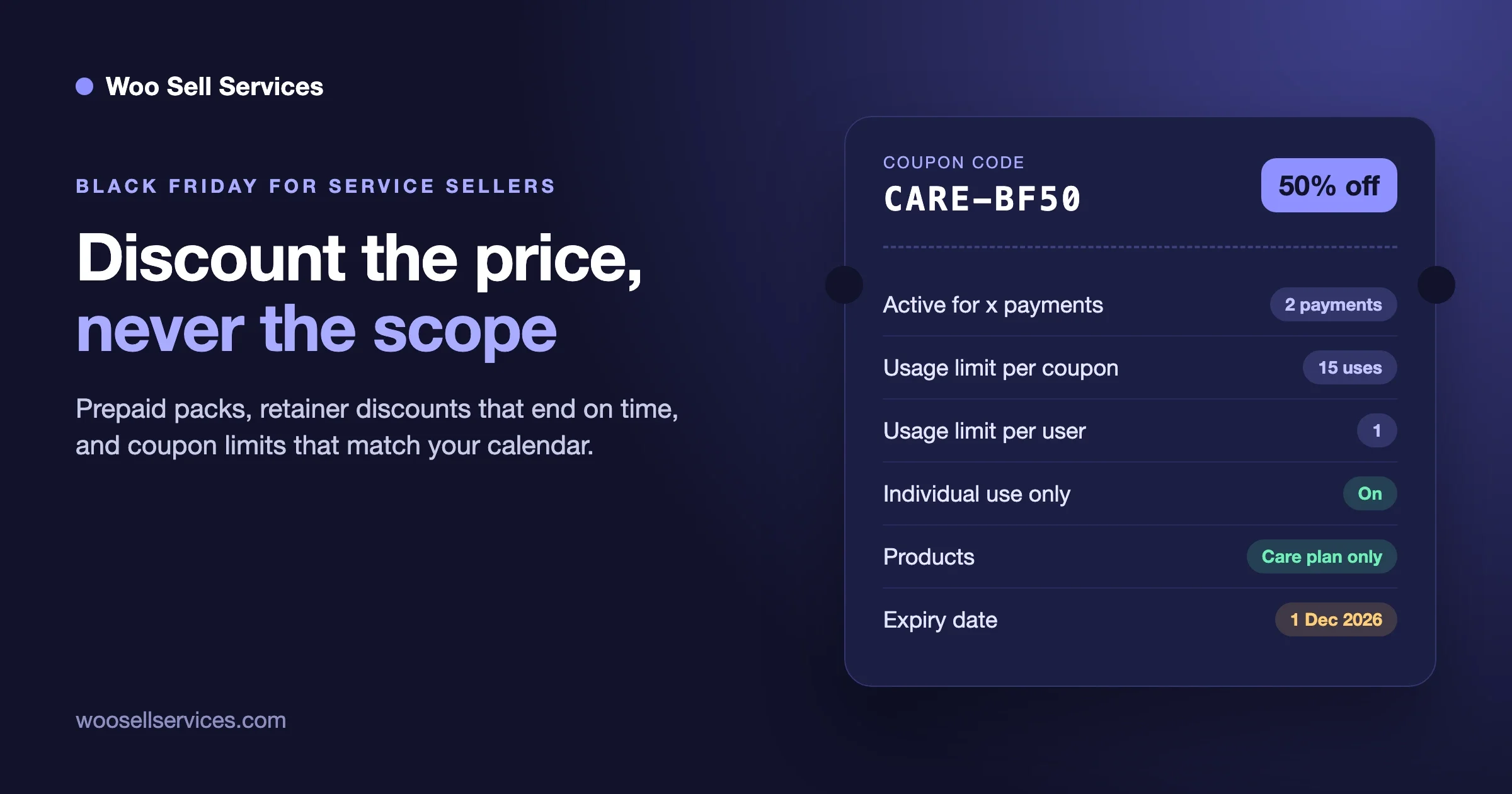
Short answer: a service seller on WooCommerce should discount the price and never the scope. Sell prepaid packages that expire, give retainer clients a discount on a set number of payments instead of forever, and lock every Black Friday coupon down with an end date, a usage cap, a per-customer limit and a product restriction, so you only sell as much work as you can deliver in December and January.
A product store can sell 500 extra mugs and ask the warehouse to hurry. A service store cannot. Every coupon you hand out on 27 November becomes hours on your calendar in the weeks after. This guide walks through the offers that work for service sellers, the exact WooCommerce settings that keep them safe, and the mistakes that turn a good sale into a bad quarter.
Checked on 21 November 2026 against the WooCommerce documentation and extension pages linked below. Black Friday 2026 falls on Friday 27 November.
Why is Black Friday different when you sell services?
Because a service sale is a promise of future time, not a box that leaves the shelf. The discount you give is paid for in hours you have not worked yet.
Three things change compared with a product store:
- Capacity is fixed. You have a set number of working hours in December. A sale that triples orders does not triple those hours.
- Delivery happens later. A buyer who pays on Black Friday may send the brief in January. Without an expiry, you can still be delivering discounted work in June.
- Scope creeps under a discount. Clients who paid less often expect the same amount of work, or more, because “it was a deal”. If the package does not say exactly what is included, the discount comes out of your margin twice.
So the rule for the whole sale is simple. Cut the price, keep the scope written down, and cap the volume.
What kind of Black Friday offer should a service business run?
Pick offers that bring cash in now and work in at a pace you control. These four fit most service sellers, and they can be combined.
Offer | What the buyer gets | Why it is safe for you | WooCommerce pieces |
|---|---|---|---|
Prepaid hour pack or bundle | For example 10 hours for the price of 8, used before a set date | Cash now, work spread over months, expiry stops it running forever | Core product, inventory cap, written expiry |
Fixed-scope package at a sale price | A Basic, Standard or Premium package with a lower price this week | Scope is already written, so the discount only touches price | Variable product or service product, coupon with product restriction |
First months of a retainer discounted | A care plan or monthly retainer at a lower price for the first one to three payments | The discount ends on a known payment, then the normal rate applies | WooCommerce Subscriptions, recurring coupon with “Active for x payments” |
Gift card for a service | A buyer pays now, someone else books the work later | Cash now, the gift card can carry its own expiry | Gift Cards extension by Woo |
What we would avoid: a flat “40% off everything” code with no limits. It discounts your best-selling custom work, it stacks with any old code still live, and it has no ceiling on volume.
How do you set up prepaid packages that do not run forever?
A prepaid package is a normal WooCommerce product. The buyer pays once for a block of work: hours, revisions, articles, design requests or site fixes. What makes it safe is the paperwork around it, not a special plugin.
Step 1: write the package like a contract
On the product page, state in plain words:
- What one unit is (one hour, one blog post of up to 1,500 words, one landing page with two revision rounds).
- How many units the package holds.
- The date by which the units must be used, for example 30 June 2027.
- What happens to unused units (they expire, or they can be moved once for a fee).
- What is not included (new features, third-party licence costs, rush delivery).
Keep that text in the product description and in the order email, so the buyer sees it before and after paying. Our post on Fiverr-style Basic, Standard and Premium packages has wording patterns you can copy for each tier.
Step 2: make it virtual, not shippable
Tick Virtual on the product. WooCommerce describes virtual products as “intangible items like services or memberships that don’t require shipping”, so the checkout will not ask for a shipping address. Leave Downloadable off unless you really deliver a file at checkout.
Step 3: cap how many you sell
Turn on stock management for the package and set the stock quantity to the number of packages you can serve. If you can take on 15 extra clients across December and January, the stock is 15. When the stock reaches zero, the product shows as out of stock and the sale stops on its own. That one field is the most useful Black Friday setting a service seller has.
If each buyer should only get one package, tick Sold individually in the Inventory section. WooCommerce’s product docs note that it does not stop a customer from placing a second order, so pair it with a per-customer coupon limit (covered below) if the price is only reachable with a code.
Step 4: track what has been used
WooCommerce itself does not count hours against an order. Most small sellers track the balance in the order notes or a shared sheet, and send the client a short balance line with each delivery (“4 of 10 hours used, 6 left, valid until 30 June 2027”). If you run the work through a service order screen, the balance can sit in the order conversation where both sides see it.
Should you discount a retainer, and what happens at renewal?
Yes, if the discount is limited to the first few payments. A first-month discount gets a hesitant client onto a care plan. A permanent discount gives away margin on every month the client stays, which for a good retainer client can be years.
WooCommerce Subscriptions gives you two ways to do this, and they behave very differently at renewal.
Option A: a recurring coupon with a payment limit (recommended)
Subscriptions adds two coupon types under Marketing > Coupons: a recurring product discount (fixed or percentage) and a sign-up fee discount. A recurring coupon has an Active for x payments field. The Subscriptions Coupons documentation says that if you leave it blank, “the coupon will be active for the duration of the subscription”. Enter a number and the coupon stops after that many payments. The first payment counts toward the limit.
So a Black Friday code for “50% off your first two months of the care plan” is a Recurring Product % Discount of 50 with Active for 2 payments. On the third renewal the client pays the normal price, without you touching anything.
One detail from the docs to plan for: a recurring discount only applies to the first payment when the product has no free trial and no aligned first payment set for a later date. If your retainer has a trial, the first discounted payment is the first paid renewal.
Option B: a sale price on the subscription product (be careful)
This is the one that catches people out. WooCommerce’s own guide to updating prices for existing subscribers says that “by default, all existing subscriptions continue to renew at the old price”. The price is stored on the subscription when it is bought. Our reading: a client who signs up during a sale is likely to keep renewing at the sale price until you change it on their subscription. We have not confirmed this with a live test for this post, so check it on a staging copy before you rely on it. The safe choice for a time-limited retainer discount is Option A.
What about normal cart coupons?
Ordinary cart and product coupons do not touch renewals. The same Subscriptions doc says they “apply only to the first payment of a subscription”, meaning the sign-up fee if there is one, or the first payment if there is not. That makes a regular percentage code a clean way to discount a set-up fee (onboarding, audit, migration) while the monthly fee stays full price.
For the wider picture of selling retainers, see our guide to WooCommerce Subscriptions for services and retainers.
Which WooCommerce coupon settings stop a Black Friday code from breaking your scope?
All of the settings below are in WooCommerce core, on the coupon edit screen under Marketing > Coupons, and are described in the WooCommerce coupon management documentation. Set every one of them on a Black Friday code. It takes five minutes per coupon.
Tab | Setting | What it does | Black Friday value for a service seller |
|---|---|---|---|
General | Discount type | Percentage, fixed cart or fixed product discount | Percentage for packages, fixed amount for set-up fees |
General | Coupon expiry date | The coupon cannot be used on the date you set | Set it to the day after your last sale day (see the mistakes section) |
Usage restriction | Minimum spend | Cart subtotal needed before the code works | Use it for “X off orders over Y”, so small one-off jobs stay full price |
Usage restriction | Individual use only | The code cannot be combined with other coupons | Always on |
Usage restriction | Exclude sale items | Products already on sale do not get the coupon | On, if you also set sale prices |
Usage restriction | Products / Exclude products | Limits the code to named products, or blocks named ones | Only the packages in the sale; exclude custom quotes and rush delivery |
Usage restriction | Product categories / Exclude categories | Same idea by category | Exclude a “Custom work” category |
Usage restriction | Allowed emails | Only listed billing emails can use it; the * wildcard works | Use for a past-client-only offer |
Usage limits | Usage limit per coupon | Total uses across all customers | Your capacity, for example 15 |
Usage limits | Limit usage to X items | Caps how many items get a percentage or fixed product discount | 1, so one discounted package per order |
Usage limits | Usage limit per user | Uses per customer | 1 |
Two more facts from the same page that matter for a sale:
- You can schedule a coupon by editing its publish date and choosing Schedule, so the code goes live at the start of the sale without you being at a desk.
- A valid coupon can be added to a sharable checkout URL, which is handy for an email to past clients: one click lands them in checkout with the package and the discount already applied.
Coupons are applied before tax, and the minimum spend check uses the displayed subtotal, which includes tax if your store shows prices with tax. If you sell in a country with VAT and show prices including it, set the minimum with that in mind.
One code or several?
Several. Give each offer its own code: one for the prepaid pack, one for the retainer, one for past clients. Separate codes give you separate usage counts, so you can see which offer is filling the calendar and switch one off without touching the others.
How do you cap how much work you sell?
Decide the number before the sale, then put it into WooCommerce in two places so either one stops the sale.
- Work out real capacity. Take the hours you can bill in December and January after holidays and current clients. Divide by the hours in an average package. That is your ceiling. Take 20% off it for the client who needs twice the support.
- Set product stock to that number on each sale package.
- Set the coupon’s usage limit per coupon to the same number.
- Write the start window on the product page. “Work on Black Friday packages starts from 4 January 2027” is honest and sets expectations before payment.
If you sell time slots instead of packages (coaching calls, consultations, site audits on a fixed day), a booking product does the capping for you, because a slot can only be booked once. Our guide to WooCommerce Bookings for service businesses covers how slots, deposits and staff calendars work.
Should you take a deposit instead of full payment?
For large Black Friday packages, a deposit can lower the barrier for the buyer while still giving you a commitment. Two cautions.
First, the official WooCommerce Deposits extension by Woo lets you set a deposit as a percentage or a fixed amount, and set payment plans by days, weeks or months. Its page also says it does not store card details or collect later payments on its own. Each later payment becomes a scheduled order the customer pays when it is due. So a deposit is a promise to pay the rest, not a guarantee.
Second, a deposit sale brings in less cash on the day. If the point of your Black Friday is cash for the slow months, full payment for a prepaid pack is usually the better offer, and deposits suit the bigger custom projects that are not in the sale anyway.
If you do take deposits, invoice each stage clearly. Our post on invoices for service orders, deposits and milestones shows how to keep each payment on its own invoice.
Can you sell gift cards for a service?
Yes. December buyers often pay for someone else: a business owner buying a site audit for a friend, a team buying coaching for a colleague. A gift card turns that into cash now and a booking later.
Woo sells an official extension called Gift Cards for WooCommerce. Its page says you can set validity per gift card so codes expire, customers can store gift cards in their account and see their balance, and buyers can pick a custom delivery date for the card. It is a paid extension with a yearly licence; check the current price on that page, as it is shown in your local currency.
The service-seller rules still apply. Put an expiry on the card, say on the product page what it can be spent on, and count gift cards in your capacity plan, because each one is future work.
How do you stop a discounted order from growing in scope?
Write the scope rules before the sale and show them in three places: the product page, the order email and the first message on the order. A buyer who paid less needs the same clear limits as a full-price client, and sometimes clearer ones.
- Revisions: state the number of revision rounds. A Black Friday package can have the same number as the normal one, not “unlimited”.
- Change requests: anything outside the package is quoted as a new order at the normal rate, not added to the discounted one.
- Start date and expiry: work begins on a stated date and unused units expire on a stated date.
- Refunds: say whether a prepaid pack is refundable before work starts, and what happens once work has started.
We wrote copy-ready wording for these rules in revisions, scope changes and cancellations on a WooCommerce service order. Use it as it is, then add the Black Friday dates.
If you have not yet decided how each kind of work is priced, this is the time. A sale is a bad moment to discover that a job you sell at a fixed price is really a quote. Our post comparing fixed price, quote, milestones and retainer helps sort which offers belong in the sale at all.
What does a sensible Black Friday plan look like for a small service store?
Here is a worked example for a two-person web care agency. The numbers are an example to show the method, not a recommendation for your prices.
Offer | Price | Limit | Code settings |
|---|---|---|---|
10-hour support pack, use by 30 June 2027 | Normal price of 10 hours, minus 20% | Stock 12 | No code needed, sale price with an end date; or a code limited to this product, usage limit 12, per user 1 |
Monthly care plan, first two months at 50% off | Normal monthly price after month two | 20 new sign-ups | Recurring Product % Discount 50, Active for 2 payments, usage limit 20, per user 1, individual use |
Site audit set-up fee | Fixed amount off the set-up fee | 10 | Fixed cart discount limited to the audit product, usage limit 10 |
Gift card for an audit | Face value | Counted inside the audit limit | Gift card valid for 6 months |
Two notes on the table. The care plan uses a coupon, not a sale price, so the discount ends after two payments. And the audit limit includes gift cards, because a gift card is still an audit someone has to do.
A timeline you can follow this week
- Today to 24 November: write the scope text, set stock, create and schedule the coupons, test each code on a staging copy or with a test order.
- 25 November: email past clients with a sharable checkout link for the past-client offer.
- 27 November to 30 November: watch coupon usage counts once a day. When an offer reaches its limit, leave it closed.
- 1 December: check every coupon has expired, then send each buyer a short message with the start date and what to prepare.
Common mistakes people report
These come up again and again in support forums and in the WooCommerce docs. Each one is a few minutes to prevent.
1. The coupon stops working a day early
Symptom: customers on the last day of the sale see an error. Cause: the WooCommerce coupon docs say a coupon “cannot be used on the date that is set” as its expiry. Woo’s Smart Coupons documentation adds that core WooCommerce only sets expiry in multiples of 24 hours, not at an exact time. Store owners have reported the same surprise on the WordPress.org forum (thread from 2018, still a common question). Fix: if the sale ends on 30 November, set the expiry to 1 December, and check your WordPress timezone under Settings > General.
2. A guest uses a “once per customer” code twice
Symptom: the same person gets the discount on two orders. A store owner described this on the WordPress.org WooCommerce forum in 2020; support could not reproduce it and pointed to a possible plugin or theme conflict. The core docs do not explain how a guest is identified for the per-user limit. Fix: for offers that must be one per person, require an account at checkout for that week, or use the Allowed emails field for a past-client list.
3. More people apply the code than the usage limit allows
Symptom: the code applies in several carts at once even though only one use is left. A WooCommerce support reply on the WordPress.org forum (2019) explained that the limit is not enforced on the cart page; the first buyer to complete checkout gets it and the others see an error at checkout. Fix: expect a few frustrated buyers near the limit and have a polite reply ready. Product stock is a firmer cap than the coupon limit.
4. The retainer discount never ends
Symptom: in March, clients who signed up on Black Friday are still paying the sale price. Cause: a sale price on the subscription product, or a recurring coupon with Active for x payments left blank. Woo’s guide says existing subscriptions keep renewing at the price they were bought at by default. Fix: use a recurring coupon with a payment limit for any time-limited retainer offer.
5. Changing the coupon limit later does not take effect straight away
Symptom: you shorten a coupon from 3 payments to 2, and a client still gets a third discount. Cause: Woo’s limited payment coupon guide says subscriptions using the coupon “won’t reflect the change until after the next renewal”, because the limit check runs after the renewal is processed. It also says removing a coupon from one renewal order does not remove it from the subscription. Fix: decide the limit before the sale and do not edit it during.
6. An old code stacks with the Black Friday code
Symptom: a buyer combines a 15% welcome code with your 30% sale code. Fix: tick Individual use only on the Black Friday code, and look through Marketing > Coupons for old codes without an expiry. Give those an end date too.
Where does Woo Sell Services fit in a Black Friday sale?
Woo Sell Services is our plugin for selling services through WooCommerce, so read this section knowing we made it. It does not create discounts, coupons, deposits or gift cards. Those stay with WooCommerce and the extensions above.
What it does, per its features page: it adds a Service checkbox to the product data panel beside Virtual and Downloadable, asks the buyer your requirement questions after payment, and gives each order a chat thread, shared files and a status tracker, with an estimated delivery time you can update later. With WooCommerce Subscriptions active, every renewal of a recurring service stays in one conversation thread. It works with Dokan, WCFM and WC Vendors if you run a marketplace.
For a Black Friday sale, that helps with the part after checkout: 15 new orders each arrive with a brief, a place to post the start date and the hours balance, and a delivery record. The limits are real. It does not count prepaid hours for you, it does not cap sales (product stock does that), and it is one more plugin to keep updated. If you only sell a handful of packages a year, WooCommerce order notes and email may be enough.
Plans are listed on the pricing page: Personal for 1 site at $59 a year or $199 lifetime, Professional for 5 sites at $129 a year or $299 lifetime, and Agency for unlimited sites at $299 a year or $499 lifetime, all with the same features (checked on 21 November 2026).
Selling with Easy Digital Downloads instead of WooCommerce? Our sister site has the EDD version of this guide: running a Black Friday sale on an Easy Digital Downloads store.
Questions service sellers ask about Black Friday on WooCommerce
Is Black Friday worth it for a service business?
It can be, if the offer brings in cash for work you can schedule. Prepaid packs and short retainer discounts suit service sellers well. Open-ended percentage codes on custom work usually do not.
Can a WooCommerce coupon apply only to one service?
Yes. Add the service to the Products field on the coupon’s Usage restriction tab. The coupon then only applies to that product.
How do I give a discount on only the first month of a subscription?
With WooCommerce Subscriptions, create a Recurring Product Discount or Recurring Product % Discount coupon and set Active for x payments to 1. A normal cart coupon also works for the first payment only, because cart and product coupons do not apply to renewals.
Do WooCommerce coupons expire at midnight?
Core coupons work in whole days. The docs say a coupon cannot be used on its expiry date, so set the expiry one day after the last day you want it to work.
How do I stop selling more work than I can deliver?
Turn on stock management for each sale package and set the stock to your capacity, and set the same number as the coupon’s usage limit per coupon. Either one stops the sale.
Should prepaid service packages expire?
We think so. Put a clear use-by date on the product page and in the order email. Check your local consumer rules on expiry and refunds for prepaid services; they differ by country, and this is not legal advice.
Next step
Set up the codes and stock today, test one order end to end, and write the start date on every sale package. If you want each Black Friday order to arrive with a brief, a chat thread and a delivery record, see what Woo Sell Services does or try the live demo.
Sources
- WooCommerce: Coupon management (checked 21 November 2026)
- WooCommerce: Subscriptions coupons (checked 21 November 2026)
- WooCommerce: Limited subscription payment coupons (checked 21 November 2026)
- WooCommerce: Update subscription prices for existing subscribers (checked 21 November 2026)
- WooCommerce Subscriptions: Store manager guide (checked 21 November 2026)
- WooCommerce Deposits (checked 21 November 2026)
- Gift Cards for WooCommerce (checked 21 November 2026)
- Smart Coupons: How to set an expiry time (checked 21 November 2026)